Chords365 Manual
A walkthrough of the app's main features: songs, setlists, Music Director mode, team collaboration, import, drawing, projection, pedal and offline use.
Jump to the section you need
- 01Introduction
- 02Sign-in and group
- 03Home screen layout
- 04Song display
- 05Transposing & capo
- 06Drawing on sheet images
- 07Music Director mode
- 08Setlist
- 09Song library & heatmap
- 10Import: internet, Kottatár.hu + OCR
- 11Editing songs
- 12Events & mini calendar
- 13Group management
- 13bRoles
- 13cProjects & tasks
- 14Group invitations
- 15Settings
- 16Projection, slides & pairing
- 16bBuilt-in projection software
- 17Pedal & keyboard
- 18Offline use & installation
- 19Menu (Global Header)
- 20Language and Appearance
- 21Group Broadcast (admin)
- 21bCCLI / license report (admin)
- 22Bug Report with Screenshot
- 23New Login Screen
- 24Media Library (Group Files)
- 25Troubleshooting
Welcome to Chords365
Chords365 is a modern virtual chord book for music teams. The app runs in the browser, requires no installation, and is currently free (it runs on voluntary support).
The minimum system requirement is 4 GB of memory (RAM) for the app, and 8 GB for projection.
What is it for?
- Your own songs in ChordPro and PDF/image format — chords and lyrics at the same time, even from an internet search or a photo.
- H or B note naming: switch between the German (H) and Anglo-Saxon (B) notation, and the setting carries over across your devices.
- Setlists for rehearsal and performance; in team sync.
- Music Director mode: the leader's song changes and commands are visible to everyone live.
- Projection: the lyrics can be projected in a dedicated slideshow view, and the remote projector can be paired with a QR code.
- Event calendar: who will be present on which day and at which session.
- Offline-capable during rehearsal and performance, even when the internet drops.
The manual is written so that reading it in order you'll understand everything. But if you want to quickly find a specific feature, jump to it from the table of contents.
Sign in and join a group
You can choose from several sign-in methods: a Google account, email + password, or a passwordless passkey. If you don't have a Google account (or don't want to use it), you can register your own account with an email address.
Signing in starts by opening chords365.com — there, on the Sign in securely card, you'll find all the options. For the detailed, step-by-step login walkthrough, see 23. Signing in.
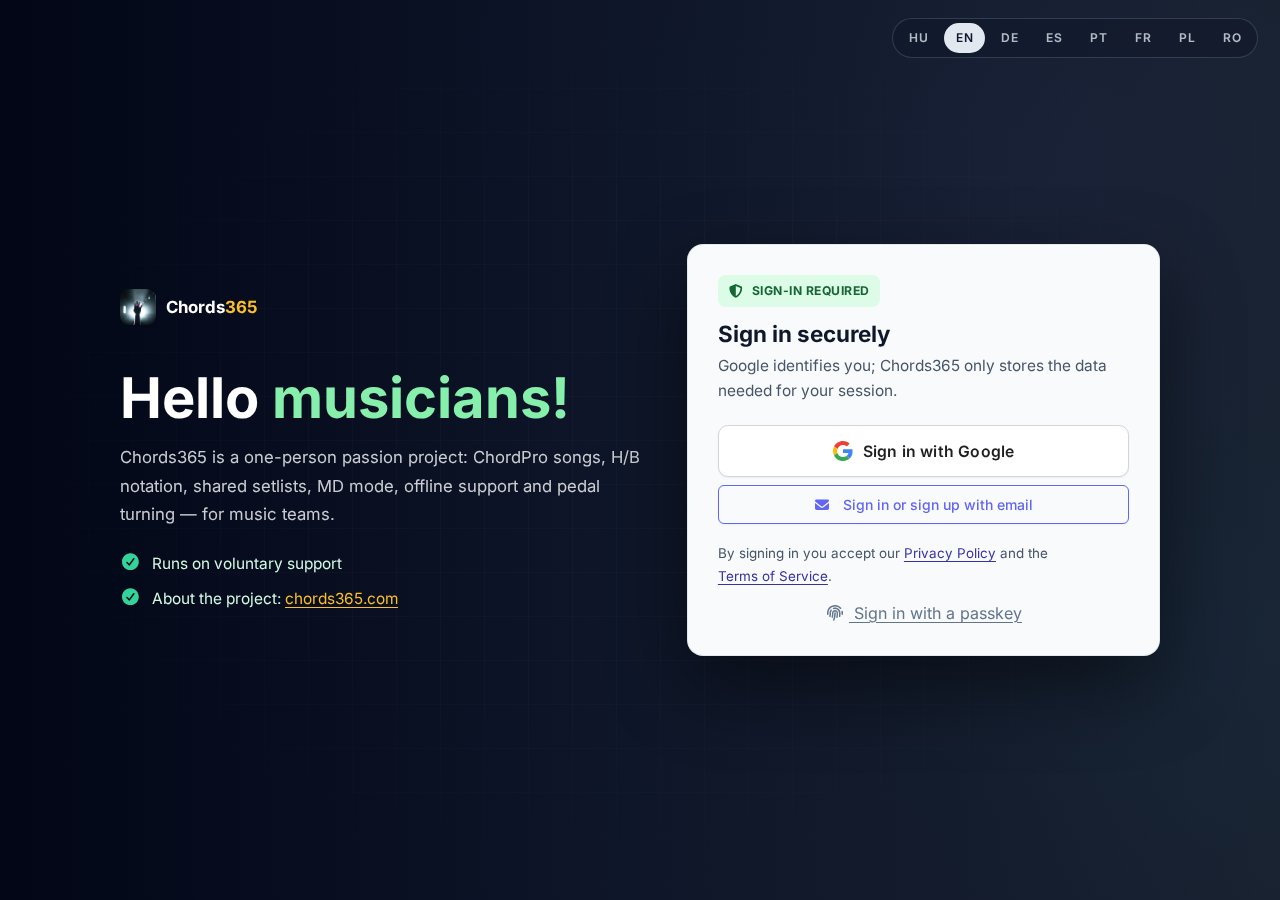
Signing in with a Google account
- Open chords365.com in your browser.
- Click the Sign in with Google button.
- Allow profile access (name, email) in the Google window.
- You'll be redirected to the home screen — you're in.
In Chrome (if you have an active Google session) the Google One Tap prompt may pop up automatically — with it you can sign in with a single click. The manual Sign in with Google button is always there too, in case the prompt doesn't appear.
Registering and signing in with email
You can create your own account without Google as well:
- Below the Google button, click the Sign in or sign up with email button — this opens a panel with a Sign in / Sign up tab.
- Switch to the Sign up tab, enter your name, your email address and a password (at least 10 characters), then confirm the password.
- Press the Sign up button — you'll receive a 6-digit confirmation code by email.
- Enter the code, then finish with the Confirm and sign in button.
If you already have an account, stay on the Sign in tab, enter your email and password, and press the Sign in with email button.
If you don't remember your password, click the Forgot your password? link on the Sign in tab — we'll send you a code to set a new password. The same path also works for setting a password for the first time if you originally created your account with Google.
If you register with the same email address you previously used to sign in with Google, the app does not create a new account — instead it attaches the password to your existing one, so both methods sign you into the same account.
Signing in with a passkey
A passkey is a passwordless, biometric or device-PIN sign-in. If your device and browser support it, the Sign in with a passkey link appears at the bottom of the login card — with a single tap (fingerprint / face / PIN) you're in, without even typing an email.
You can add a passkey to your already signed-in account on the Account tab in settings (see 22. Settings). A passkey is tied to a specific device and domain, so you have to add it separately on another machine.
Google sign-in doesn't work in the built-in browser of Facebook and Messenger — the app warns you and asks you to open it in Chrome (top-right three dots → Open in Chrome).
Pairing a projector
On the login card you'll also find a Pair a projector button. This isn't a regular sign-in, but the way to link a projector device to your account — you'll find the details in the 16. Projection, slides and pairing section.
Joining a group
The app is used at the group level — every user belongs to at least one group. There are two paths to a group:
- Create a new group: if you don't belong to any group yet, the app shows a "Your profile is not associated with any group" screen. Click the "click here and register a new group" link, enter the group name, then press the "Create new group" button — you'll become the admin of the new group, and the app will shortly reload with your own group.
- Join with an invitation: if an admin has sent you a link, click it, sign in, and send a join request — the admin receives it by email and approves it.
See the invitation process in detail: 14. Group invitations.
Home screen: everything on one screen
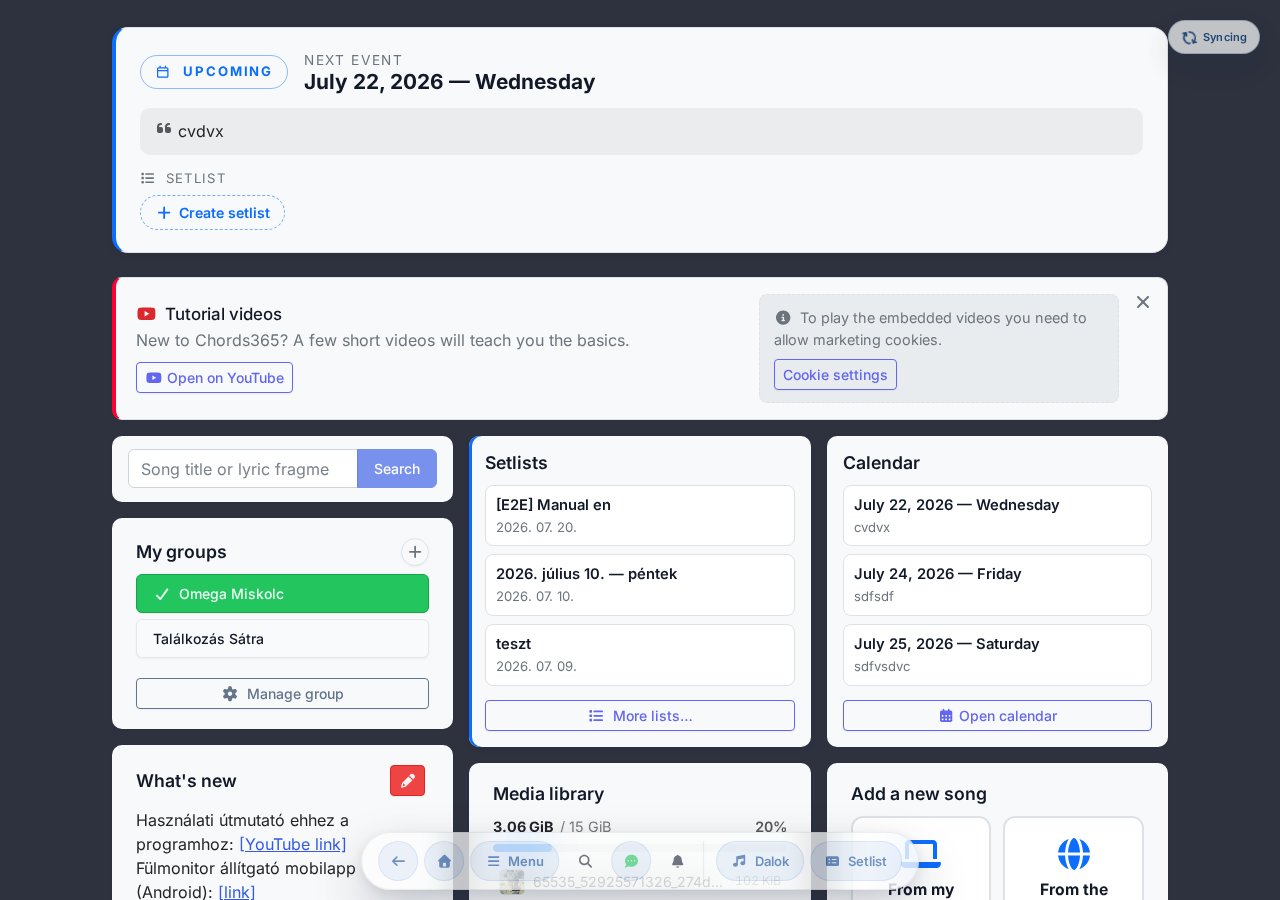
After signing in, the starting screen shows several well-separated modules (widgets): my groups, quick song search, latest news, previous lists, mini calendar, events and the group's most recently active members.
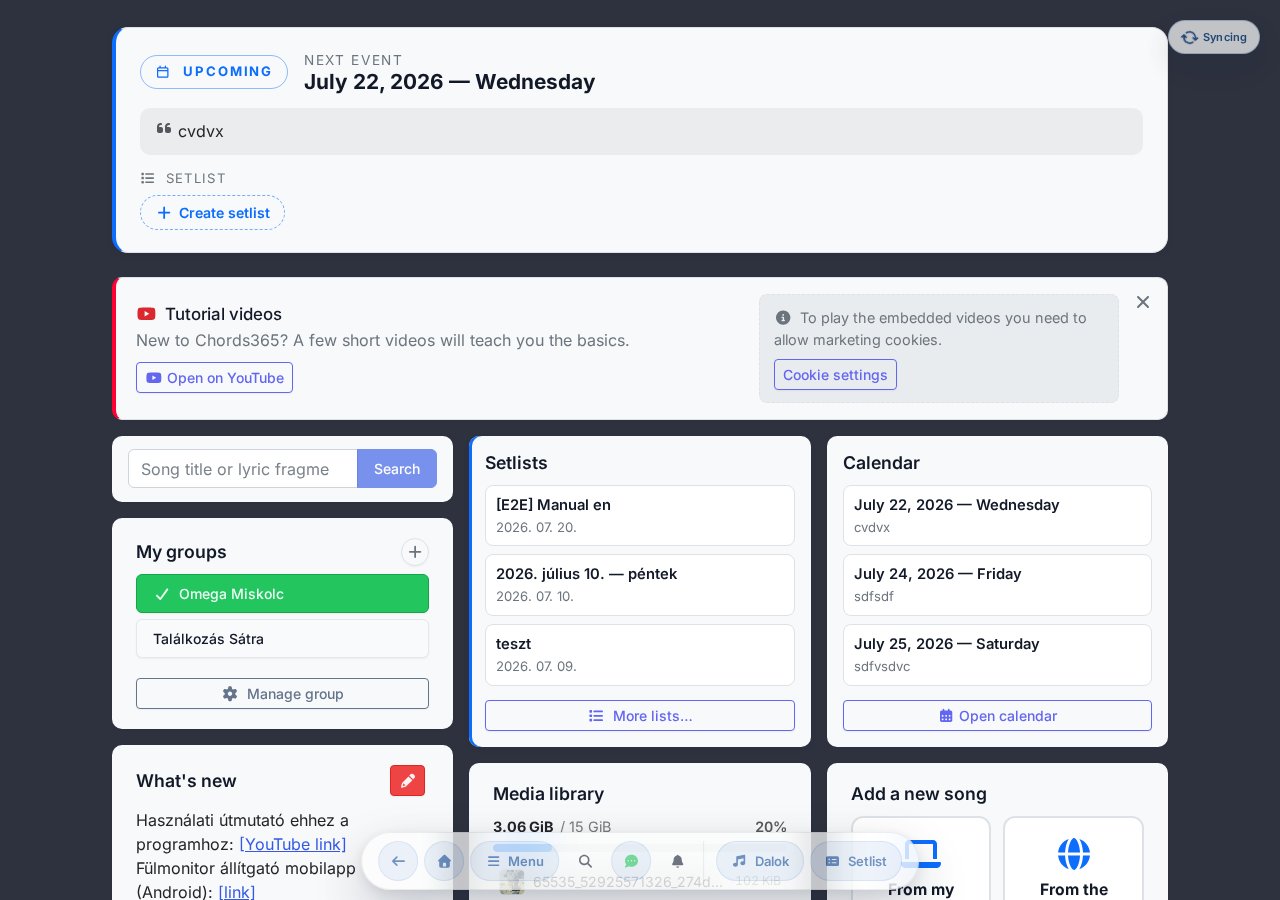
Today's event
If an event is scheduled for today, a pulsing card highlighted with a TODAY badge appears at the top of the home screen (below the system message): today's date, the note written by the admin, and quick-entry pills for the setlists linked to the event (labelled Daily setlist). One click takes you straight to the setlist — no need to find it in the events box. If the administrator has also assigned a location to the event, the card shows the venue on a map as well. If there's no event on a given day, the card takes up no space at all.
My groups
A vertical row of buttons with your groups. The highlighted green one is the currently active group. Using the button in the widget header, any user can create their own group (Create your own group): in the modal that opens you name it, you become the admin of it, and once it's created the app immediately switches to the new group — your previous groups remain in the meantime.
If you have more than two groups, the home page shows only the active group to save space; the rest move behind a More groups button. Clicking it opens a window that lists all your groups (the active one marked with a green check), and you can switch to any of them with a click.
For a freshly created group — while you're still its only member — an Invite people card appears at the top of the home page that takes you to creating an invite link in a single click. As soon as someone joins the group, the card disappears on its own.
The Manage group button at the bottom of the widget is available to every member and opens a modal. In the modal you can initiate leaving the group: after pressing the Start leave request button, you'll receive a confirmation email about an hour later, and you have to finalise leaving with the link in it. While the request is pending, you can step back with the Cancel leave request button. Group admins also see an extra Open admin management link that leads to the detailed admin interface (/group-admin).
Quick actions
The old Settings box on the home screen is gone — all functions from it (Sheet image mode, More settings, Sign out, starting projection and controls) are now accessible in the modal opened by the Menu button in the header. Details: 19. New menu (global header).
What's new
The group administrator can post messages here — e.g. new songs, tagged YouTube links, rehearsal info. Editable with the icon (for group administrators).
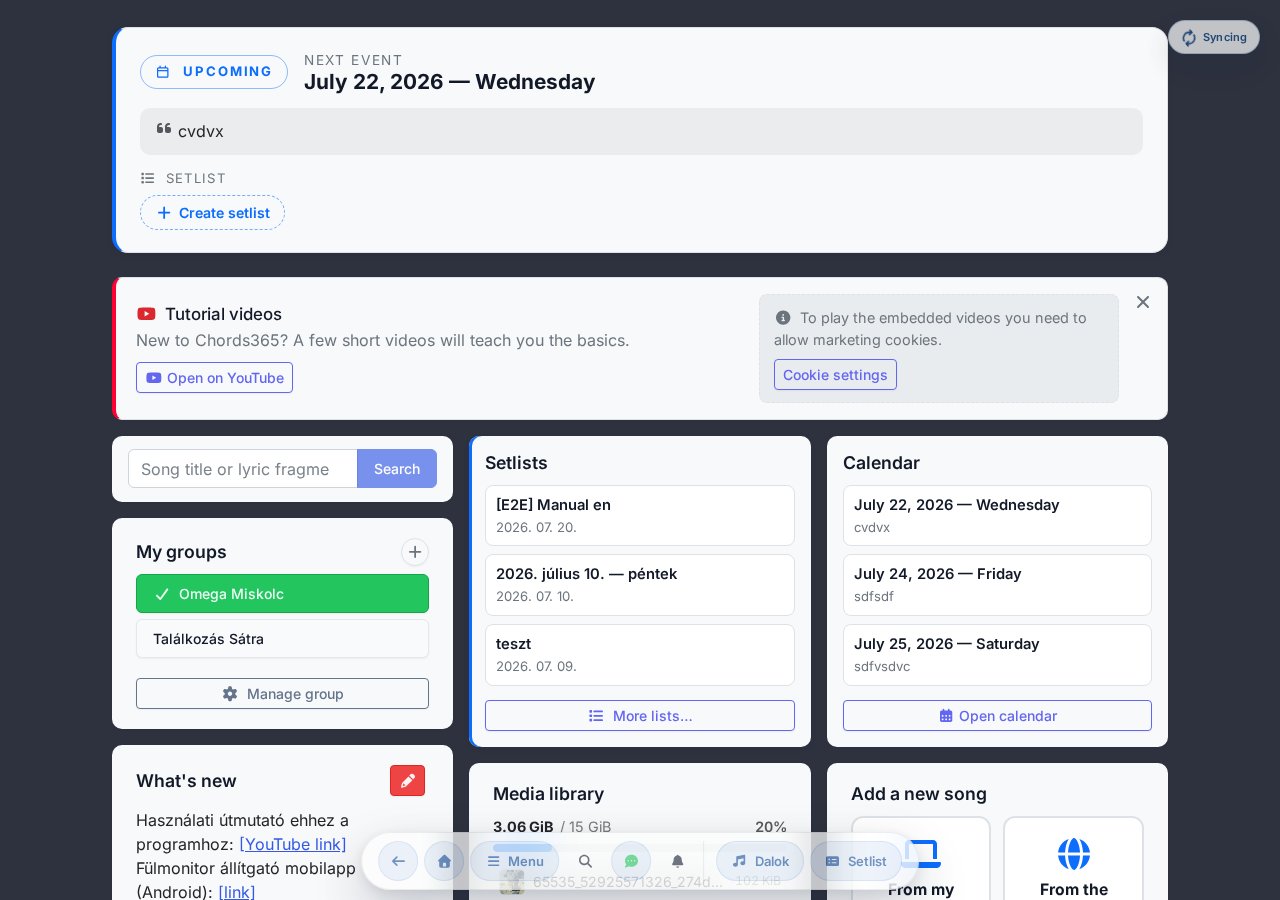
Previous lists
Quick links to the last 5 setlists. The More lists… button opens a modal with all setlists (loaded 10 at a time, lazy).
Mini calendar
Monthly calendar where green dots indicate days with events. Features:
- ◄ ► month navigation.
- Today button in the top right next to the title — jumps back to the current month.
- Click on a day with an event → opens the all-events modal focused on that day.
- For group administrators: click on an empty day → new event modal with the clicked date.
- New event button (admin only).
Events
On the right side (the wide column beside the mini calendar) the next 5 events are shown. The full list — past and future — can be opened with the Past events link (or by clicking an event day in the mini calendar), and appears as a modal titled All events.
For every event you can indicate your attendance with three buttons (RSVP):
- I'll be there — green.
- Not sure yet — yellow (you don't know for certain yet).
- I won't be there — grey.
The responses can also be seen at the event in an aggregated view, broken down into four groups: Will attend, Not sure, Won't attend and No response yet.
If the administrator has also specified a location, it appears compactly in the event row; if there's no location yet, the admin can assign one by clicking the Add location pill (with address autocomplete and automatic map coordinates).
Weekly reminder email
If the group administrator has enabled it, you'll receive a weekly reminder email about upcoming events in the next 30 days. The email lists the sessions broken down by group, and for each one a coloured indicator shows your response — one of four states:
- You'll be there (green),
- You won't be there (grey),
- Not sure (amber),
- No response yet (amber).
This way you can see at a glance where you still need to confirm. If there are no upcoming events in any of your groups, no email is sent. With multiple groups you still receive just one combined email.
Now online
Below the mini calendar (desktop view only) the Now online widget shows the group's most recently active members, with an online / offline indicator — online means active within the last 5 minutes. The All members button opens a modal with the full member list of the group. Only the group administrator can see the members' exact last-activity time.
The song page
This is the app's main screen — the chord-lyric view is displayed here, and transposing, capo, MD mode and drawing are all controlled from here.
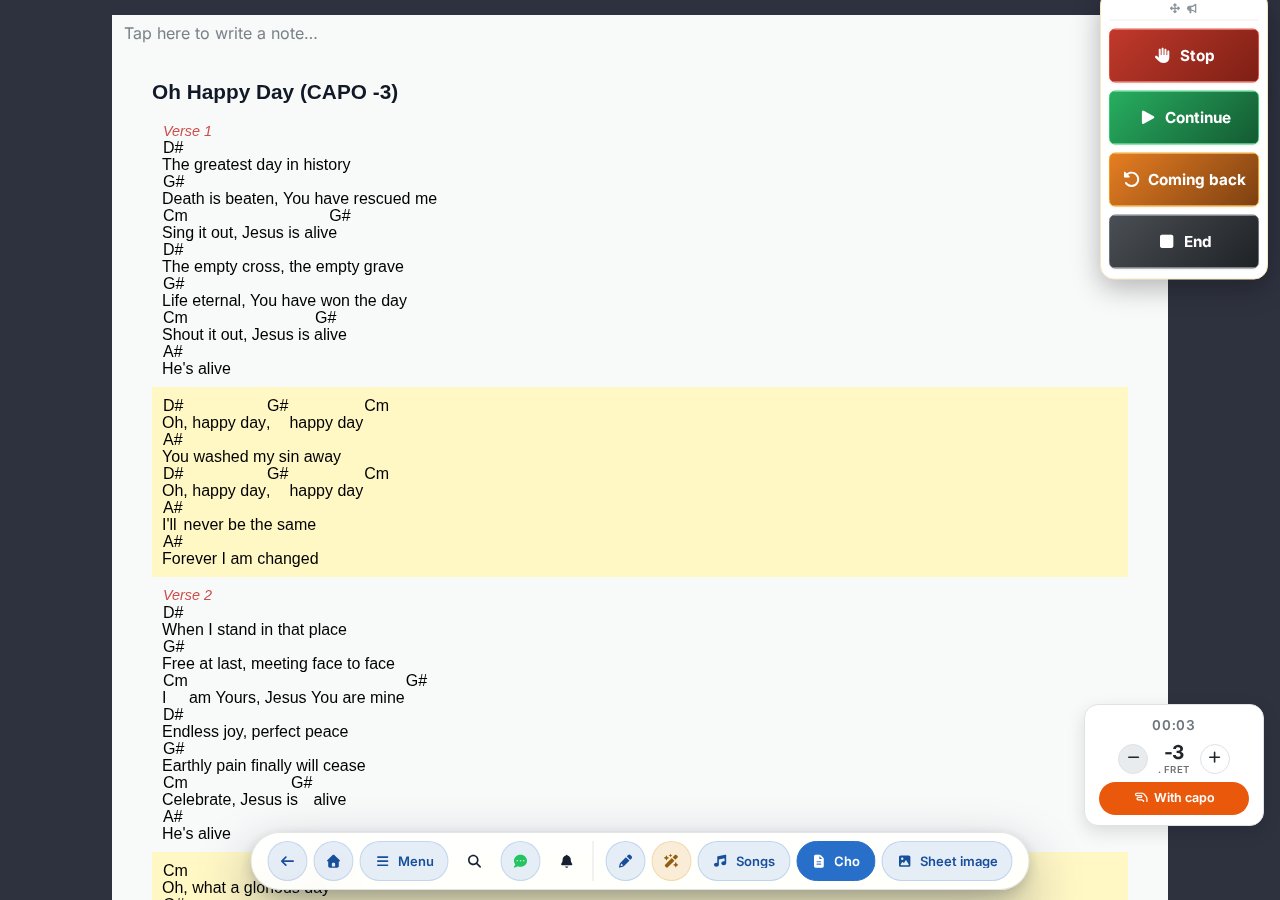
What's on screen?
- Typable note field — a free-text bar at the top of the song where you can write your own note or reminder for the song (placeholder: Tap here to write a note…). Whatever you type here is saved automatically.
- Title + subtitle + (CAPO value).
- Verse / Pre Chorus / Chorus / Bridge sections — the chorus is automatically highlighted with a yellow background.
- Capo panel at the bottom right, for setting the capoed key and position.
- MD command dock — in Music Director mode, a vertical panel always visible on the right side around the upper third of the screen, with 4 command buttons.
Song quick actions (in the Menu modal)
The song page's quick actions are accessible at the top of the modal opened by the Menu button in the global header, in the Quick song actions section:
- Add to setlist / Remove from setlist — if you have an active setlist and are in edit mode.
- Share — copies the song URL to the clipboard.
- Sheet image toggle — if at least one sheet image has been uploaded for the song, this toggle lets you instantly switch between the ChordPro text view and the uploaded sheet scans (see the Sheet image and variants part below).
- Edit song — takes you to the editor screen.
- Stem / multitrack toggle — switches the embedded multitrack player on/off (see below). The toggle is always visible; if the song has no uploaded stem package, a placeholder appears in place of the player.
- Notes — opens the modal containing source URLs and free-text notes.
- MD projection toggle — if a projector is paired, this lets you control the projected content from the song page (Music Director projection control).
- Slideshow toggle — switches the view from lyrics to per-song slides that can be projected (see chapter 16).
- Song history toggle — shows/hides the history tables below the song (see below). Controls the same setting as the Show song history toggle in the Appearance modal.
- Learning mode toggle — shows/hides instrument fingerings for the chords used in the song (guitar, piano, ukulele; see below). Off by default. It only appears if the song has real ChordPro (chord-lyric) content — not for sheet-image-only songs.
- Show MD panel toggle — only appears in Music Director mode. Shows/hides the MD command dock on the right. (Don't confuse this with the MD projection toggle: this one hides/shows the command panel on your own screen.)
Sheet image and variants
If a sheet image has been uploaded for the song, the Sheet image toggle lets you switch between the ChordPro text view and the uploaded sheet scans.
A single song, however, can have not just one but several sheet-image sets (variants) — for example a simplified version and a full chart, or two different arrangements. If there are at least two selectable variants (the Cho text view + each uploaded image set under its own name), variant-picker buttons (pills) appear on the header island. Clicking these doesn't just toggle the sheet image on/off — it lets you switch directly between the text view and each sheet set. With a single selectable variant there's no pill — in that case the two-state toggle above is enough.
Appearance modal
The Appearance action in the global header (magic wand icon) — an icon shown directly on the header island, not inside the Menu modal — opens the Appearance modal. Here you can configure the display in four sections:
- Theme and background — dark / light / system theme, plus the background.
- Chords — how chords are shown, their color, size, and the note naming (Hungarian B/H or Anglo Bb/B).
- Text — the sizing and look of the lyrics.
- Features — this is where you find, among others, the Show song history and Swipe paging (gesture) toggles, plus the metronome and the song timer.
These settings apply globally (to all songs), not as per-song overrides.
Links, notes modal
The Notes button in the Quick song actions section of the global header Menu modal opens a modal showing the source URLs saved for the song (YouTube link, original chart source, kotta.ezazanap.hu reference when imported) and free-text notes that can be read/edited (pencil icon). The domain is shown shortened; clicking opens a new tab.
Favourite songs
You can mark songs as favourites in the Library song list: every song card has a heart () button to toggle the favourite state (removal asks for confirmation). You can quickly filter for your favourite songs in the library — so at rehearsal your most-played songs are one click away.
Next song preview
If you opened a song from a setlist, an info bar at the top of the song (on the right) shows the list name and the next song title. This way at rehearsal you can see at a glance what's coming — and click to jump to it.
Sticky previous / next buttons (slide)
In setlist view, large ◀ / ▶ sticky buttons appear on both edges of the screen for jumping to neighboring songs. You can also page with a gesture (swipe) — controlled by the Swipe paging (gesture) toggle in the Appearance modal Features section. On tablets you can additionally enable the compact pager variant on the Settings page. It works with pedal input too.
Song history
Enable the Song history toggle (in the Menu modal Quick song actions section or the Appearance modal) — then scrolling to the bottom of the song you can see when, in which list and in what key it was previously played.
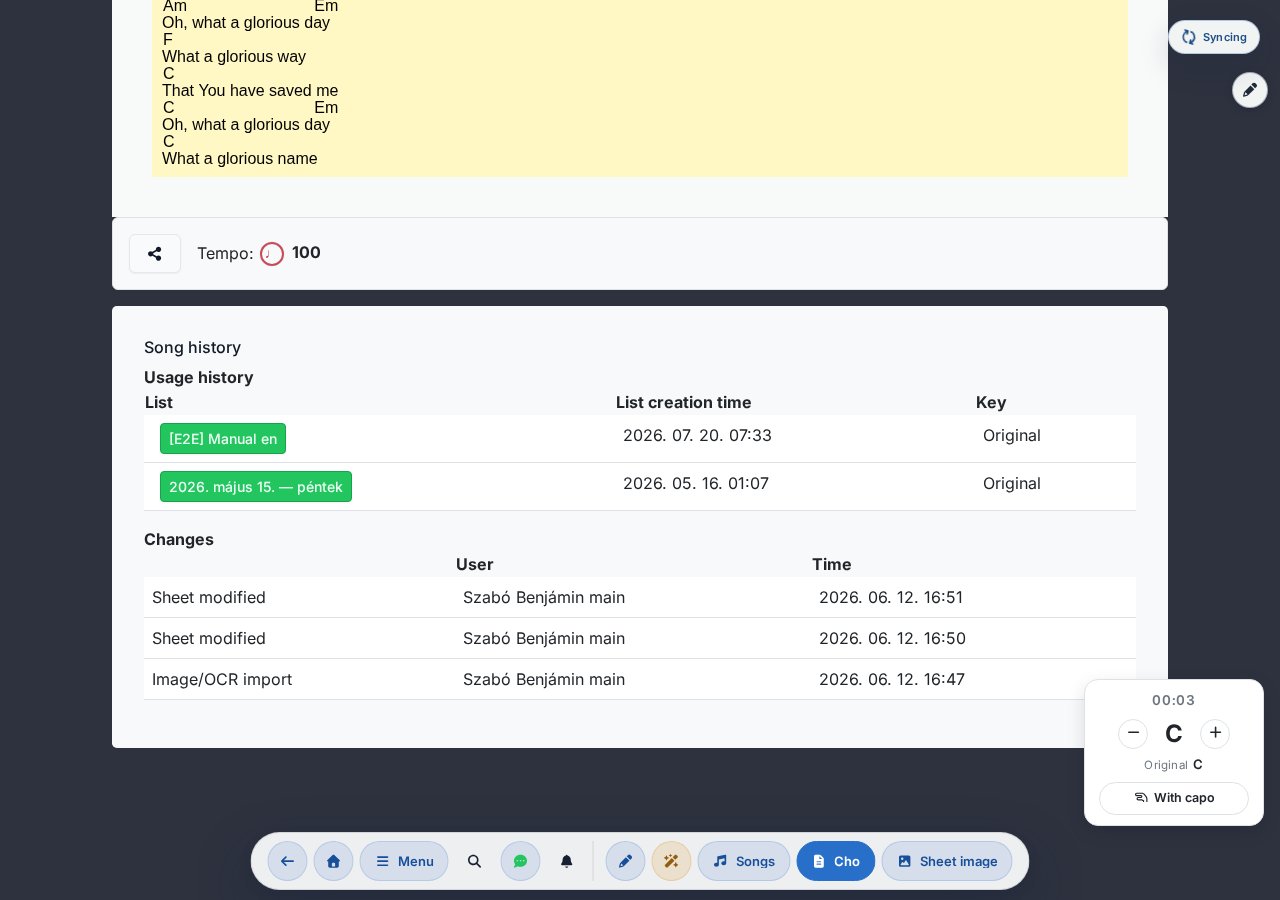
Edit log
The second table below the history shows the song's editing history: who changed the chords, lyrics or metadata, and when. Useful when something disappeared from a song or a teammate made unwanted changes — you can ask them what they intended.
Stem / Multitrack player (beta)
If multiple separate audio tracks (drums, bass, guitar, keys, vocals, click, guide) have been uploaded for the song, a Stems / Multitrack button appears on the song page. Once opened, an embedded mixer interface appears:
- Per-track volume slider, Mute / Solo toggle.
- Single play / pause for all tracks — they start together, in sync.
- Key matching: if the recording's original key is known, the app adjusts the multitrack to the key set on the song in real time. Works with capo too.
- Tempo matching: similarly, if the recording's original tempo is known, it's matched to the current tempo.
- Waveform visualization: the full waveform is visible per track; click to seek.
- Track preferences (volume, mute, solo) are saved per device — it opens the same way next time.
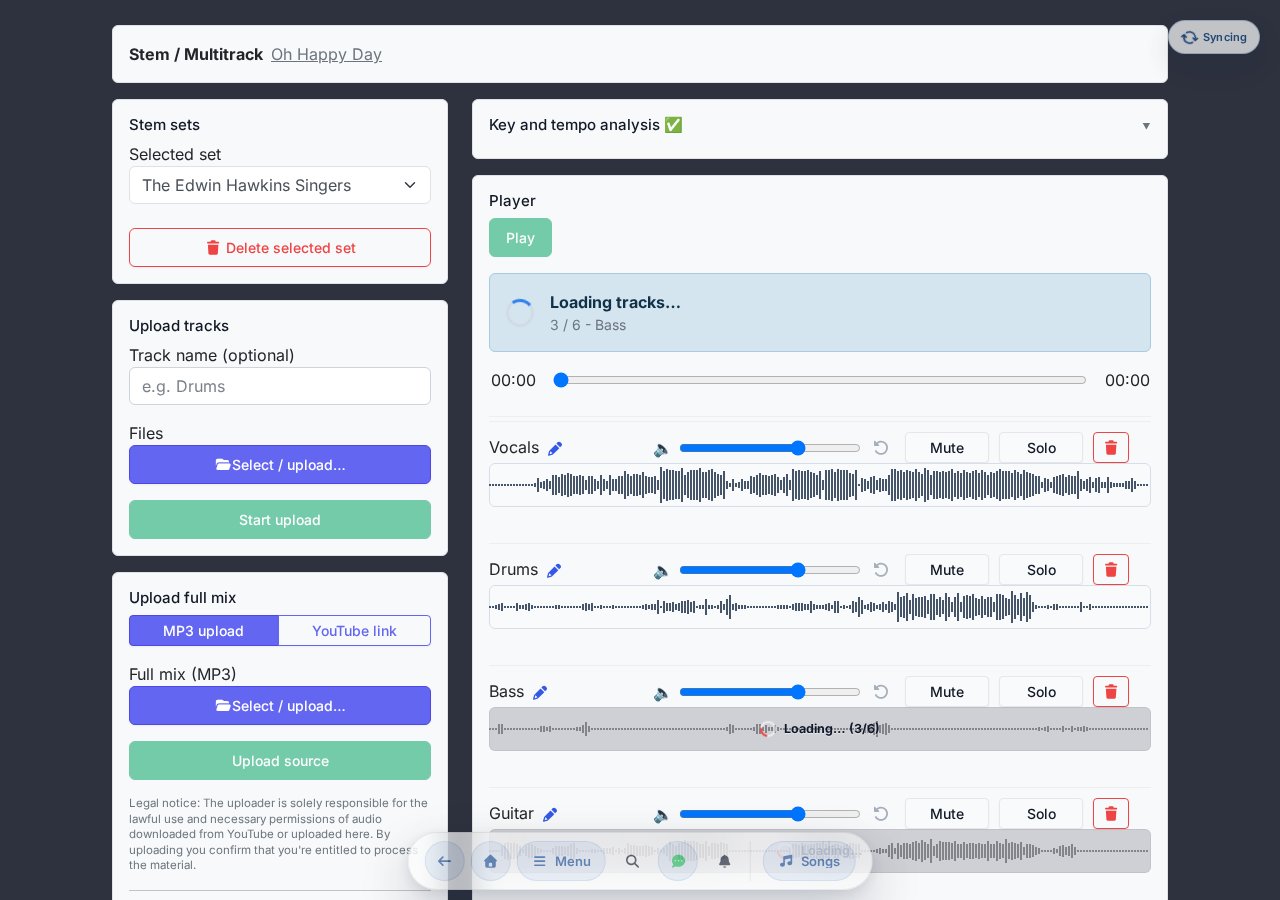
Stem packages can be uploaded by the group administrator on the editor page — original MP3/WAV files that the system automatically optimizes for browser playback. Multiple stem sets can be attached to a single song (e.g. full mix + individual tracks).
Learning mode — chord charts
Learning mode shows instrument fingerings for the chords that actually occur in the song — no need for a separate chord-finder app at rehearsal or practice. It can be toggled in the Menu modal Quick song actions section; it's off by default. (The toggle only appears if the song has chord-lyric content.)

- Three instruments: guitar and ukulele fingering diagrams, piano mini keyboard (pressed notes highlighted). The instrument selector is in the panel header.
- Only the chords of that song, in order of first occurrence — and always in the currently displayed key (updates after transposing, capo and saved key).
- H/B notation: chord labels follow the configured Hungarian / Anglo note naming setting.
- Slash chords (e.g. D/F#) get a separate fingering that includes the bass note.
- Two layouts: embedded (below the song) or floating panel. The floating panel can be freely repositioned by grabbing the header title ( icon), and its position is remembered per device.
- The on/off state, chosen instrument and layout are tied to your account and sync across devices.
- For unknown or very complex chords the panel doesn't break — it just indicates there's no fingering for that chord.
Key change with one button press
From the ChordPro text the app can recalculate the chords into any key — no mental arithmetic needed.
Transposing
On the song page, use the − / + buttons on either side of the key indicator to step down or up by a semitone. If the song is in a setlist, the transposition is assigned to the current list immediately — on every button press, without a separate save — so the key you set during rehearsal stays with the song in that list.
If you also want to keep the key with the song permanently, use the Save chord button that appears below the key indicator (it only shows once you have actually transposed). This records a song-level saved key that takes effect the next time you open the song — from any list or from the library.
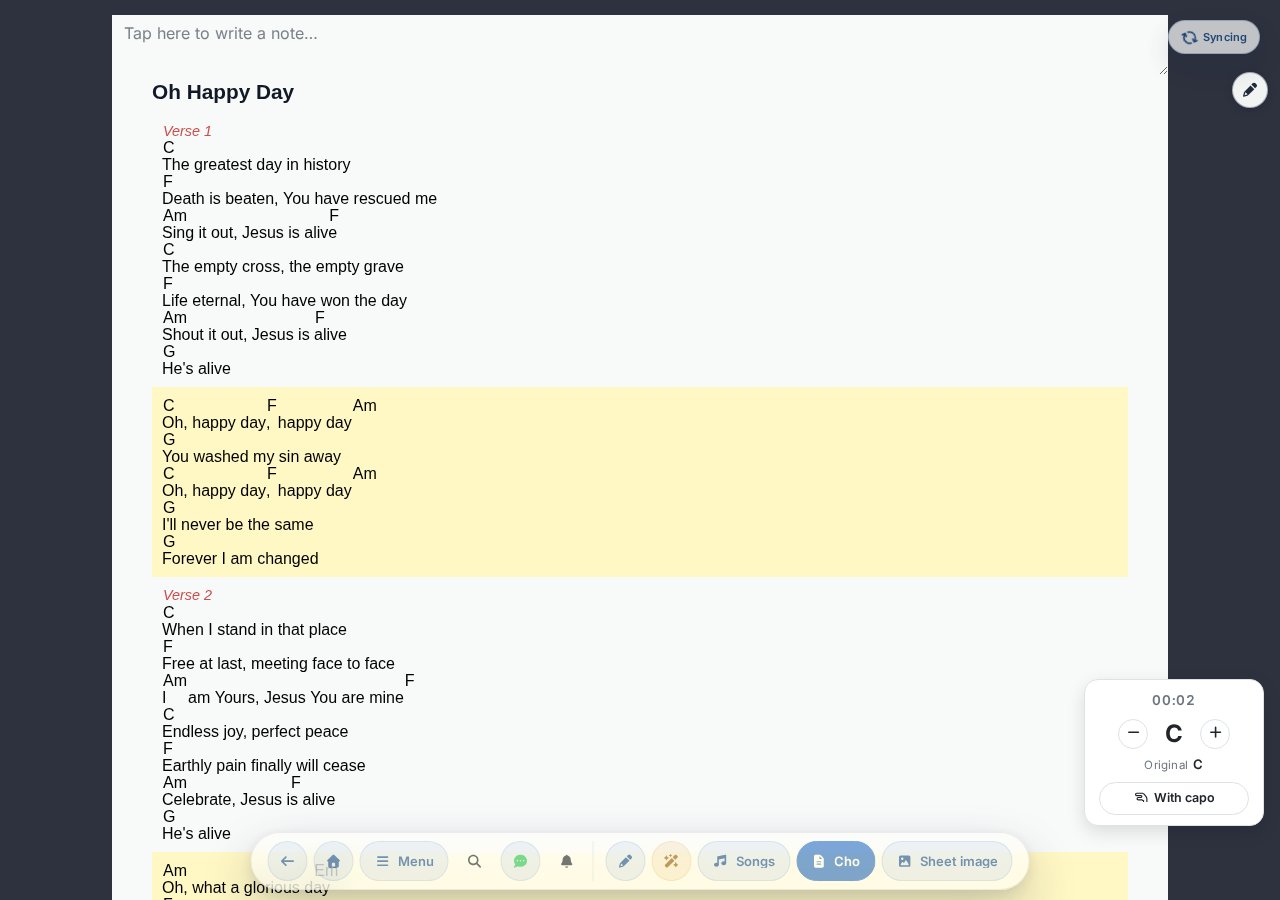
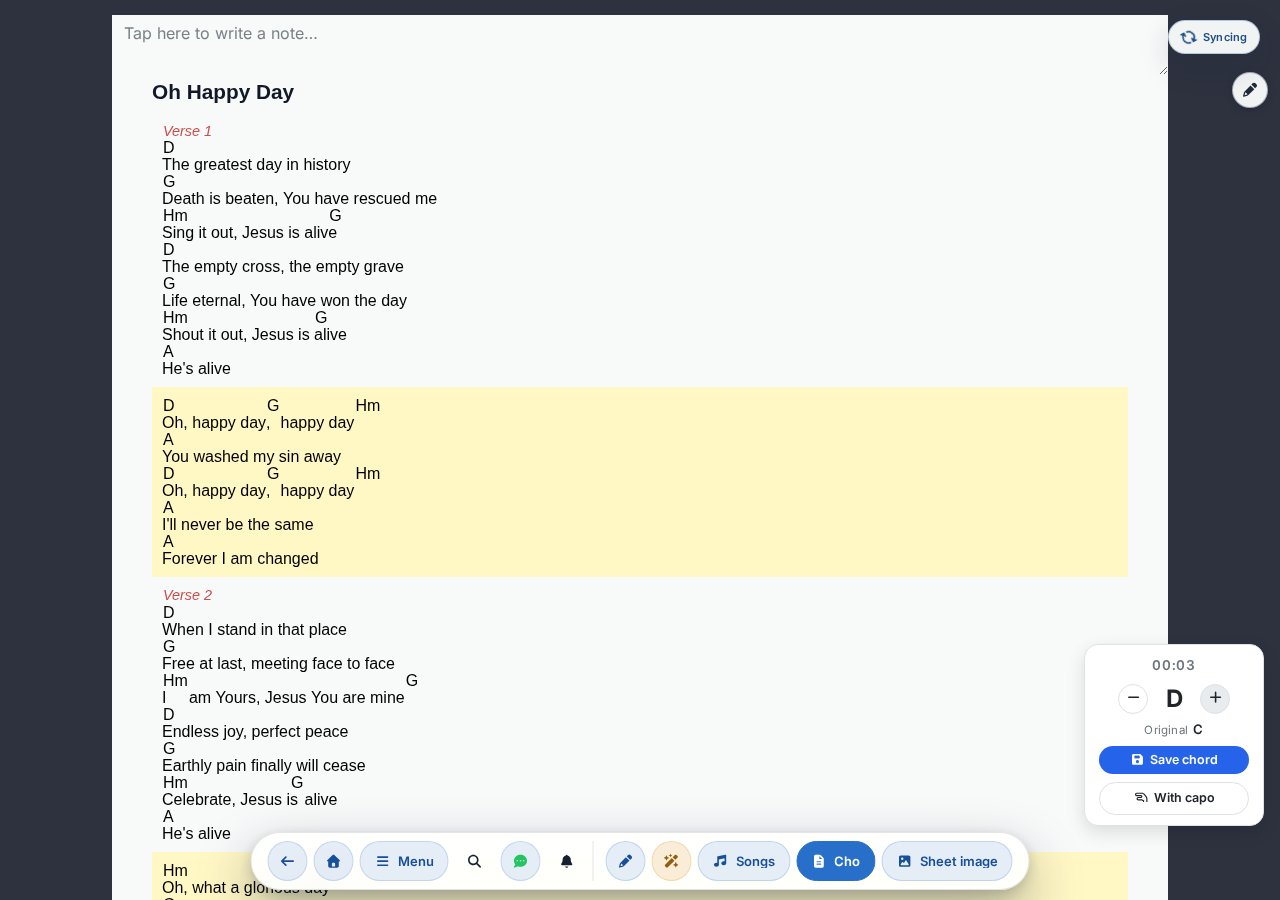
+ button presses move the chords to D; the panel shows the new key as well as the Original C, and it can be locked in with the Save chord button.Original and saved key
Below the transposing panel you can always read the Original key (the key written in the ChordPro file) and — if you have saved one — the Saved key too, so it's easy to step back manually to the original with the − / + buttons.
Capo
The With capo button in the bottom right corner of the song turns on capo mode. Once on, you set the capo position with the same − / + buttons as the key — there is no separate number input. The panel shows the set position in the form "fret N" (in practice typically frets 1–7, but there is no hard upper limit). Based on this, the app calculates which key you're actually producing with simpler fingerings — the sounding key does not change in the process. A negative value can also be set: it then transposes upward, as a drop tuning (e.g. −2 for a guitar tuned down to D).
The app stores the capo position per song, so it is kept the next time you open it. In capo mode the (CAPO N) marker is automatically appended to the rendered song title, so the set position is visible when printing and sharing too.
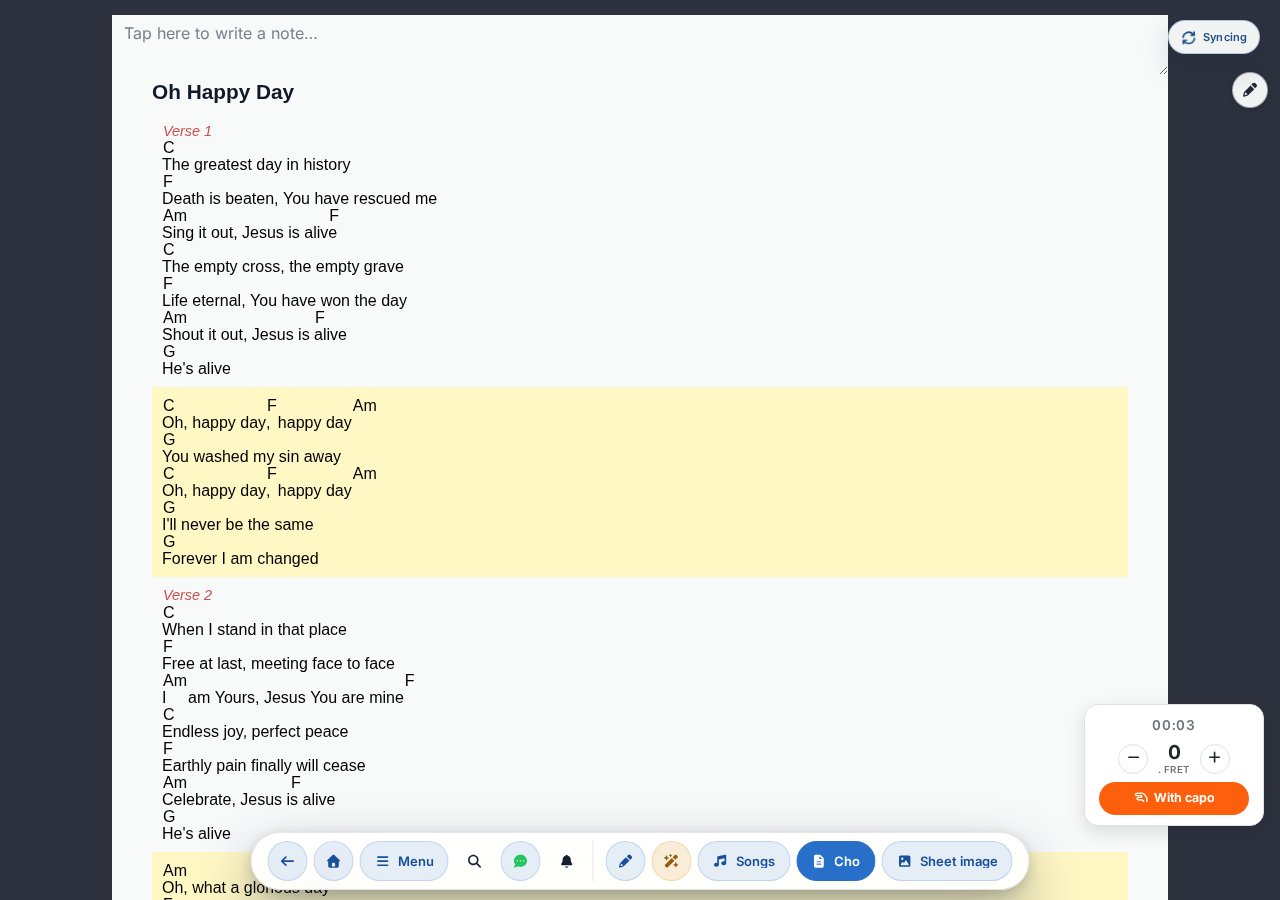
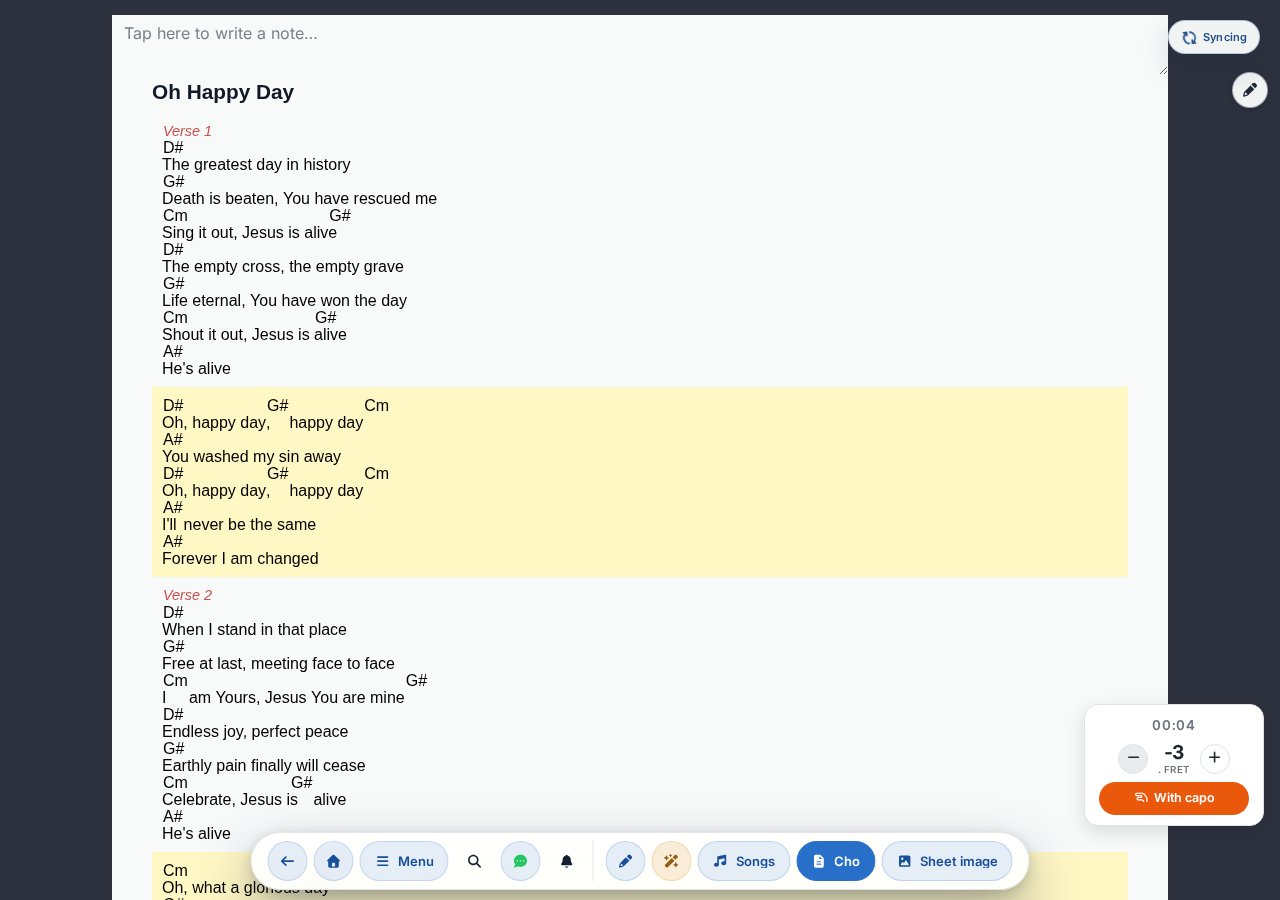
If the singer requests a key change, try capo first: the familiar fingerings stay the same, only the pitch shifts.
H or B?
In Settings → General → Notation (or in the Chords section of the Appearance modal on the song page) you can switch between Hungarian (H) and standard (B) notation — Hungarian is on by default. The switch redraws the chords instantly, without a page reload. Storage is always in standard notation, so source files remain interchangeable.
Annotating with a stylus or finger
You can draw on songs — accents, fingering, comments — either on the uploaded sheet image (PDF, PNG, JPG) or on the chord-text (ChordPro) view. There are two separate layers: Group (visible to everyone) and Personal (visible only to you).
Opening the drawing toolbar
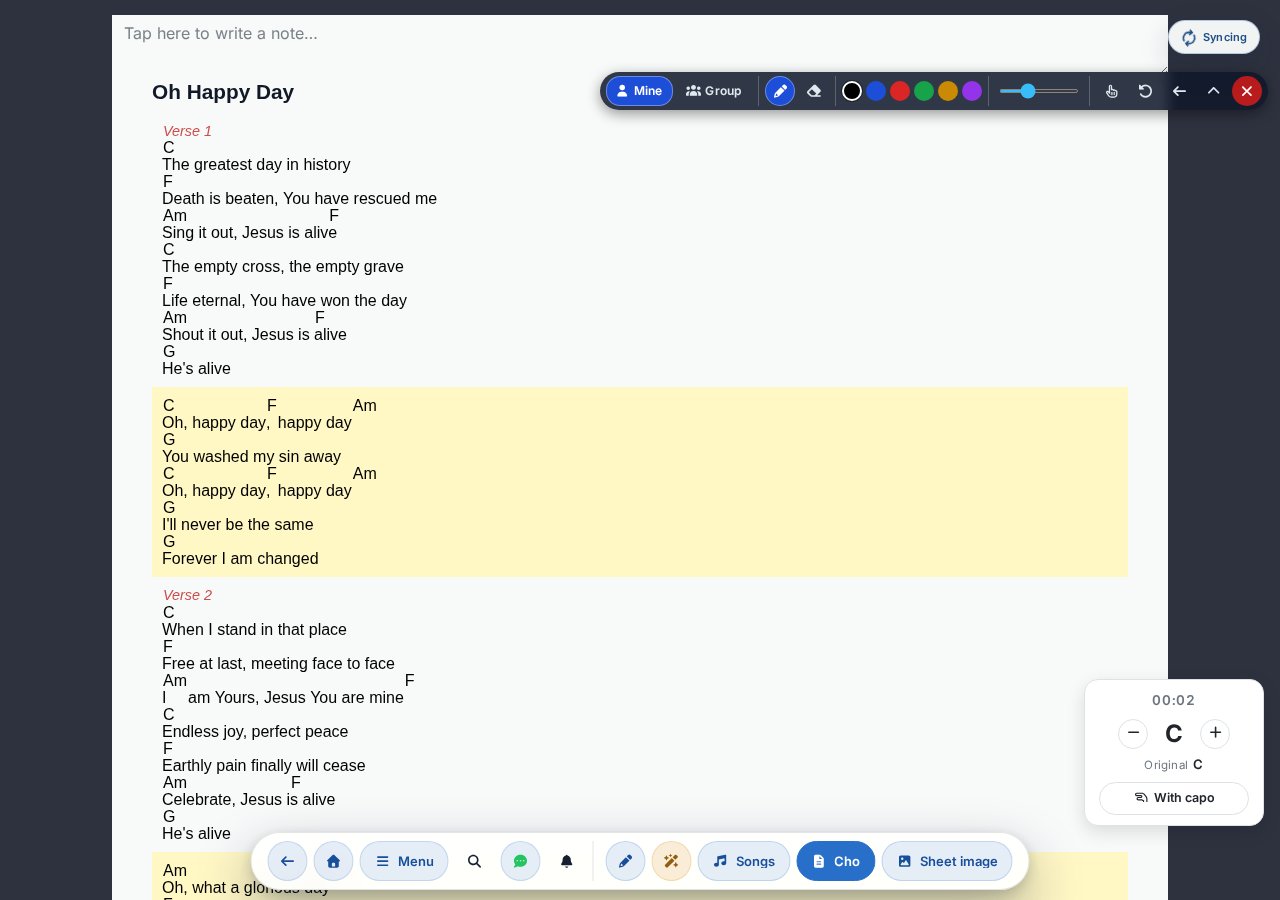
Saved drawings are always visible in tablet and desktop view, but you can only draw once you tap the floating pencil icon () — that brings up the toolbar and switches the song into active drawing mode. On a mobile-sized screen the drawing layer doesn't appear at all.
Drawing tools
- Personal / Group layer toggle. The
Personal() layer is visible only to you; theGroup() layer appears for everyone. TheGroupbutton is only active for group admins — for everyone else it's disabled (tooltip: “Only group admins can edit”). - Pen / eraser toggle. The eraser always removes strokes only from the currently active layer (Personal or Group), and it removes whole strokes (no partial erasing) — in personal mode it never touches the shared drawing even if you brush over it. While the eraser is active, the color picker and the thickness slider are disabled.
- Color picker and line thickness slider (1–10). Your most recent color and thickness choice is remembered for the next time you draw. Pressing the stylus harder gives a slightly denser line — the stroke “breathes” with the pressure.
Toolbar control buttons
Alongside the drawing tools, the bar has a few control buttons:
- Undo last () — undoes the most recent stroke on the active layer.
- Dock left / right ( / ) — docks the bar to the top-left or top-right corner of the sheet. Remembered.
- Collapse toolbar () — only a small brush icon stays, which you can use to reopen it any time. Remembered.
- Turn off drawing () — returns to the passive display, leaving only the floating pencil icon.
Enabling finger drawing
By default you can only draw with a stylus — a finger touch scrolls the page. The small hand icon () lets you enable finger drawing too; it's a toggle, and when on, a pulsing red indicator shows it's active (the tooltip then reads: “Finger drawing on — tap to turn off”). The setting is remembered. With it on, finger scrolling doesn't work on the drawing area, but you can still scroll outside the edges of the sheet.
You can draw in the chord-text view too
You can draw not only on the uploaded sheet image but also on the chord-text view. Here the annotations stick to the lyrics: if you view the song with a different font size, chord size, line spacing or without chords, the drawing still stays attached to the same line and word.
Besides the Personal/Group layers, drawings are also stored separately per view (mode): the chord-text (ChordPro) view and the uploaded sheet image each have their own set of drawings. If you switch to the sheet-image view, the annotations drawn on the sheet image come up, not the ones drawn on the text. So a single song can have up to four sets of drawings per user: (Personal, ChordPro), (Personal, image), (Group, ChordPro) and (Group, image).
When a group admin draws on the Group layer and saves, everyone who has that same song open at the moment automatically sees the updated shared drawing within a few seconds. The Personal layer, by contrast, is private — it doesn't sync across your devices.
If most of the drawings were made in a different view, the app offers, in a discreet bar, to temporarily revert to the view used when drawing for a consistent display (with the bar's Restore button). This only affects that one song, and when you leave the song — or when you manually switch back with the My view button — your usual display returns.
Live team sync during rehearsal and performance
In Music Director (MD) mode, the leader's song changes and commands (Stop, Continue, Coming back, End) appear on all the team's devices in real time.
Activating
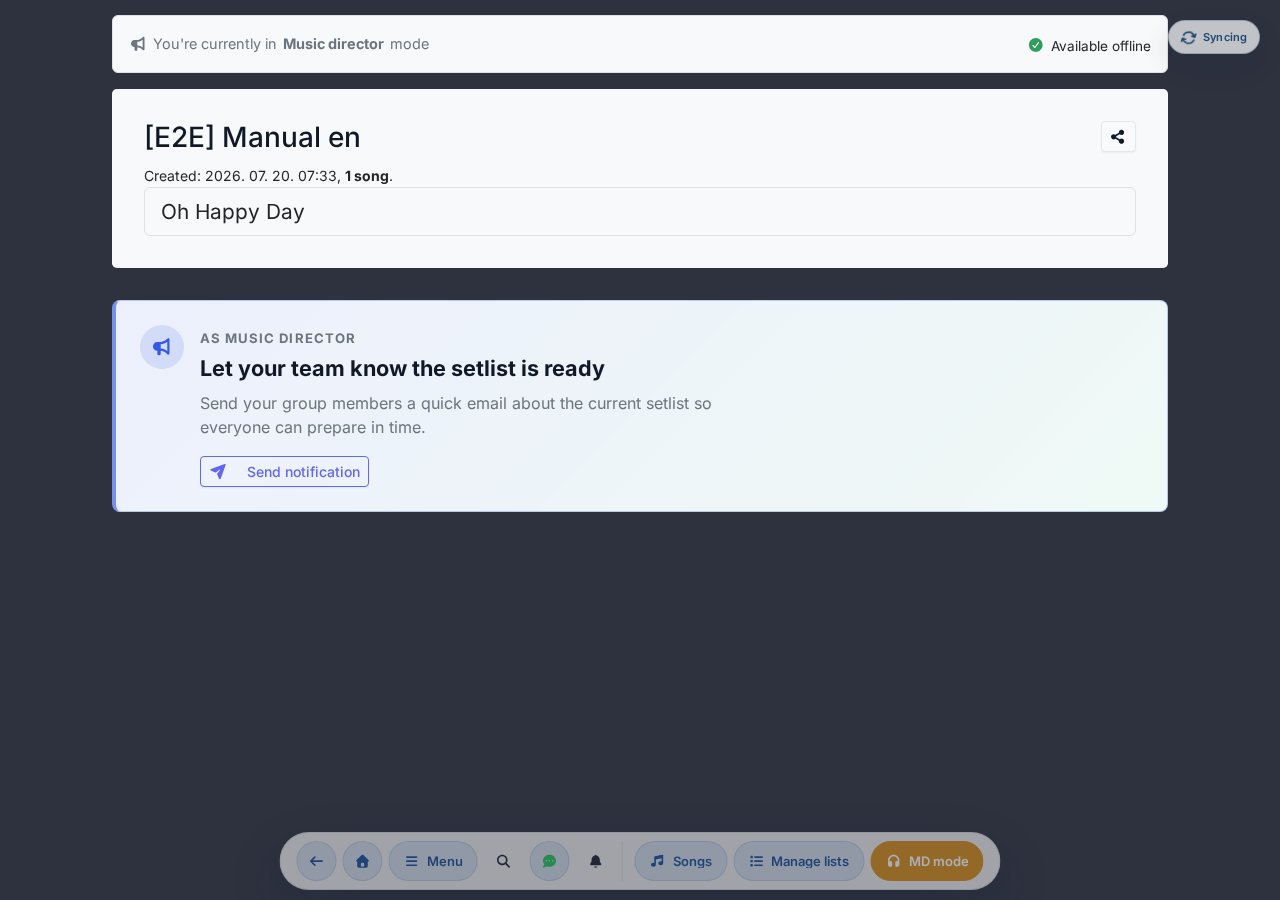
Use the MD mode toggle ( headphones icon) in the Rehearsal & performance section of the global header Menu modal to become the leader. Your own device's setlist will then show a notification: "You're currently in Music director mode", and following turns off on your own device (mutual exclusion), since you are the leader.
Sending MD commands
On the right edge of the song page, around the upper third of the screen, a vertical MD command dock (with a megaphone icon) appears. It is visible by default in MD mode and holds four command buttons:
- Stop — pause signal.
- Continue — restart.
- Coming back — return to a section.
- End — closing signal.
Every command appears as a large, color-coded overlay on all the team's devices — impossible to miss.
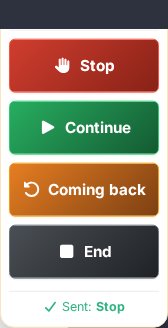
You can freely reposition the dock using the handle at the top (the drag icon), and the device remembers its position. If it's in the way, you can hide it per device with the "Show MD panel" toggle in the Menu's Song quick actions box (on by default) — this only appears in MD mode, and it doesn't end MD mode, it only hides the dock. While offline the command won't be sent: the button opens the window with offline information instead.
On your (the leader's) screen the command overlay does not pop up — instead a brief "Sent:
How does the command look on the team's side?
On the receiving devices the command pops up as a full-screen, color-coded overlay and disappears on its own after a short while (you can also close it manually with the ✕ in the top right):
| Command | Color | How long it shows |
|---|---|---|
| Stop | red | stays until you close it (about 10 s) |
| Continue | green | about 3 s |
| Coming back | orange | about 6 s |
| End | gray | about 3 s |
Page-turn sync
Team members can enable following the leader — so when the leader advances to a new song, their screen navigates to that song too. Scrolling within a song is individually controlled and is not synced.
Follow pill (team member side)
When someone starts Music Director mode in your group, a "Follow the MD's page-turns" pill appears at the top of the other members' setlists. You can toggle the same following with the "Follow MD" toggle ( link icon) in the Menu's Rehearsal & performance section — the two control the same setting, always stay in sync, and are mutually exclusive with MD mode (as the leader you can't follow). It can be turned on and off with one click:
- On: the MD's song changes and commands automatically apply to your screen too — when the leader switches songs, you move to the new song as well.
- Off: you only see the MD command overlays (Stop / Continue / etc.) and a dismissible suggestion bubble on song change; you control your own navigation.
Break
If the leader moves to a --- break --- row in the setlist, followers also navigate to the break page — a clean, centered break card appears that also looks good on a projector:
- The Chords365 brand mark (logo + name) sits at the top, so it's instantly recognizable from across the room, even on a projector, which app is running.
- A large coffee cup icon (with gently rising steam), with the "Break" label and a "We'll continue shortly" line below it.
- The next song title in a highlighted pill (e.g. Next: Oh Happy Day), so the team can see what comes after the break.
The break is cleared with the "Remove break" button (the leader navigates back to the next song). This button is only visible in Music Director mode — so the break is ended by the leader; it doesn't appear on followers' screens.
Editing and following setlists
The setlist is the group's shared program list for a given session. All members see the same thing in real time.
Creating a new setlist
- Go to the setlist sub-page, or open the management modal with the Manage lists button in the header.
- Enter the setlist name (e.g. "Sunday 05.10.").
- Enable MD mode (in the header Menu modal, Rehearsal & performance section) — this also activates the old edit mode functions.
- In the song library, use the green Add to setlist button with the + icon on the song card to add songs to the list — or use the inline song picker below, right on the setlist page.
Adding a song directly from the setlist
You don't always have to go to the song library: in edit (MD) mode, the setlist page itself has a built-in search.
- On an empty list this search is the main content of the page; once the list has songs, you'll find the Add song panel below the list.
- Start typing a title, tag, or bit of lyrics — results are ranked by relevance (start of title, title, tag, lyrics), and a song already on the list gets an "Already on the list" mark and can't be picked again.
- You can select several songs at once (by clicking), then save them all to the end of the list in one step with the Add button.
- Leave the search field empty and the app shows suggestions instead: the group's favourite songs, recently used songs, and the most frequently played ones — handy for quickly putting together a rehearsal list without searching at all.
- Small icons on each result show whether it has an uploaded sheet image, stems, or whether it's a favourite.
- The search also works from the keyboard: ↓/↑ to move between results, Space to select, Enter to add, Esc to clear the search.
Random song selection
Next to the Add song panel, a separate Random song selection button opens a modal: here you can generate suggestions from the group's song library for a given service, instead of searching by hand.
- Enter how many songs you want (there is no default count), and optionally narrow it down by tag/category, key and tempo (fast/slow).
- You can switch on an option that excludes songs already used in the last N days.
- Choose the song pool: favourites only, or the whole library. If you don't choose, the app suggests favourites by default, provided you have at least two addable favourite songs.
- The Add random songs button picks randomly among the songs matching the filters and always appends them to the end of the list — it never replaces anything, and never picks a song that's already on the list. If fewer candidates match than you asked for, it adds only those and tells you so.
Ordering and breaks
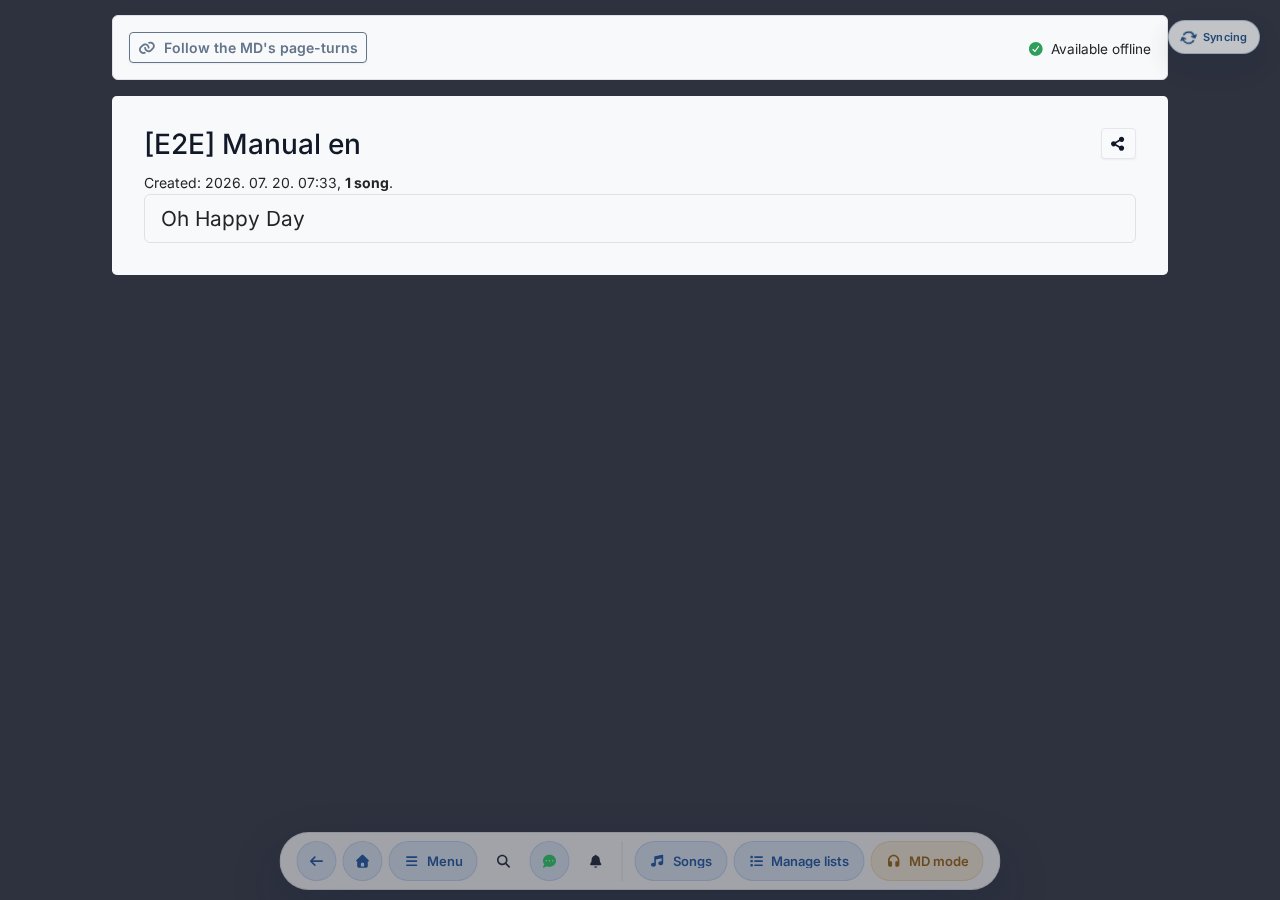
- ↑ / ↓ — swaps places with the adjacent item. On a narrow screen you reach the same thing in the Quick actions (three-dots) pop-up menu.
- Add a break — the coffee-mug-icon button at the bottom of the list inserts a Break ---- row (separating session blocks). This button is only shown in edit mode.
- Remove from setlist — in edit mode there's a red trash icon at the end of every row; with it you can take a song off the list directly (no need to go to the song page). A confirmation prompt appears ("Are you sure you want to remove … from the setlist?").
Setting the key in the row
In editing (MD) mode every song row has a key control on its right edge: step by semitones with the − / + buttons, pick a key directly from the dropdown, and the button resets to the base key. This is an occasional key for this setlist only — it does not overwrite the song's original (saved) key. Keys follow your configured note naming (Anglo or H/B).
- The change takes effect immediately and updates on the other members' screens too; a short Undo bar at the top reverts the last change.
- In read-only (non-editing) view only the key badge appears at the end of the row (with the original key next to it when an occasional key is set).
All setlists modal
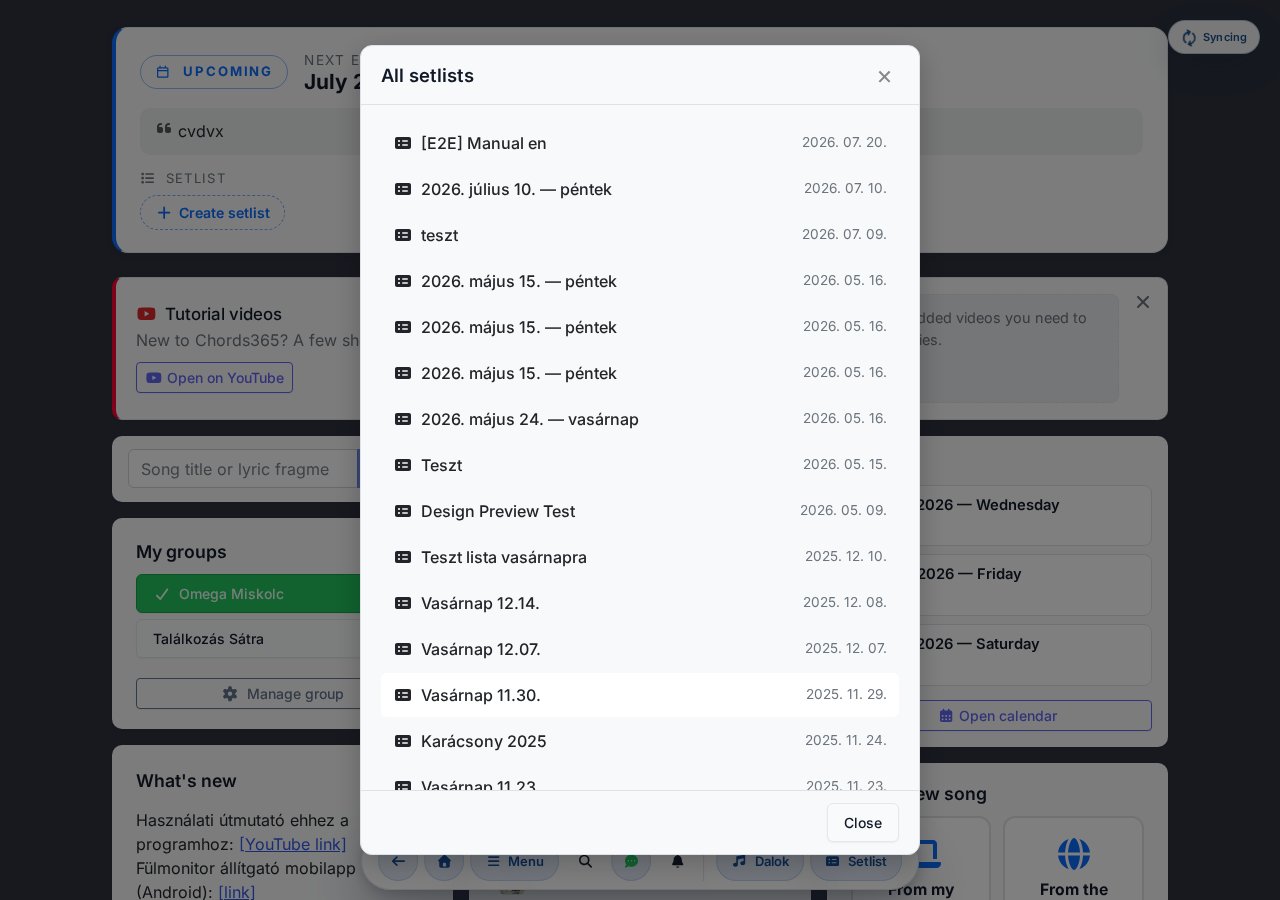
Cloning a list
In the "Manage lists" modal, on the new list creation panel, a radio button lets you choose the "Clone current list" mode: this copies the contents of the currently open setlist (order, breaks, songs) into a new list with a name you choose. Typical use: clone last week's list as "Rehearsal 05.17." and just swap the 2–3 changing songs — no need to rebuild everything from scratch.
Bringing back earlier lists
At the bottom of the "Manage lists" modal there's a Previous lists button. With it you can open setlists you deleted earlier (moved to the trash) and bring them back from there — so a list you accidentally trashed, or the list from an older session, isn't lost for good.
Sharing a link
The share icon in the setlist header copies the list's link (/setlist/) to the clipboard — you can send it via chat, SMS or email, and a "Link copied to clipboard" confirmation appears. Opening the link shows the list in read-only view (not editable).
This icon is only visible in non-edit (read) view. In edit mode the editable input field for the list name takes its place, with no icon.
Deleting a setlist
In edit mode, as a group administrator, a Delete setlist button appears at the bottom of the list. This doesn't delete permanently: it moves the list to the Trash. A confirmation prompt warns you about this too ("… setlist will be moved to the trash. You can restore it later or delete it permanently from there.") — from there you can bring it back with the "Previous lists" button, or delete it permanently.
Linking to an event
A setlist can be assigned to an existing event (rehearsal, performance) — this way the home screen Events box and the "Today's event" card also show which list belongs to which day. Multiple setlists can be linked to one event (e.g. a practice version and a live version).
- New setlist directly to an event: in the Events box, every event has a dashed red-outlined Setlist pill. Clicking opens a modal where the setlist name is pre-filled with the event date — just click Create new setlist and you're in the song library in edit mode with a basket.
- Linking an existing setlist: in the setlist sub-page header (only in edit mode + for group administrators) a Linked event dropdown appears. Here you can select the appropriate upcoming event, or override an existing link. For setlists linked to a past (ended) event the select is disabled — past data cannot be modified.
- When an event is deleted: the setlist remains, just loses its event link (no data is lost).
The link is visible even for read-only users (slave or non-admin): a faint "Linked event: …" line in the setlist header shows which day the list is for.
If you try to save a new or cloned list without selecting an event but the group has an upcoming event, the app briefly prompts you before saving and offers to link it — so the list is accessible from the Events box and "Today's event" card with one click. You decide freely: Select event returns you to the dropdown, Save without event saves the list without one. If there's no available (today or future) event, there's no prompt.
Notify the team: setlist is ready
When you've assembled the base list, you can notify the group members by email with one button that the setlist is ready — so everyone has time to prepare. A highlighted card appears below the setlist ( Send notification), which briefly explains the feature.
- The card is only visible in MD mode and for group administrators, and only when the setlist was recently modified (within 3 hours of the last edit) and is not empty. If you touch the list again, the window restarts.
- Clicking opens a short confirmation dialog (multiple members will receive email, hence the confirmation request).
- The email contains the setlist's current order: the songs are clickable links, breaks are included, and a button goes straight to the full setlist. Fine print notes that the list may still change — you're just signaling that the base setlist is ready.
- The sender does not receive the email themselves; you can see your own list anyway. A potential resend cannot be initiated within half an hour of the send (the button is disabled until then and shows the time of the last send).
- Whoever has enabled browser push notifications (Setlist ready category) also receives a discreet push notification on their phone/device in addition to the email.
"Sung" confirmation
A setlist often ends up with more songs than were actually sung (backup songs, for instance) — which would distort the license report and the song library's "frequently played" statistics. After the service you can therefore confirm, song by song, which ones were actually sung.
- If you open the setlist page of a past, not-yet-confirmed setlist, a "Confirmation needed" bar appears right below the title; clicking it opens a pop-up with a checkbox list where you can tick each song according to whether it was really sung.
- The same list is reachable from the "Manage lists" → "Bringing back earlier lists" table — every row has a "Confirmation needed" button, or, for an already confirmed list, an "Edit confirmation" button that opens the same pop-up.
- The confirmation stays editable for 30 days from the day of the service (the event date, or, without an event, the day the list was created).
- Until you've confirmed a single song, the whole list counts towards the statistics as a safe default; from the first confirmation onwards, only the songs you actually marked.
- Group administrators also receive a daily reminder email about past, not-yet-confirmed setlists that are linked to an event, until the marking is done.
- If you keep a song's page — opened from the setlist — actively in view for at least 3 minutes, the app remembers this and pre-ticks that song when you open the confirmation pop-up. This is only a convenience pre-fill; the final decision is always your (the admin's) manual marking.
Searching and browsing songs
The group's complete song library is accessible under the Songs menu item — searchable, favoritable, color-coded with a heatmap.
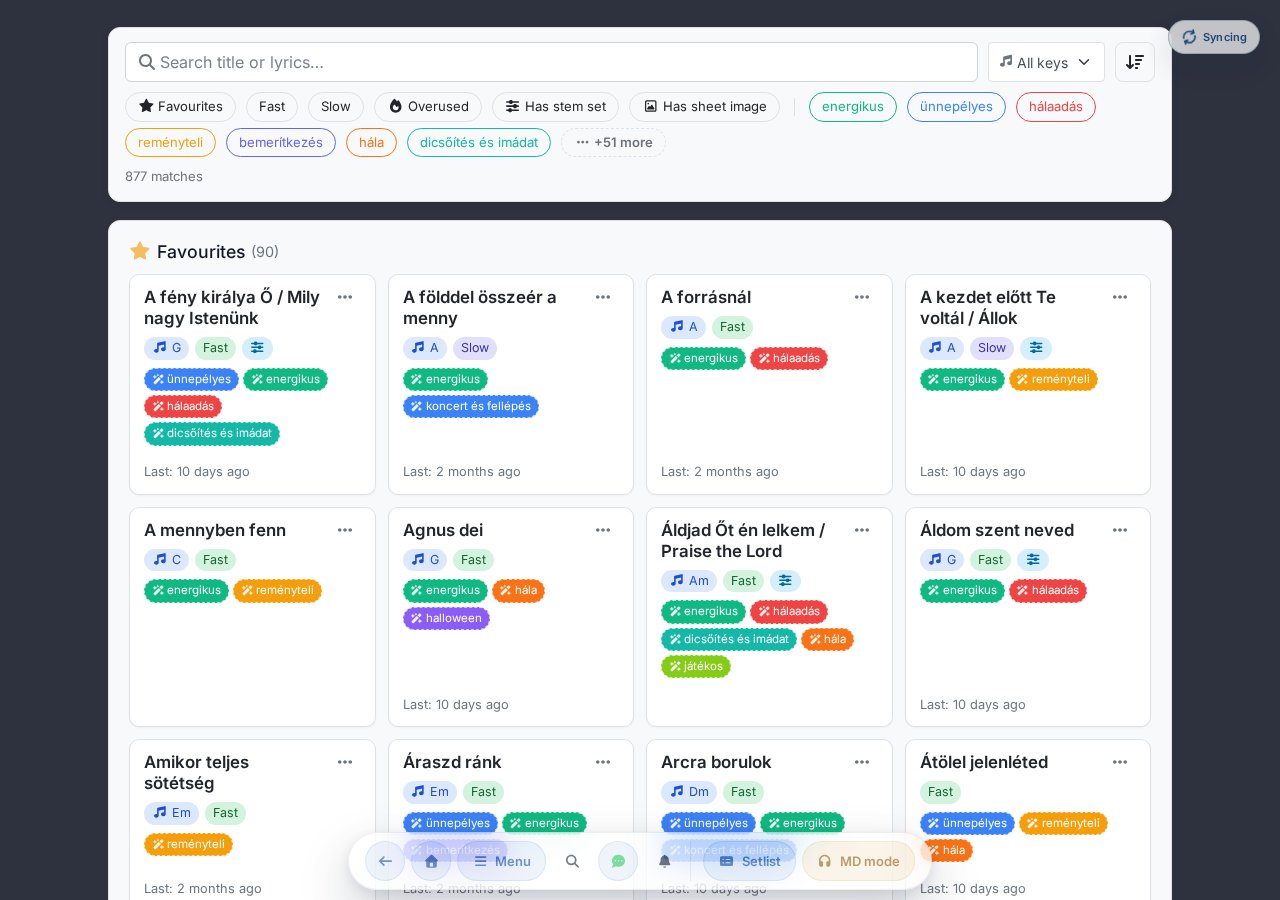
Search
Type a song title, a word fragment, or even part of the lyrics into the field at the top. The search filters across title + lyrics + tags at the same time, is accent-insensitive ("ő" and "o" are treated the same), and ranks the results by relevance:
- Title-start match > title contains > tag match > found in lyrics.
- Content search only kicks in for queries of 3+ characters, to keep results from getting noisy.
- If the match was not in the title, a small "found in lyrics" or "found in tag" badge appears on the card.
- During a search the sort order automatically switches to Relevance; it returns to the original when the field is cleared.
Filter chips
Use the chip bar below the search to set combinable filters (multiple chips = AND). The chip order is:
- Favorites — only the songs marked with a star.
- Fast / Slow — based on the song's tempo label.
- Overused — songs that ran above the group average in the past 90 days; its own highlighted, flame-icon chip (the song card shows a "Frequent" badge).
- In list — only appears in master mode + with an active setlist, and then filters to the songs in the setlist.
- Has stem set — only songs that have a stem/multitrack package.
- Has sheet image — only songs with an uploaded sheet image.
- Theme tags — after a separator, the group's own labels as chips (multiple tags can be AND-ed). The labels are ordered by how many songs use each one (the one with the most songs first); by default only the 7 most popular are shown, and the +N more button expands the full list (and collapses it again).
Sorting
The sort dropdown on the filter bar:
- Default — by title, favorites first.
- By title — alphabetical order.
- Least used — ascending by 90-day usage (good for finding fresh songs).
- Most used — descending by 90-day usage.
- Most recently used — by the date of the last setlist appearance.
- By played key — by the set savedkey, alphabetically.
- Relevance — automatic during search.
Favorites vs. all
By default only the Favorites grid is shown (songs marked with a star). Further down, a collapsible Full collection section shows all of the group's songs in the same card format.
Overuse indicator ("Frequent")
If a song appeared at least twice as often as the group average in the past 90 days (and at least 4 times), the card shows an orange bar on the left edge + a flame-icon "Frequent" badge. A handy aid to keep you from repeating the same songs too often. (This is not the same as the old red heatmap — it's a separate, high-contrast indicator.)
Random fast / slow song
The Random fast song and Random slow song functions are available from the Rehearsal & performance section of the global header Menu modal. Every song has a set tempo (slow, normal, fast), and that's what the random pick uses. The app picks one at random from the songs marked as favorites whose tempo matches the request (fast or slow), and navigates straight to the chosen song. (It works offline too, because the choice is made from the downloaded song library.)
Theme tags
Any group member can create group-level labels (theme tags) — e.g. festive, advent, Christmas, Easter, ballad — and assign them to songs (there's no admin gate for it). Tags are created with an automatic color palette, and:
- they appear as chips on the library's filter bar (multiple tags can be AND-ed), sorted by song count — the 7 most popular right away, the rest behind the +N more button;
- they show on the song card below the title, so you can tell at a glance what a song is for;
- they can be chosen per song on the editor page — a song can have several tags at once.
The taxonomy is built around general musical aspects (topic, mood, season, occasion); the church/worship labels are just an optional pack, not a default assumption.
Group admins get an AI categorization from the lyrics box at the bottom of the library. The program suggests tags automatically in the background, based on the lyrics (topic, mood, season, occasion), as new songs come in — and it never overwrites your manual tags. Tags suggested this way get a magic-wand icon on the card, and are searchable and filterable just like the rest.
Admin song actions on the card
For group admins, a … (ellipsis) menu opens in the top-right corner of every song card. From it:
- toggle Favorite on/off,
- Delete () — the song goes to the Trash, from where you can restore it later or delete it permanently (it's not an immediate permanent delete).
Setlist basket panel (master mode)
If you're in master / edit mode with an active setlist, a sticky panel appears on the right side of the library with the contents of the current list. On desktop the panel follows the scroll the whole way; on mobile the button at the bottom opens it as a bottom sheet — the button label is the list's name (if it has one), otherwise "Setlist", with the item count in parentheses behind it:
- The + button on a card adds the song to the basket (the rest of the card still navigates to the song page).
- The panel's × button removes it.
- Songs can also be reordered in the panel — same as on the setlist page.
Adding a new song
The Add new song button at the bottom of the library page opens the /create-song wizard. The wizard has two steps:
Step 1 — where does the song come from? You can choose between two cards:
- From my device — upload ChordPro, a photo, a PDF or a sheet from your device.
- From the internet — search and import from public chord/sheet libraries. This is described in detail in the Importing songs section.
*Step 2 — source (on the From my device branch)* grouped source cards:
- ChordPro text / chords — opens a blank editor, for when you know the chords, want to type them, or already have a
.chofile. - Upload ChordPro files — several
.chofiles at once (drag-and-drop or file picker); each becomes a separate song. - Sheet photo (booklet) — photograph or browse the pages of a booklet; you can rotate, crop and adjust the contrast of each page. Providing ChordPro is not required — the title is enough, and the song page shows the uploaded sheet image by default.
- PDF sheet — every page of a PDF as a sheet image, as a new song.
- Photo / OCR import (BETA) — a sheet image or photo turned into ChordPro via text recognition.
- Start import (group admins only) — restoring a previously exported library ZIP (see below).
If you later do write ChordPro text in the editor for a sheet-photo / PDF-based song, a toggle appears on the song page that lets you switch between the image and the text view.
Admin: library export and import
In the header of the Full collection section (with the collection expanded, for group admins), a download icon exports all of the group's songs as a ZIP (for backup, archiving, or moving to another group). Its tooltip is "Download the entire library as a ZIP".
As the counterpart to the export, you can also restore a previously exported ZIP: on the From my device branch of the /create-song wizard, as a group admin, in the Start import section. Upload the large ZIP to the media library first, then pick it from the dropdown to start the import. Existing songs (with the same title) are skipped, not overwritten.
Admin: merging two songs
If the same song appears twice in the library (e.g. someone typed the lyrics/chords into one and uploaded a sheet-music photo into the other), as a group admin you can merge them into a single song. In the Admin actions section turn on the Merge songs mode, select exactly two songs with the cards' checkboxes, then click Merge on the bar that appears at the bottom.
In the dialog you compose the surviving song: choose which song lives on (A or B), toggle and reorder the lyrics and each individual sheet-music page (with the arrows), and finally decide which song to take the title, key, BPM, description, links, tags and stems from. Confirm with the Merge button.
The other song goes to the Trash (restorable from there), the setlists pointing to it switch automatically to the surviving song, and its stems are moved over. The sheet music and the lyrics are copied, so a song restored from the trash comes back with its own content (the stems, however, were moved to the surviving song).
Searching the internet — importing from several public sources
The New song wizard's "From the internet" mode (or the /internet-search page directly) lets you search more than 20 public sources at once from a single search box — Hungarian and international, chord-based, sheet-music and lyrics-only sites alike (e.g. Chordie, Cifra Club, Zeneszöveg.hu, Gitárkotta, Dics-Suli, Kereszténydalok.hu, Mutopia). chords365.com stores and copies nothing: searching and downloading happen only when you click, and a new song is created solely when you save after the review.
Users are responsible for only uploading and using content they have the rights to. Chords365 is not a public song catalogue and does not distribute copyrighted music — it only provides the tools to manage your own, lawfully used songs within your group.

Some sources (e.g. Dics-Suli, Zeneszöveg.hu) warm up on startup: at such times they are building their own search index. If a source is indexing, you'll get an empty list and an "Indexing in progress" notice from it — this is not an error; the app retries automatically and the results appear a few seconds later.
One song, many sources — a merged result
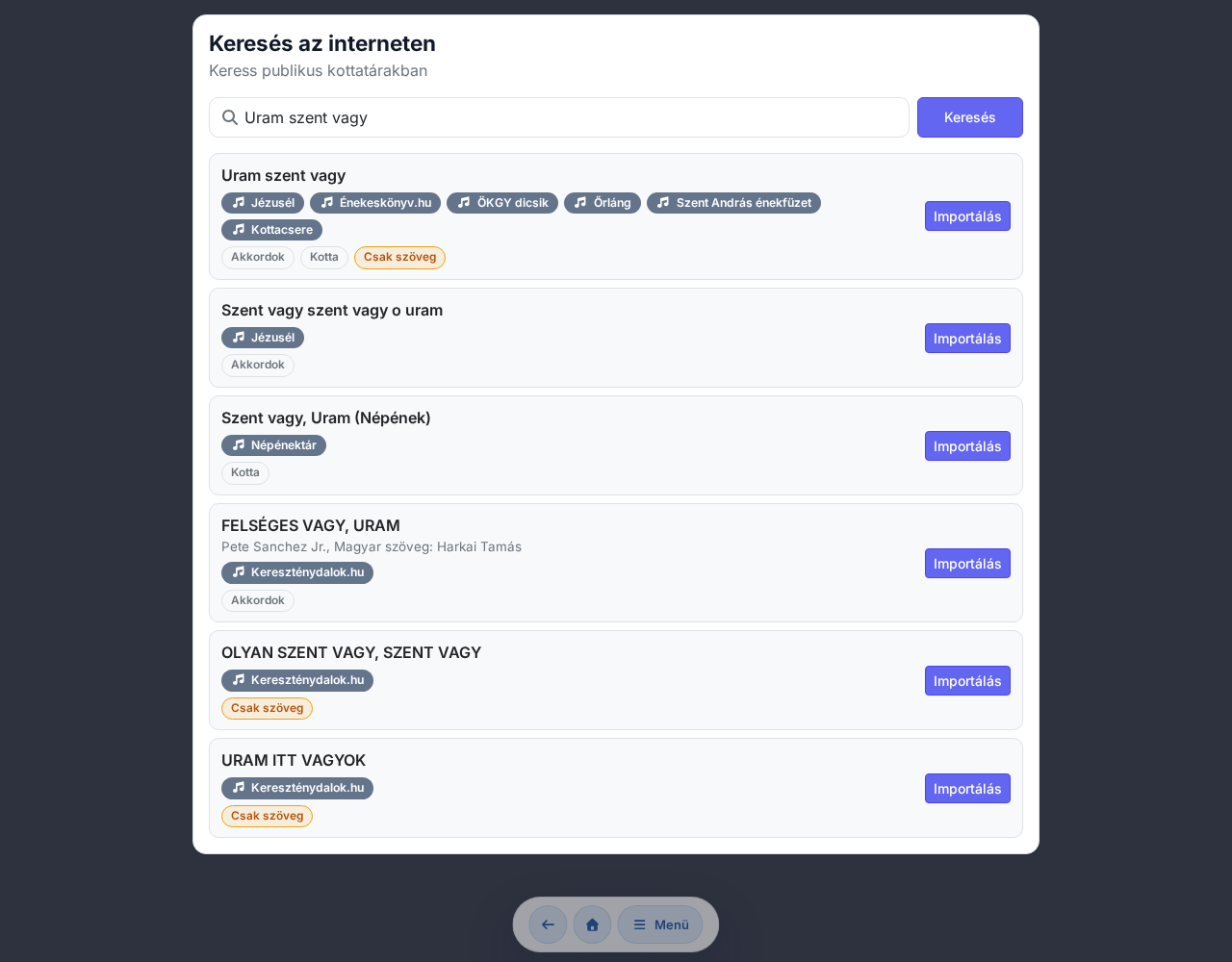
The "lyrics only" badge flags a source that provides only the lyrics (without chords) — that has value too; in this case you bring in the lyrics.
The sources also include Kottatár.hu (the Hungarian Baptist Church's paid shop), but this is a special, redirect-only source: the button on its row is not Import but "Open in a new tab", and it merely opens the sheet's shop page in a new tab — it does not import and does not create a song. (Bringing in the sheets you have purchased works in a completely different way, via account linking — see the Kottatár.hu linking section below.)
"Choose a version"
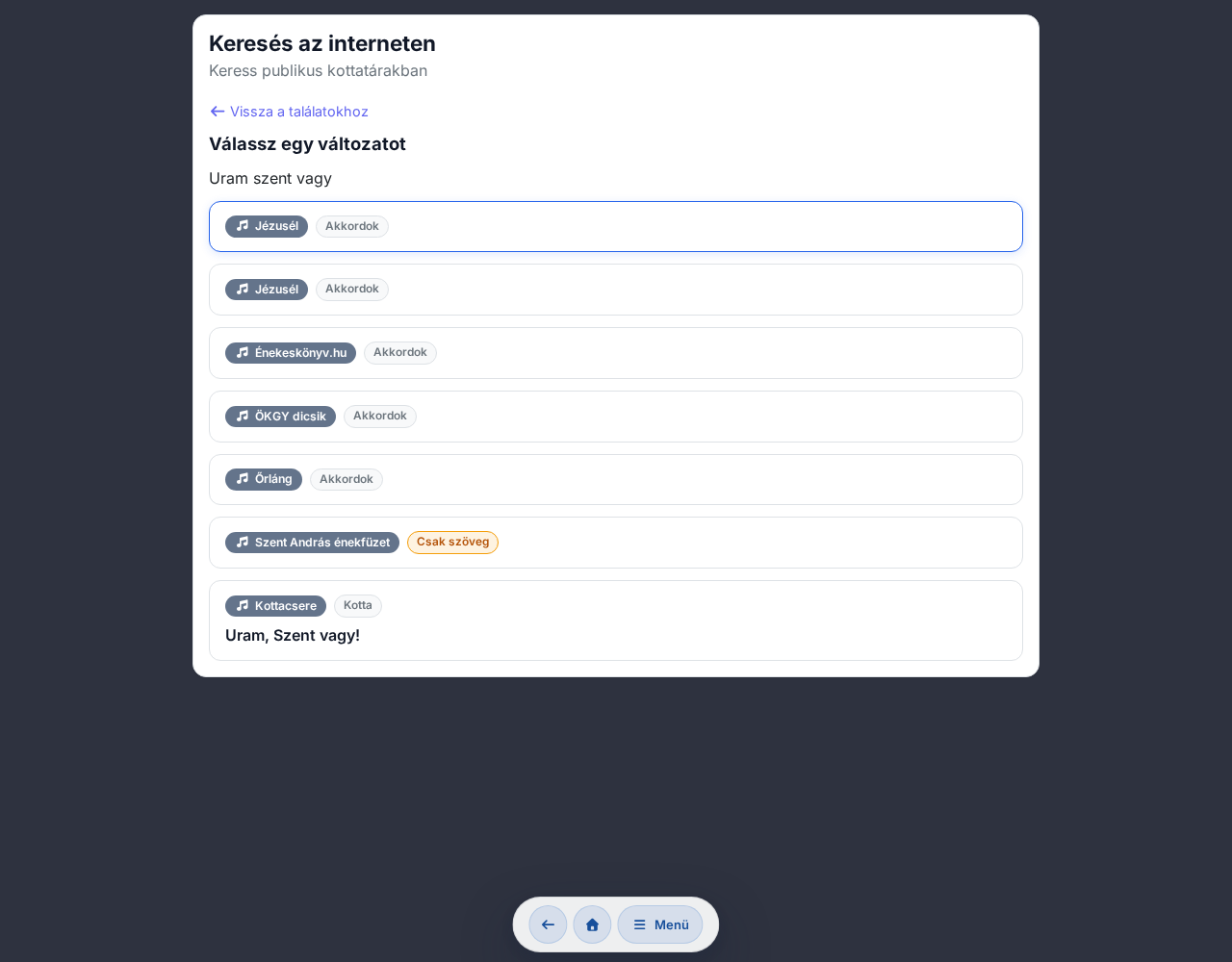
The chosen version proceeds according to the source's type:
- Chords / lyrics only → an editable ChordPro draft (the same review as the Ez az a nap! flow below) — here you can make corrections before saving.
- Sheet music → a sheet-music import: the PDF/image is added to the song's sheet music (nothing to type in).
If the song is available from only a single source, the version picker is skipped and you go straight to the flow above.
The browser's Back button leads you back through the search flow step by step (results → version picker → review) instead of kicking you out — the search you already typed and your state are preserved.
Page selection and OCR or sheet image (Dics-Suli)
At some sources — for example Dics-Suli — both a chord PDF page and a staff (notation) PDF page are available for the song, and the app even shows a preview of each page before importing (the first page of the PDF as a low-resolution image). Here you specify two things:
- Which page(s) do you want? — you tick the chord page and/or the notation page.
- In what form? You can choose between two modes:
- Text recognition (OCR) — the chord page becomes editable ChordPro (chords + lyrics), and the notation page stays attached alongside it as a sheet image. - As a sheet image — every selected page is simply added to the song's sheet images, without text recognition.
From the OCR review you can switch over at any time with one button — "Import as a sheet image instead" — if the recognition didn't turn out well enough and you'd rather keep the page as an image.
Copyright responsibility
The sources you search may also contain copyrighted and/or religious works. Before Save, the page warns you about this: the downloaded song is not the property of chords365.com, and importing it does not make it so — you decide whether you are entitled to use it, and you authorize the app only to store it within your own group. There is no public copy and no statistics.
Importing songs from the kotta.ezazanap.hu public library
With the Import from Ez az a nap! button accessible from the Songs page, you can search the ~500-song public library at kotta.ezazanap.hu, convert individual songs to ChordPro and save them to your group's collection with one click.
The source site uses many different song formats (inline chords, chord row above lyrics, lyrics only, sometimes collapsed into a single paragraph). The parser handles 80–90% of these well, but sometimes you'll need to refine the generated ChordPro in the editor afterwards. Hungarian chord conventions (H → B, Esz → Eb, lowercase e → Em etc.) are automatically converted to standard notation during import.
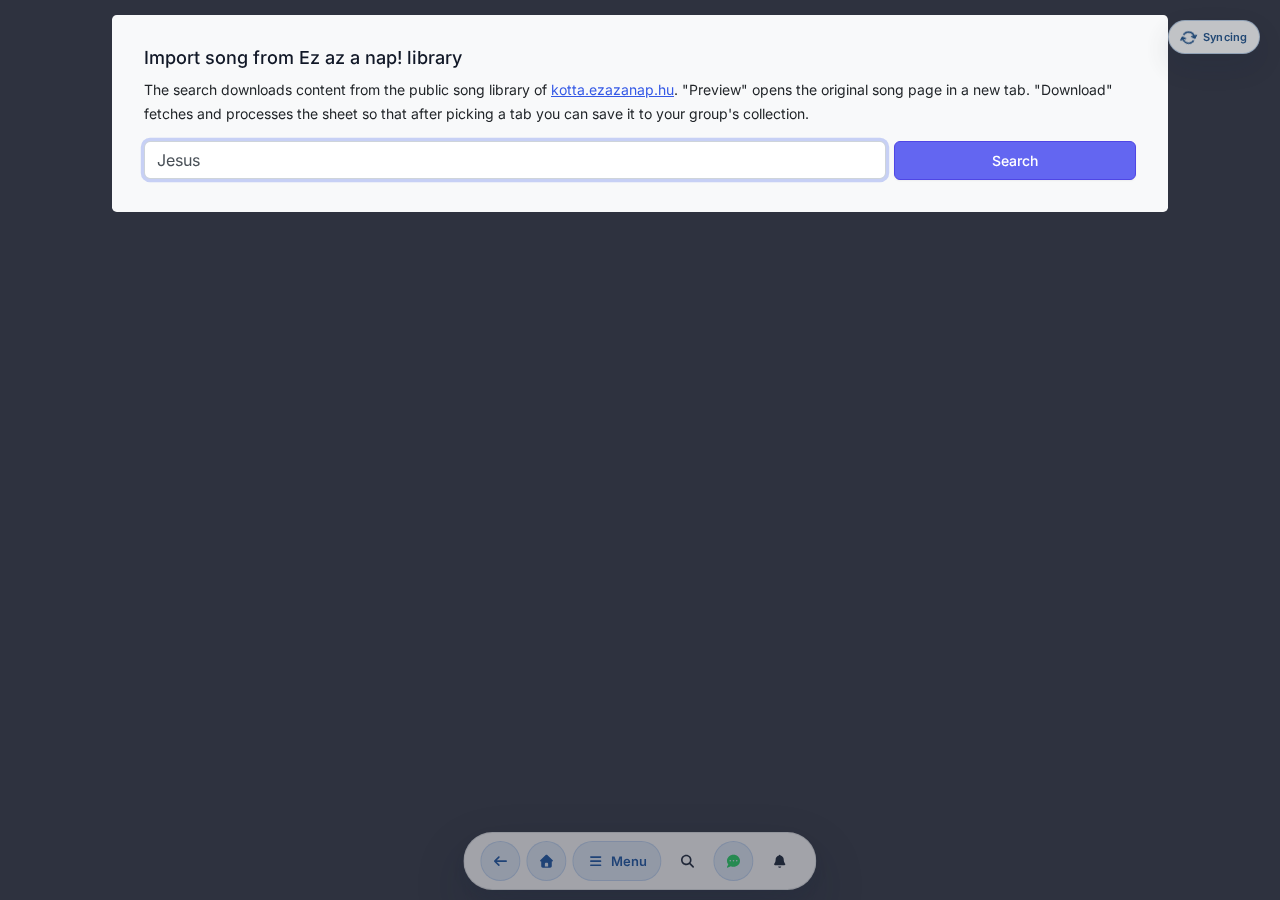
Search
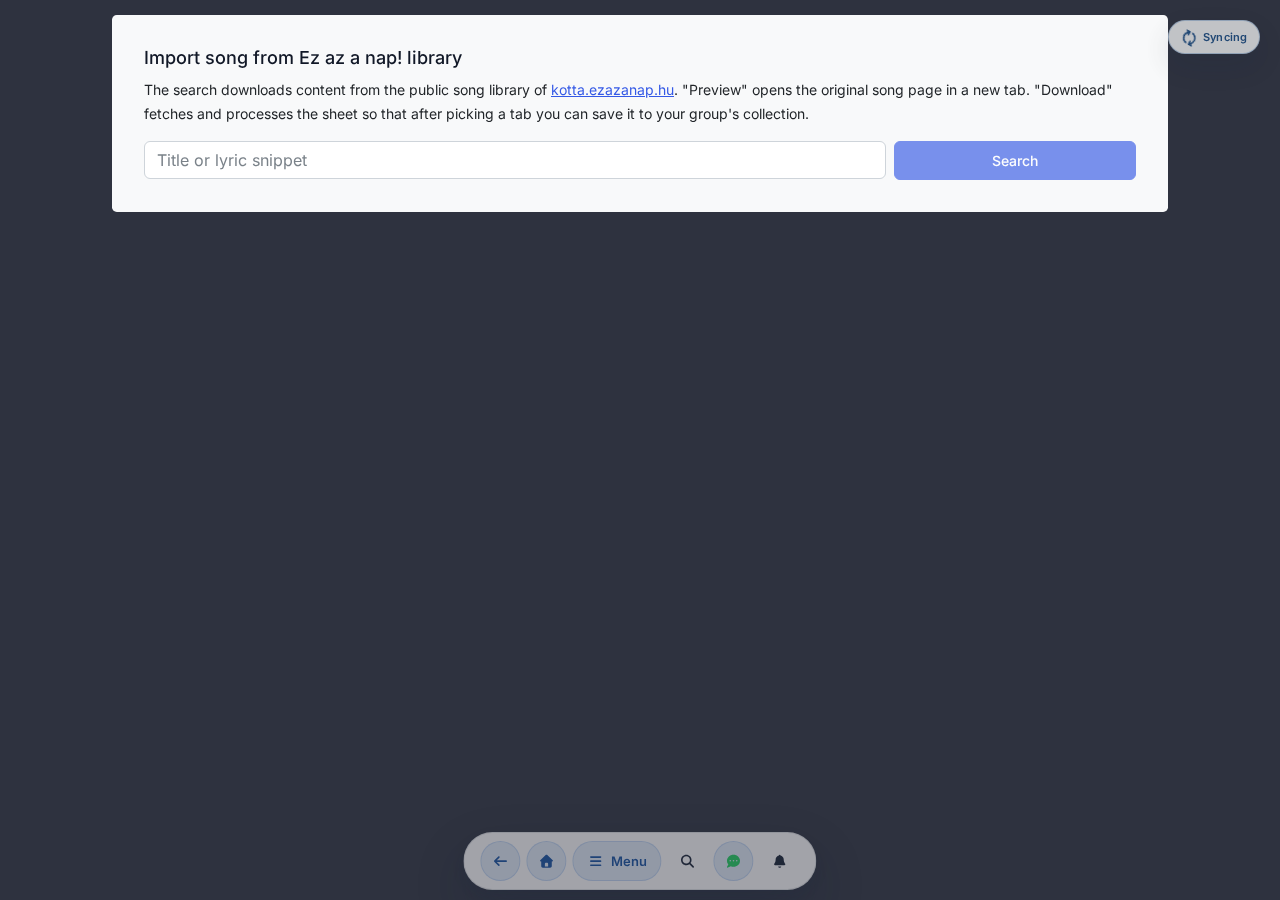
The results list uses the source site's own WordPress search via proxy — chords365.com does not store this content; it's only saved when you click Save and open after the tab selection.
Tab selector panel
Each tab card gives a small preview of the generated ChordPro and shows:
- Format:
chordpro-inline,chords-over-words,lyrics-onlyorcollapsed. - Confidence: the parser's percentage estimate of how well-formed the ChordPro is.
- Warnings: number of unknown chord notations and normalization issues.
The Cancel button takes you back to the results list without saving anything.
Save and proceed
The Save and open button inserts the selected tab's ChordPro as a new song into the group's collection. The source URL and any PDF attachment links are saved in the ChordPro header ({meta: source ...}, {meta: attachment ...}). After saving, you're taken to the viewer (/song/:id) page — from there you can refine it with the usual editor button.
Duplicate handling
If a song with the same title already exists in your group, the new import comes in with a suffix (e.g. "Title (2)"). Import never overwrites your existing song, so you can delete trial attempts afterwards.
Copyright responsibility
The kotta.ezazanap.hu public library may contain copyrighted works. The import page shows a warning above the Save button. You decide whether you are permitted to use the imported content within your own group — chords365.com only provides the technical means for the transfer.
If the generated chord positions don't line up correctly (e.g. a chord-line was too long on the source page, so chords got "stuck" to the end), you can manually reposition them in the editor after saving — the import cannot always convert the source page's CSS-margin positioning to character positions.
Kottatár.hu linking — bringing in the sheets you have purchased
kottatar.hu is the Hungarian Baptist Church's paid, licensed sheet-music shop. If you have an account there and have purchased sheets, you can link it with your chords365 account, and your purchased sheets get added to your group's library.
There are two similarly named things. The Kottatár.hu source visible in internet search only redirects to the shop ("Open in a new tab"); it does not import. This account linking, on the other hand, brings in your own, already purchased sheets — you pay in the shop, in the app you only bring them in.
Linking
You can reach the Kottatár account from two places:
- Menu → Content → Kottatár.hu, or
- in Settings, the Kottatár account card → Manage Kottatár account button.
Both take you to the /kottatar page. There, authorization starts with the Connect with Kottatár.hu button: we redirect you to the kottatar.hu sign-in page, where you grant access (OAuth). chords365 never sees your password or access keys — authorization happens on the shop's side. Once you return, your purchased sheets automatically start being pulled into your library.
My purchased sheets, syncing
After linking, the My purchased sheets list appears on the page, each item marked Imported or New. This is where you manage updates:
- Sync now — manually pulls in your new purchases (the process runs in the background; the page shows how many new sheets came in).
- Automatic sync toggle — if you turn it on, your new purchases are added to your library on their own, without a separate click.
A purchased sheet can be in only one group at a time. If you sync it into another of your groups, it is deleted from the previous group (along with its files) — we ask for confirmation before the sync.
Disconnecting
You can detach the Kottatár account at any time with the Disconnect button. Be careful with this:
On disconnecting, all imported Kottatár songs are PERMANENTLY deleted — along with their files (sheet images), from every group. This cannot be undone. On top of that, a 14-day waiting period starts: during it, the same Kottatár account cannot be re-linked (neither to this nor to another chords365 account). Only disconnect if you really want to break away from the shop.
Image / OCR import (beta)
If you have a paper sheet or a photo of a chord sheet someone gave you, Image / OCR import uses text recognition to tease out the lyrics and chords from it. You can start it from two places:
- from the Image/OCR import button on the Songs page, or
- from the New song wizard's "Import from elsewhere" group, with the Image / OCR import option.
Both take you to the same /ocr-import sub-page. The steps:
- Take or browse to an image or PDF (max 30 MB) with the Select photo / image / PDF button — for a multi-page PDF you can page to the one you want.
- Frame the chart text directly on the image (leave out the header and page number), then refine it with the rotation buttons and the contrast slider — a cleaner image gives dramatically better recognition.
- Start processing. Recognition works with the Tesseract engine using Hungarian + English (
hun+eng) language models; it automatically splits two-column pages and straightens skewed scans. - You receive the generated ChordPro draft in an editor textarea, with the recognition's Confidence indicator and the warnings beside it. At low confidence, a warning banner also flags that it's worth reviewing the text more carefully. Here you can fix it before saving.
- After saving you're taken to the viewer page (
/song/:id).
OCR provides a starting draft. It has difficulty recognizing handwritten notes, and makes more errors on multicolored or skewed scans. Hungarian chord conventions (H → B, e → Em etc.) are automatically converted to standard notation, but sometimes further refinement is needed afterwards. The uploaded original image is not stored — it is only retained during processing, then destroyed.
A song from a text document (Word, RTF, OpenDocument)
If you have a song as a text document — Word (.docx, .doc), RTF, OpenDocument (.odt), plain text (.txt) or Markdown (.md) — you can upload that as a song too. In the New song wizard's "Chords and lyrics" group, pick the Text document card.
Since such a file is neither structured (like ChordPro) nor fixed-format (like a PDF), after uploading you decide how we store it — via a two-column chooser:
- ChordPro text — the system converts it into editable chord text (in the left column you can fix it right away before saving), or
- Sheet image — it converts the document via PDF into image pages and adds them to the song's sheet images (in the right column you see a preview of the first page), or
- both — one song will have chord text and a sheet-image set; on the song page you switch between them with the version pills.
You must pick at least one of the versions; there is no automatic preselection. The app pre-fills the song's title (from the first line of the text or from the file name), but you can rewrite it before saving.
After uploading, the analysis runs in the background (a few seconds for a larger document); meanwhile the app shows a spinner. Don't close the page until the chooser appears.
A single file can be at most 25 MB, and the generated sheet image at most 30 pages. We run every upload through a virus scan (because of Word macros), and the conversion is macro-free. Copyright responsibility is yours here too — we warn you about this before saving.
Restoring an entire library (admin only)
A previously exported full-library ZIP (see Group management → export) can be restored at the bottom of the New song page, in the Start import section — visible to group admins only.
- First upload the large ZIP to the media library (using the media library's own chunked uploader — this way even multi-GB files go up).
- In the Start import section pick the uploaded ZIP from the list and start the import.
- The process runs in the background; at the end you see the report: how many songs were created, how many skipped, and how many failed.
The import skips songs that already exist (same title). Sheet music, sheet images and stem sets are recreated in the target group; audio waveforms are regenerated in the background.
Editing songs: one editor, three modes
Every song has a single, shared editor page. A mode segment in the top bar lets you switch between the three content modes: Visual, ChordPro source and Sheet image. Save lives in the global header — after saving you stay on the page, you are not bounced back to the song view.
On the left of the top toolbar is the Back button (its label is the song title itself, or the word Back when the title is empty), with the mode segment next to it. When you save, a Saved successfully confirmation appears and you can simply carry on editing.
The meta fields (Title, Subtitle, Artist, Composer, Key, Capo, Tempo, Time) are shared between the Visual and ChordPro source modes — both give you the same compact field grid. In Sheet image mode these fields (along with the tempo selector, the theme tags and the notes) are hidden.
On opening, the app picks the starting mode based on the nature of the song: if the song has a sheet image but no real ChordPro content, it opens in Sheet image mode; otherwise in Visual mode. On mobile it defaults to the ChordPro source mode, because typing is more comfortable that way on a touch screen — you can switch to visual at any time, the app just gives a gentle warning, since visual is optimized for larger screens.
ChordPro source mode
In this mode the whole song is editable in a single ChordPro textarea, using the familiar markup. The text you type is saved verbatim. Above the textarea a collapsible Help panel (Expand / Collapse) reminds you of the most common directives.
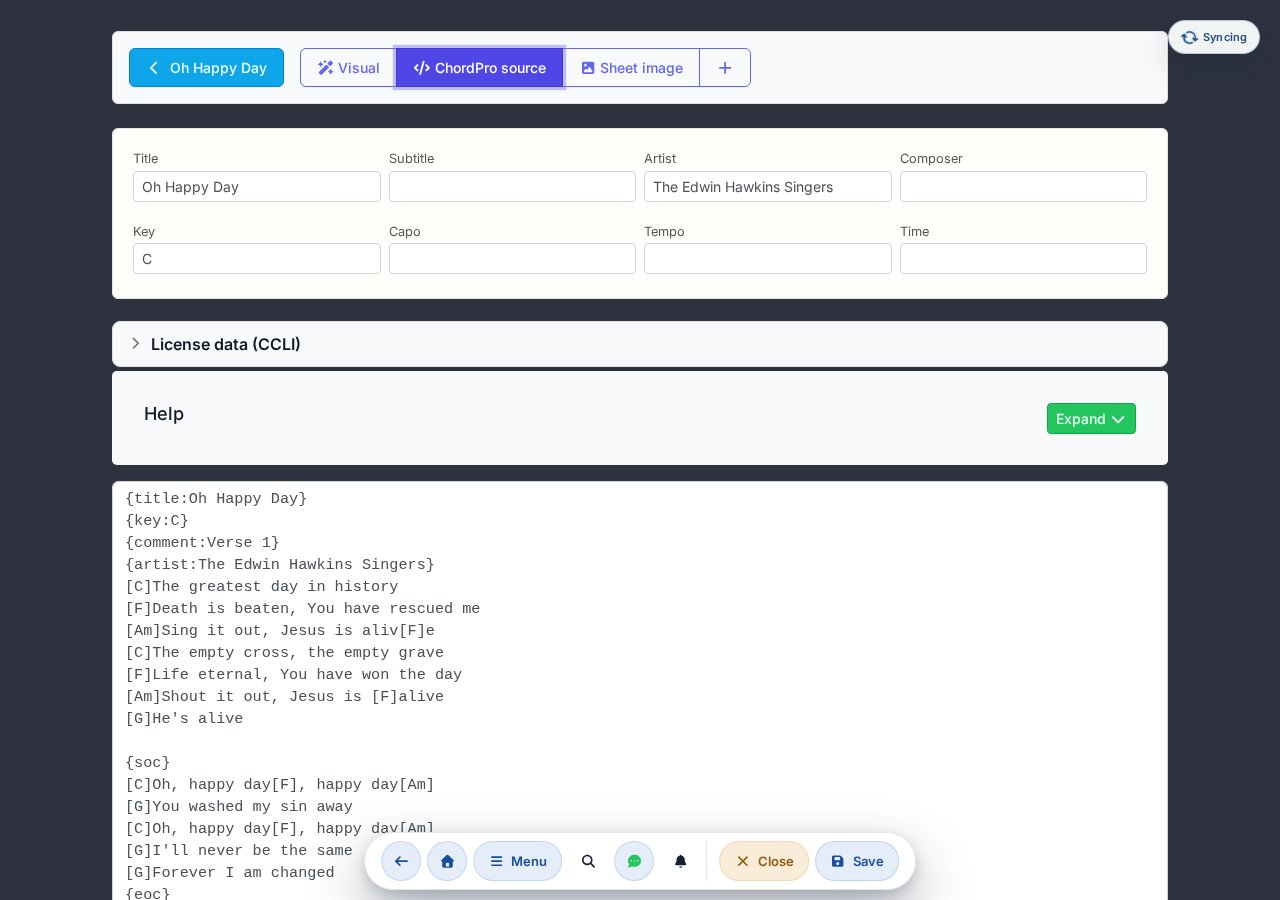
A few useful directives:
{title:...},{subtitle:...},{key:...}{capo:4}— capo value{tempo:140},{time:6/4}{start_of_verse:Verse 1}...{end_of_verse}{soc}...{eoc}— chorus (Start/End of Chorus)[Am],[D/F#]etc. — chords inline in the text
Visual mode
In this mode you work on the rendered song-text view, inserting or changing chords by clicking/tapping — you are not editing raw ChordPro. Behind the scenes the app keeps the content of the two text modes in sync, so you can switch to the source at any time.

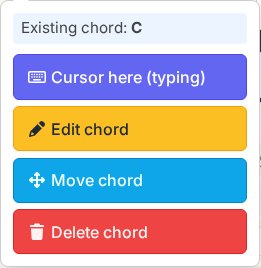
Inserting / modifying a chord: tap a letter or an existing chord → a bubble panel appears. On an empty spot you can choose between Cursor here (typing) and Chord here; picking a chord leads to a root-note and modifier selector. On an existing chord you get Cursor here (typing), Edit chord, Move chord and Delete chord.
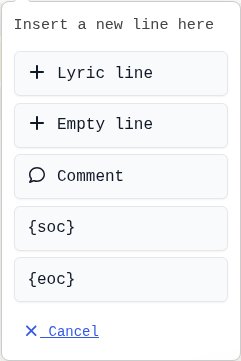
Line operations: every line has a small tool group — Select, Insert a new line here (+) and Remove line (). From the insert menu you can choose Lyric line, Empty line, Comment, as well as {soc} / {eoc}. At the bottom of the page the same types can be appended to the end of the song. If you select several lines, a single button lets you mark them as a chorus (wrapping them in a {soc}…{eoc} block).
Sheet image mode
Available only for a saved song. In this mode you manage the song's sheet images — you can upload, reorder and delete them. A single song can have several named sheet-music sets (e.g. one for the Piano part and another for the Violin part).
- In the top bar each set has its own button; the + button creates a New sheet set.
- The active set can be named with the Rename button, and (if there is more than one) deleted with the Delete set button.
- Use the Add file button or simple drag-and-drop to upload JPG, PNG and PDF files (a PDF is split into a separate image per page); you can add several files at once.
- Within a set you can reorder images by dragging them. To move an image to another set, use the Move to… dropdown beneath the image, or drag the image onto another set button in the top bar (on touch the dropdown is the reliable way).
- The Search for sheet online button lets you look up sheet music on the internet and attach it directly to this song.
Uploading, deleting and reordering sheet images does not take effect immediately: the changes accumulate in the browser (images waiting to be saved are flagged with a Pending upload badge), and only reach the server when you press Save. If you leave the page without saving, these are lost.
Assigning theme tags to a song
The Theme tags widget appears below the tempo selector, towards the bottom of the page, and is available only for a saved song. Here you can assign one or more group-level theme tags to the song (e.g. festive, advent, ballad). Existing tags toggle on and off, and if you want a new tag, you can create one on the spot with the New tag button (with an automatic color palette). These tags appear as filter chips in the song library and on the cards.
If AI is enabled for the group, an AI suggestions section also appears. With the Find themes button the app generates machine theme suggestions from the lyrics, with a confidence percentage. You can confirm each suggestion with the green tick or reject it with the X. On a repeat run the button becomes Find themes again.
Notes and links
Below the theme tags (also only for a saved song) there is a free-text Links, notes field, where you can jot down any note or reference for the song.
If you have unsaved changes (text, chord, meta field, tempo, note or a pending sheet-image operation) and try to navigate away, the app asks you with a confirmation dialog: Stay or Leave. Theme tags are the exception — they are saved instantly and separately.
Sessions and attendance
The admin adds an event on a given day (rehearsal, concert, performance), and members respond with I'll be there, Not sure yet or I won't be there — so everyone can see in advance who to expect at the session.
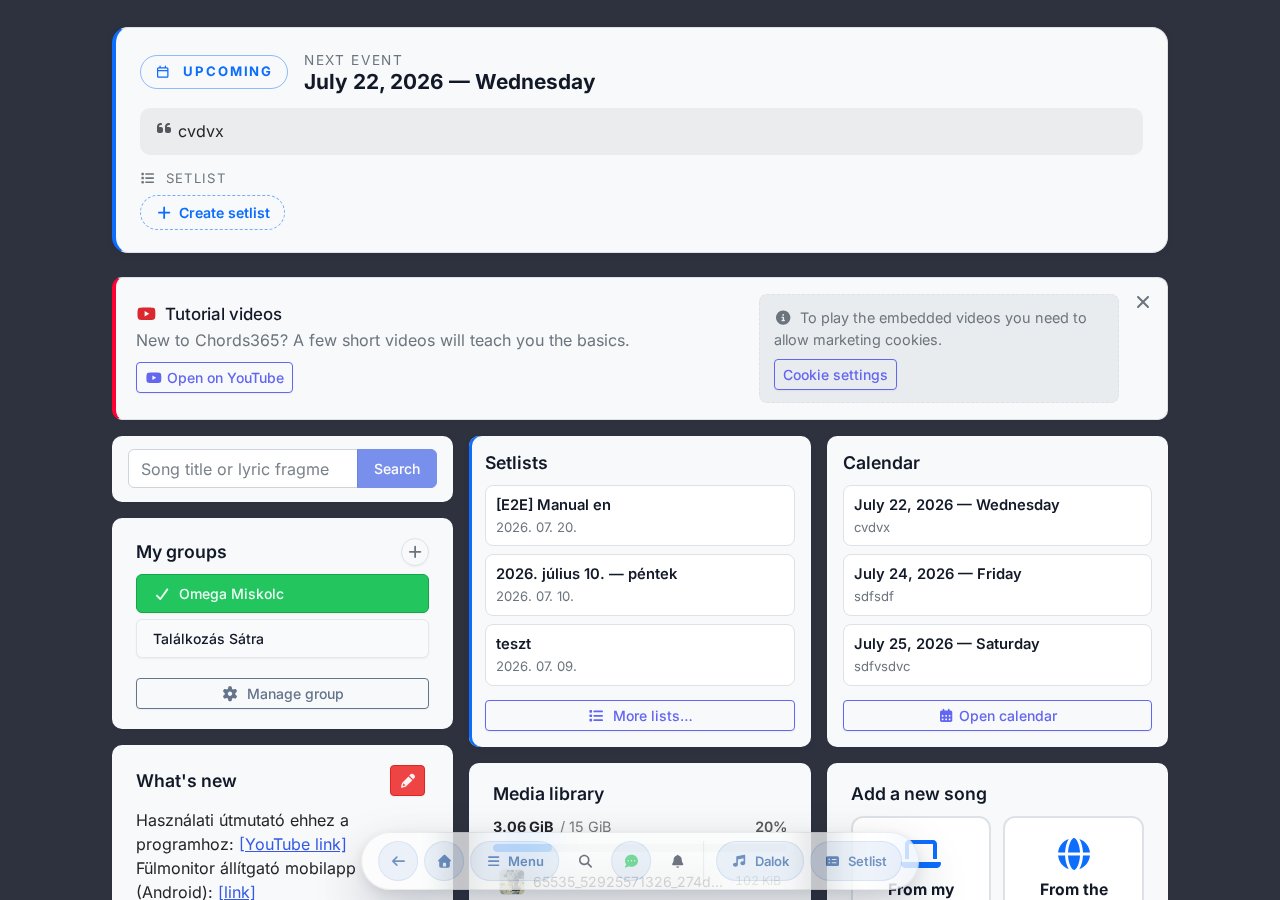
Adding a new event (group administrator)
- Click the New event button on the mini calendar (or click on an empty day).
- Enter the date and optionally a note (e.g. "MD: leader / vocalist, T: technician").
- Save — the event appears for everyone immediately.
- From this point members can indicate whether they can attend the session.
Setlists for the event
The first action bar of each event row shows a green Setlist pill, plus pills for already linked setlists. Clicking + Setlist opens a modal where a setlist linked to the event can be created with a single field (pre-filled with the date). After creating it you're automatically taken to the song library in edit mode with a basket — from there you can pick songs. Details: Setlist — Linking to an event.
Note line breaks
Notes can be multi-line; new lines are preserved. Tip: use "MD:" (music director / MD / setlist responsible), "T:" (technical responsible or theme), and list participants by initial.
Responding: will you attend?
Every upcoming event row has three buttons: the green I'll be there, yellow Not sure yet (you don't know for certain yet) and gray I won't be there. Your choice can be changed at any time. On a narrow screen (mobile) the buttons appear with short labels: Coming / Maybe / No — they mean the same thing. For a past event (in the All events modal) a static indicator, not a button, shows your earlier response: I was there / I was unsure / I wasn't there / No response.
Response collection is toggleable per member: if the group administrator doesn't request it from you (see chapter 13), the buttons simply don't appear on the event row.
Viewing responses
The Responses (N) button — visible to all members, not just admins — expands to show who responded how. Names are organized into four groups with small monogram avatars:
- Will attend — those who chose I'll be there.
- Won't attend — those who chose I won't be there.
- Not sure — those who don't know for certain yet.
- No response yet — those who haven't responded yet.
If any group is empty, a short message shows (e.g. "Everyone has responded." or "No one is unsure.").
Location and map
Events can also have a location assigned — with an address and a small map — so everyone knows exactly where to go.
In the event row (and in the All events modal) the group administrator sees a Add location pill next to the setlist pill. Clicking it opens the Event location editor:
- Address search at the top: as you start typing the address, you get results in two groups — Known places (your previously saved locations) and Suggestions (from the address search). Clicking a suggestion fills the fields and the map automatically.
- Structured fields: Country, Postcode, City, Street, House no. — you can also refine these by hand.
- Mini map with a draggable pin: if the marker isn't quite in the right spot, grab it and drag it to the exact location — the address updates based on the map.
- Access / section: a free-text note (e.g. "via the back door, second floor").
- Save this place for later (known places): when ticked, the location is added to your Known places list and can be selected again next time with a single click.
When a location is set, every member sees the address in the event row, the access note and a Directions link that opens the route in an external map. In the All events modal the map also appears below the address.
The map is built from © OpenStreetMap tiles, and address search (geocoding) goes through the Chords365 server — so your IP address never reaches the geocoding provider. Setting a location is entirely optional.
All events modal
The modal can be opened in three ways:
- Past events (N) link next to the "Events" heading — scrolled to the past.
- More events (N) link below the list — scrolled to the first hidden future event.
- Mini calendar click on an event day — scrolled to that day.
Schedule notification email
If the group administrator enabled the Schedule notification option (see chapter 13), every Monday at 16:00 (Central European Time) you'll receive an email about the events of the next 30 days. The email lists all events in per-group sections — not only the ones you've already responded to — with the date and your own response status on each line:
- You'll attend — you chose I'll be there.
- You won't attend — you chose I won't be there.
- Uncertain — you chose Not sure yet.
- No response from you yet — you haven't responded to this session (these are exactly the ones the email highlights).
The email reminds you where the system is still waiting for your response. The Manage schedule button takes you to the calendar on the home page, where you can change your answers. Notes and setlist links are not included in the email — you'll find those in the calendar.
The weekly reminder can be turned off per member: if you don't want these emails, tell the group administrator, who can remove you from the notification with a single click (see chapter 13). There's no self-service unsubscribe link in the email.
Group administrator interface
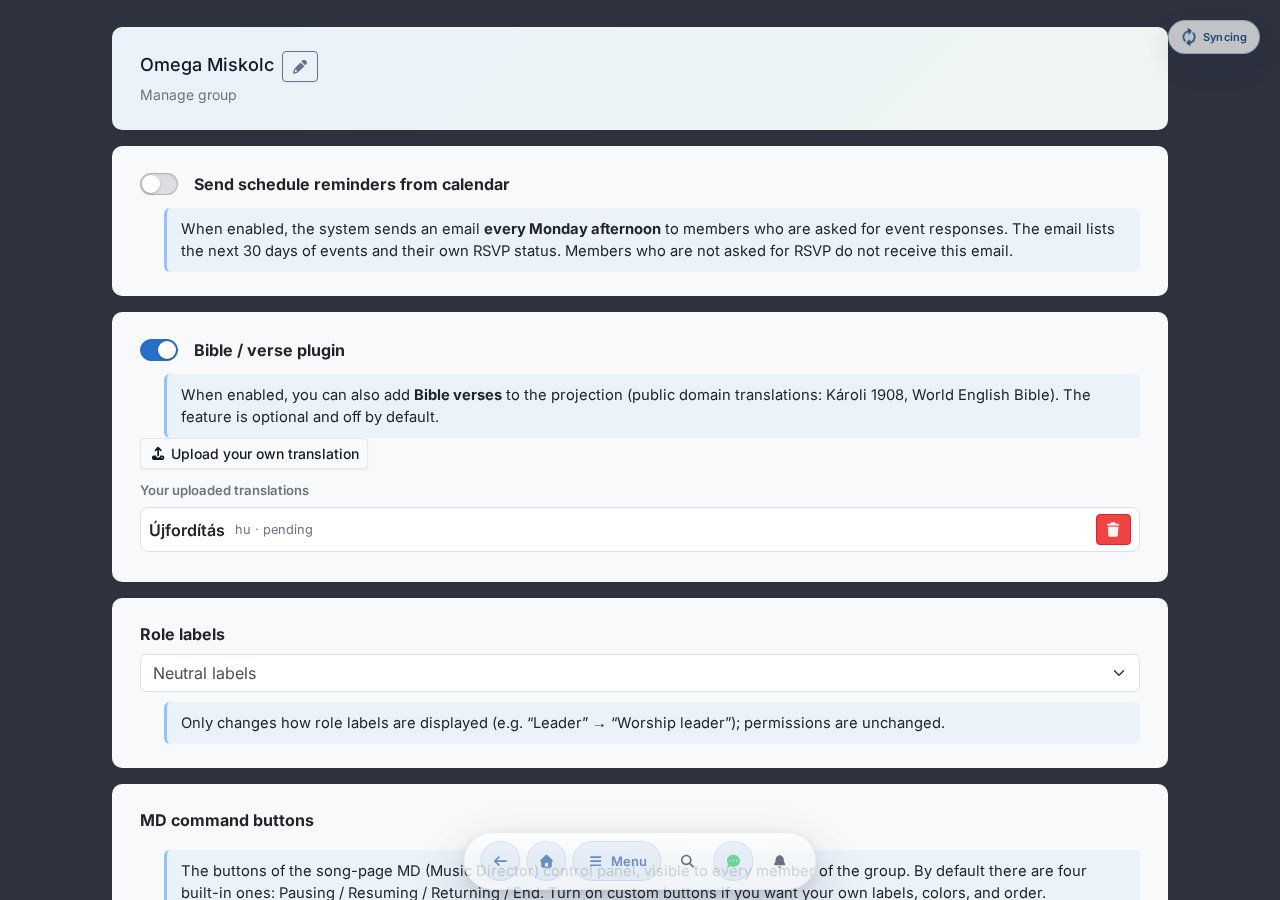
The Manage group modal is accessible to all members at the bottom of the "My groups" widget (here you can, for example, initiate leaving the group). Group administrators also get an extra Open admin management link within this modal, which leads to the admin sub-page (/group-admin) described here.
Leaving and deleting a group
In the Group management modal, members can start leaving the group or — if they are already the only member — deleting the whole group.
- Leave group — available in multi-member groups. It ends with a delayed, email-based confirmation (membership ends only when you click the confirmation link).
- Delete group — only when you are the only member (and an admin). To confirm, you must type the group name; after that all of the group's data is permanently deleted: songs, setlists, events, media library, projection backgrounds, stem files.
Deleting a group cannot be undone and it does not go to the Trash. You cannot delete your only group — create or join another group first so you aren't left without any group.
Renaming the group
On the admin sub-page (/group-admin), a pencil icon next to the name of your currently active group opens a rename dialog. Enter the new name and save — the header updates immediately, and the new name appears for other members on their next load. (An empty name cannot be saved; overly long names are silently truncated.)
Schedule notifications
When enabled, the system sends every Monday afternoon an email to members with their schedule for the next 30 days, based on the calendar content.
Member card view
Each member appears on a small card: monogram avatar (group-consistent color), name, anonymized email (s***[email protected] format). Currently active members have a green dot next to their name if their last activity (opening Chords365) was within the last 5 minutes — so before rehearsal starts you can see who's already online. Click a card → member modal with details:
- Admin status toggle — grant/revoke admin rights.
- Remove from group — with a confirm modal.
- Last sign-in time — you can see when they last used Chords365 (e.g. for identifying inactive members).
- Responds to events toggle — controls whether you request RSVP from this member for events (see chapter 12). When disabled, the member cannot respond and doesn't count as "no response yet"; their card shows "No response requested".
You cannot demote yourself from admin level, nor remove yourself from the group.
Adding a member
Clicking the Add member entry below the member list opens a dialog where you can add a member in two ways:
- By known email — if the person to invite already has a Chords365 account, enter their email address, look them up, and add them to the group with one click.
- Invitation link — generate a shareable invitation link, copy it and send it. Those who apply with the link still need to be approved separately (details in chapter 14).
Trash: deleting songs and setlists
Group administrators can delete songs (from the song menu in the library) and setlists (in the setlist header, in Music Director mode with the Delete setlist button). Deleted items don't disappear immediately — they go to the Trash (Menu → Trash, or the /kuka page).
- Restore — the song goes back to the library, the setlist back to the lists.
- Permanently delete — immediate, irreversible deletion of one item.
- Empty trash — permanently deletes all items in the trash at once.
Items placed in the Trash are automatically and permanently deleted after 30 days. The page shows per row how many days are left — you can restore them any time until then.
Exporting the entire library
On the group admin page, the Export entire library card lets you pack the whole song library into a single ZIP file. Using the checkboxes you choose what to include — sheet images / PDF, Stem – original (lossless), Stem – mp3, Stem – source files, tags; lyrics + chords are always included. Below the button you see the estimated size (with lossless stems the ZIP can be several GB).
The finished file is placed in the group's media library, and you receive a link by email. The media library is the export's permanent home: you can reopen / download the ZIP there any time later (see Media library), not only through the email link.
Since the finished ZIP is placed in the media library, it counts against the group's storage quota. A multi-GB export can even fail if there isn't enough free space — in that case, first free up space in the media library, or request a larger quota.
The ZIP can also be restored — see Import.
Roles and view profiles
In Chords365 you can control two independent things: which interface we bring forward for a member (view profile — anyone sets this themselves), and what the member can do in the group (role permission — the group administrator assigns this). The two are separate layers: rearranging the view never grants and never takes away a permission.
View profile switcher — "View: …"
In the global header Menu modal, a "View: …" button shows your current view profile. Clicking it opens the View profile dialog, where you can switch to another workspace. The choice is remembered per device, so the app opens in that view next time too.
The available profiles:
- Organizer — the full setlist editor and the setlist-centric home screen come forward.
- Musician — preparing for the next occasion: your own key/capo, practice, stems, offline package.
- Singer — a lyrics-centric view (see below), large, wrapped text.
- Technician — quick access to the media library and projection.
- Projectionist — the projection control panel; the
/presentationpage brings this up automatically anyway.
Switching the view only rearranges the interface, it grants no permission. If you don't have permission for an action, switching the view won't give it to you — the actual permission comes from your assigned role (see "Assigning roles").
Singer view — chord-free, wrapped lyrics
While the Singer view profile is active, songs appear without chords, wrapped: the text runs as whole words, line-broken, so there's no horizontal scrolling even on a narrow (mobile) display. The section labels (Verse / Chorus / Bridge…) and the comments remain; the floating key/capo control and the drawing/annotation layer, on the other hand, are hidden in this case. Auto-scroll, the stem player and Music Director follow work unchanged.
There's no separate toggle for this — switching to the Singer profile turns it on by itself. If you switch back to another view, the chords return. Songs that contain only sheet images are not affected by this.
Assigning roles (for the group administrator)
On the /group-admin surface, in the dialog that opens when you click a member's card, the group administrator can choose in the Roles section which role(s) the member should have (there can be several at once). The roles also grant/revoke permissions, not just appearance:
- With none selected, the member gets the full, previously customary access (they can edit, import, organize setlists).
- If they receive one or more specific roles, their access narrows to those: a member with only the Singer role, for example, does not create new songs, and one with only the Projectionist role does not edit lyrics — but may operate the projection.
In their own view profile switcher, the member usefully uses only the profiles that make sense for them; the permission is in every case decided by the assigned role, enforced on the server side.
Neutral or church labels
Among the /group-admin settings, with the Role labels selector the group can decide under what name the roles should appear:
- Neutral labels — Organizer, Musician, Singer, Technician, Projectionist.
- Church labels — Worship leader, Band member, Vocalist, Sound engineer, Projection minister.
This only changes the display of the labels across the whole group; the roles' permissions remain completely unchanged.
Projects, info pages, tasks
The Project workspace is the group's shared work surface: in one place you can keep a task board (a Trello-style kanban) and preserve recorded information (markdown info pages). Everything belongs under a project; a project can optionally be linked to an event too — in which case it becomes an occasion memo.
Opening and a new project
The projects are reached from the Projects item of the global header Menu modal (the menu item appears once the group already has at least one project). On the project list you create a new one with the New project button: give it a name and an optional description. Any group member can create a project; deletion and setting the visibility are done by the project's creator or the group administrator.
Info pages — recorded knowledge
The info pages are the project's persistent, editable information: e.g. "sound setup", "dressing-room code", "parking", rehearsal schedule. Every page has a title and a markdown body (# heading, **bold**, *italic*, - list, [link](https://…)). You add a new page with the New info page button.
Task board (kanban)
On the project's task board you create columns (e.g. To do / In progress / Done) and put the tasks into them as cards. The cards can be rearranged between the columns by drag and drop. For a task you can set a due date, a priority (Low / Medium / High), assignees and comments. The board updates in real time on every open workspace: if someone moves or edits a card, the others see it immediately.
Assigning a task and notifications
If you assign an assignee to a task, the member concerned gets a notification: the bell notification (inbox) and the badge on the installed app's icon always update, and — if they've enabled it — a browser push also arrives. Likewise, whoever you mention with @ in a task's description, in a comment or on an info page gets a notification (typing @ brings up the list of group members).
You can turn the notification categories (Task assigned to you, Mention in a task) on or off among the Settings (Notifications).
Occasion memo
You can keep the to-dos and info belonging to an event as an occasion memo: in the Events box / on the event card, the Memo button opens (or creates) the project linked to that occasion. This way "what to bring / who brings what / rehearsal schedule / technical note" is in one place, focused on the occasion. When the event is deleted the memo isn't lost, only its link to the event ceases.
Tasks assigned to me
On the home screen a separate section (Tasks assigned to me) collects the still-open tasks entrusted to you from all projects — so you can start from one place when you're preparing for the next occasion.
Visibility
When creating / configuring a project you can set the visibility: All group members, or Group admins only (or narrowed by role). This way you can hide a technical or leadership project from those it doesn't concern.
Inviting a new member with two-step approval
The group administrator generates a link-based invitation. The applicant still needs to be approved separately after applying, so nobody can join uninvited.
Generating an invitation link (admin)
- On the admin sub-page, click the Add member entry, then choose the Invitation link option.
- Click the Generate link button, then copy the displayed link with the Copy button.
- Send the link to the person being invited (via chat, email, SMS).
- The link is valid for 14 days, and any number of users can request to join with it — but a single user can send only one request per link. In the same place you can see the active links with a countdown, and revoke any of them.
- After generating, an Generate another link button also appears, which lets you create an additional invitation link alongside the existing one — the earlier links stay active.
Join request (invitee)
- The invitee clicks the received link.
- If not signed in, they are returned here after login.
- On the confirmation page they confirm their join intention with the Send request button.
- The admin is notified of the request by email.
Clicking the link doesn't always lead to the Send request screen — a separate, clear message appears for each case, and in those cases (re)applying is not possible:
- Expired link — "This invite has expired" (the 14-day validity has run out).
- Revoked link — "This invite is invalid" (the admin revoked it).
- Already a member — "You're already a member of this group".
- Request already sent — "You've already submitted your request" (a single user can send only one request per link).
Approval (admin)
- The View request button in the email takes you to the join requests section of the Manage group interface.
- You see the applicant's name, email, device and timestamp.
- Approve or Delete — both row buttons are finalized with a confirm modal (the modal is titled Approve join, or Delete request respectively).
- After approval, the member receives an email notification, and the group appears immediately for them (it is picked up automatically on their next home load).
Only the User-Agent is saved from the applicant's device, along with a timestamp — no IP address or geolocation is stored.
Managing active invitations
In the same place — the Add member → Invitation link dialog — during generation we list all still active invitations: the invitation token, when it was created, how much time is left until the 14-day expiry (e.g. "3 days 22 hours remaining") and how many join requests have come in for it. Any invitation you no longer want to use can be revoked with one button — the link becomes invalid immediately. Previous requests (even if you revoked the invitation) can still be approved as before.
Join requests list
The page's separate Join requests section shows the pending requests you haven't acted on yet. Per row:
- The applicant's name and email address.
- The device (User-Agent text, so you can see whether they applied from mobile/desktop).
- The request timestamp.
- Approve / Delete buttons — both finalized with a confirm modal.
Detailed user settings
The Settings menu item in the global Menu modal leads here. Organized into multiple tabs, you can customize everything: General, Display, Features, Account.
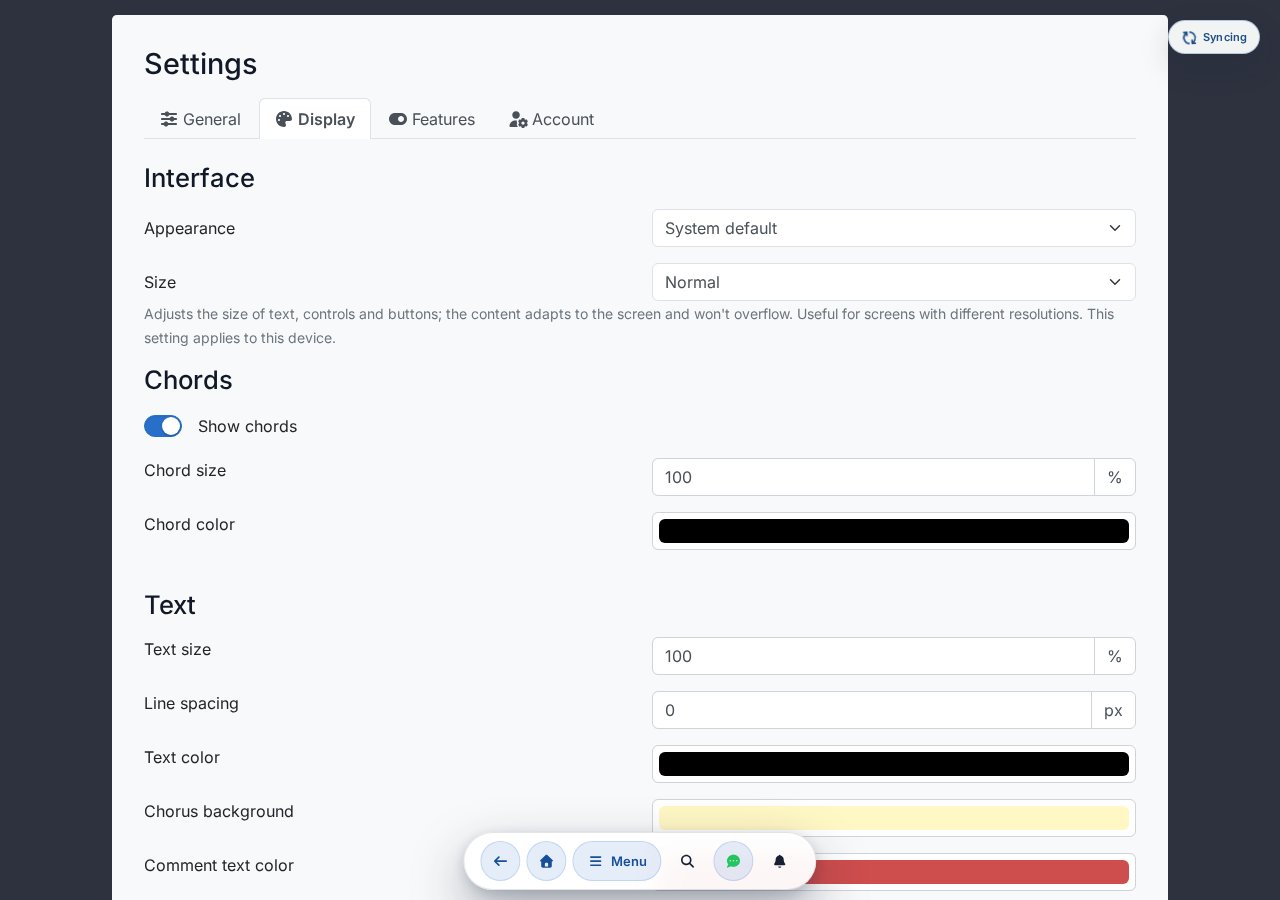
General tab
- Language / Nyelv: choose from ten languages — Magyar, English, Deutsch, Español, Português, Français, Polski, Română, Русский, Українська.
- Notation: Hungarian (D – G – H – Em) or Anglo (D – G – B – Em).
Appearance section (Display tab)
- Theme: System / Light mode / Dark mode.
- Size: the density of the interface (UI) — Compact (smaller), Normal, Large (bigger). It scales the size of the entire app chrome (text, buttons, controls, menu bar); meanwhile the content adapts to the screen and doesn't overflow (it's not zoom). Useful for screens of different resolutions. This setting is per device — it can be set separately on every device and doesn't sync.
Chords section (Display tab)
- Show chords toggle (there are situations where only lyrics are needed — e.g. for vocalists, or for projection).
- Chord font size (percentage value) and color.
Text section (Display tab)
- Font size (percentage value), line spacing (px).
- Color, chorus background, comment text color, background color.
Features
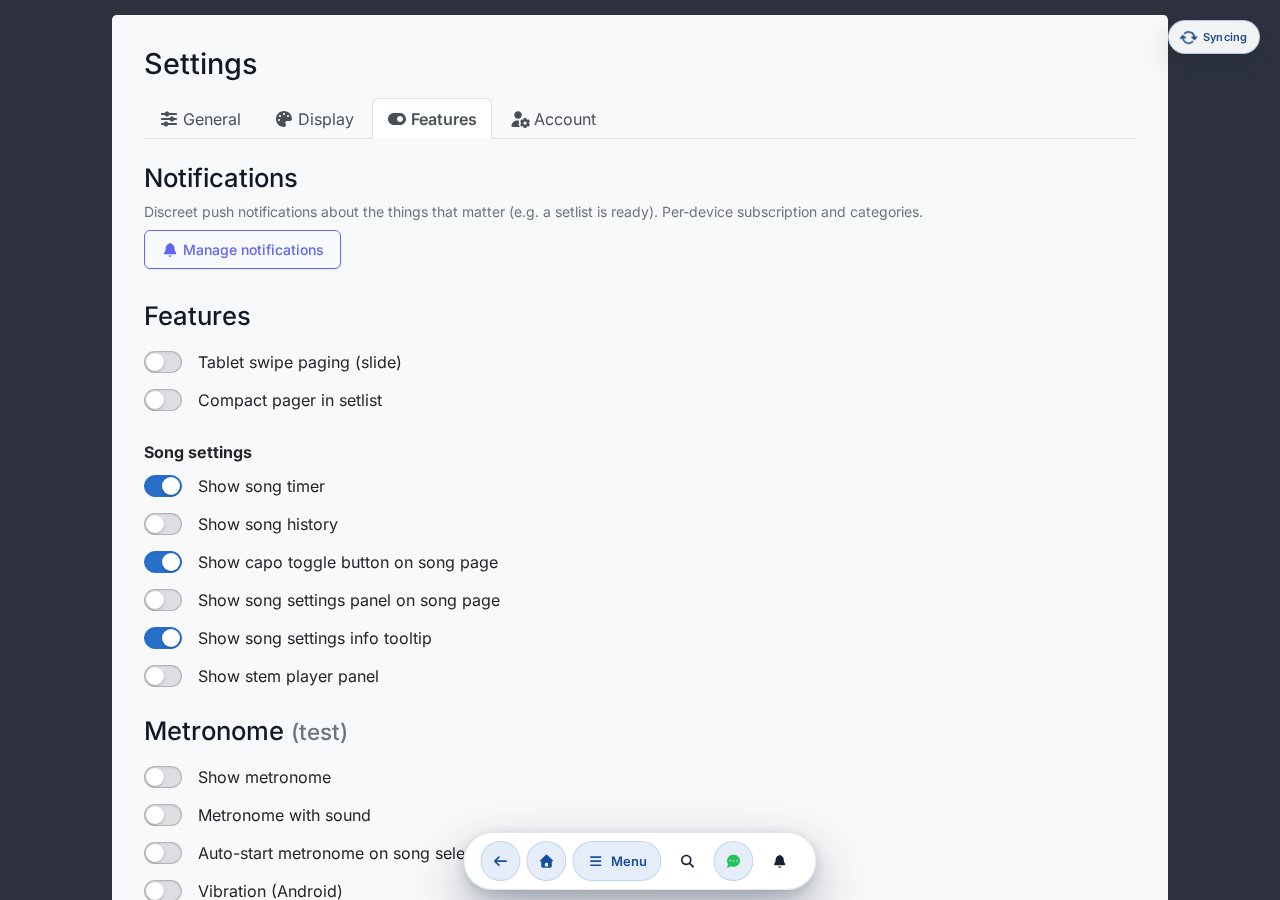
- Tablet slide page-turning feature.
- Compact pager in setlist.
- Show stem player bar.
The Features tab has a further sub-section Song settings (see below), with additional toggles — Song timer, History, Capo toggle button, song settings panel and its associated info tip.
The finger drawing toggle is not here — it's switched with the hand icon button in the song page's drawing layer toolbar (see chapter 6).
Song settings
- Show song timer — measures performance length.
- Show song history.
- Show capo toggle button on song page.
- Show song settings panel on the song page.
- Show song settings info tip.
Metronome (test)
- Show metronome.
- Metronome with sound.
- Vibration (Android): the phone vibrates to the beat — followable on a loud stage or without headphones. The first (accented) beat vibrates longer. Once enabled, a Vibration mode select appears (Sound + vibration / Vibration only (silent)) and a Vibration strength select (Soft (short) / Strong (long)). This works in Android browsers (Chrome/Firefox); iPhone/iPad doesn't support it, so the toggle doesn't appear there.
- Auto-start on song selection.
Pedal / keyboard support (beta)
See chapter 17.
Browser push notifications (separate page, opt-in)
Beyond schedule emails, Chords365 can also send browser/device-level push notifications for important events. You can enable them in two places:
- At the home screen prompt: if your browser supports push and you haven't decided yet, a prompt appears once on the home screen — the "Enable" button enables it in one move. At that point all notification categories turn on (we request the permission globally), but you can turn any of them off individually afterwards.
- From the Settings page: in the Notifications section, the "Set up notifications" button takes you to the
/notificationssub-page, where you can subscribe/unsubscribe per device and fine-tune per category.
Subscription is always per device: you enable it in that browser/device (the browser asks once); you need to enable it separately on another device.
What can you get notified about?
On the /notifications page you can individually toggle what you receive push for:
- Setlist ready — a team member has signaled that a list is complete.
- Setlist modified — a list's songs, order or key has changed.
- Session change — a session you'd signed up for was cancelled or changed.
- New group news — the admin posted new news on the group board.
- Group membership — join requests, approvals and membership changes in your groups.
- Headcount for sessions (for admins) — we notify you when the required number is reached, or when only one member is missing.
- Stem processing done — track separation is complete and playable.
- Stem processing failed — a track processing job errored; retry with one tap.
- System announcements — important system-level announcements and maintenance notices.
- Setlist copied — when someone has copied a list you created.
- New chat message — when you're not currently in the app, we let you know about unread group or private messages.
- Your idea got built — we notify you when an idea or request you raised has been implemented.
- Test notification: you can test with one button whether push arrives on your device.
- iPhone / iPad: push only works if you've first installed the app on your home screen (Safari, iOS 16.4+). If your browser doesn't support push, the page shows this.
Notifications are data-frugal: they contain no sensitive details (email address, file name, source URL), and only arrive when you've requested them.
In-app notification center
As a complement to push, every notification also lands in the in-app notification center: the bell icon in the top bar shows the count of unread items, and clicking it opens a dropdown panel with your most recent notifications. Clicking an item jumps you to the relevant place (and marks the item as read), or you can mark them all as read with a single button.
This works even if you haven't enabled push — or if your browser (for example on iPhone) doesn't support it: you'll always find your notifications here. The unread count can also show up on the app icon when you've installed it to your home screen, where the system supports this.
Unsent changes (DLQ)
If an offline-save operation hit a 4xx error on the server (e.g. conflict, permissions), it goes into the dead-letter queue. This block only appears if there really is such a stuck operation — here you can see them listed, and manually retry or discard them.
Sheet-music account (if enabled)
If the sheet-music module is enabled, a Sheet-music account card sits at the very top of the Account tab with a Manage sheet-music account button that takes you to the /kottatar page — here you can connect your kottatar.hu account so your purchased sheets land in your library.
Profile: display name
At the top of the Account tab, in the Profile section, you can change your own display name — this name is shown in your groups, the calendar and the member list. Enter the new name and press Save (only active if the name has changed and is not empty). The change takes effect for your other devices and group members' screens on the next load. The email address cannot be changed here.
Passkeys (passwordless sign-in)
If your browser supports passkeys (WebAuthn), a Passkeys section appears on the Account tab. A passkey enables passwordless sign-in with biometrics (fingerprint, face) or a device PIN.
- Add new passkey — register a passkey for this device.
- Rename — every passkey in the list can be renamed (e.g. "Work laptop").
- Delete — a passkey you no longer use can be removed.
For each entry, the list shows the date it was added and — if there was one — the date it was last used.
Cookie settings
On the Account tab, the Open cookie settings button in the Cookie settings section brings up the cookie consent panel, where you can change or withdraw your earlier consent at any time.
Save and reset
The Reset settings button (to default values) is on the Account tab. There is no separate Save button — changes are saved automatically, and a brief "Saved" indicator flashes in the header.
Download my data
On the Account tab, in the My data block, you can download a copy of the data Chords365 stores about you as a ZIP file with one button. This is the self-service fulfillment of your GDPR access and data portability rights — no separate request needed.
- The package contains a human-readable summary (README) and machine-processable JSON/CSV files: profile, group memberships, calendar responses, song activity, capo and drawing settings, projector/stem metadata, email history, account operations.
- For security reasons it does not contain login secrets, session data, other users' email addresses, or raw media/audio files — the omitted fields are listed in the package's
manifest.json. - You'll receive a security notification email for every download; if you didn't request it, change your password and let us know.
Danger zone: account deletion
In the Danger zone section at the very bottom of the Settings page you can initiate deletion of your own account. The process is two-step to prevent accidental loss of access:
- Click the Delete account… button → confirm modal where you confirm your intention.
- A confirmation link is sent to the email address of your account. For security reasons we send the email with about a 1-hour delay, and the link in it is valid for 7 days.
- Clicking the link in the email, a further button finalizes the deletion.
- Your personal data (notes, drawings, favorites, capo settings) are deleted.
- Group-level content (songs, setlists, events) remains, only your name is anonymized in the author fields.
- If you are the only member of a group, the entire group and all its content is deleted along with you.
- If you are the only admin of an active, multi-member group, deletion cannot proceed — the modal tells you which group you need to first transfer admin rights to another member in.
Projecting lyrics and slides
Chords365 can project song lyrics to a separate projector — with background images/videos, a brand logo, or slides assembled per song. Projection can be started in several ways: to an external display on this device, wirelessly by casting, or by pairing another device via QR code.
Starting projection — three modes
In the Projection section of the global header Menu modal (only if you belong to a group), the Project to external display / Cast button opens the Start projection dialog with three options:
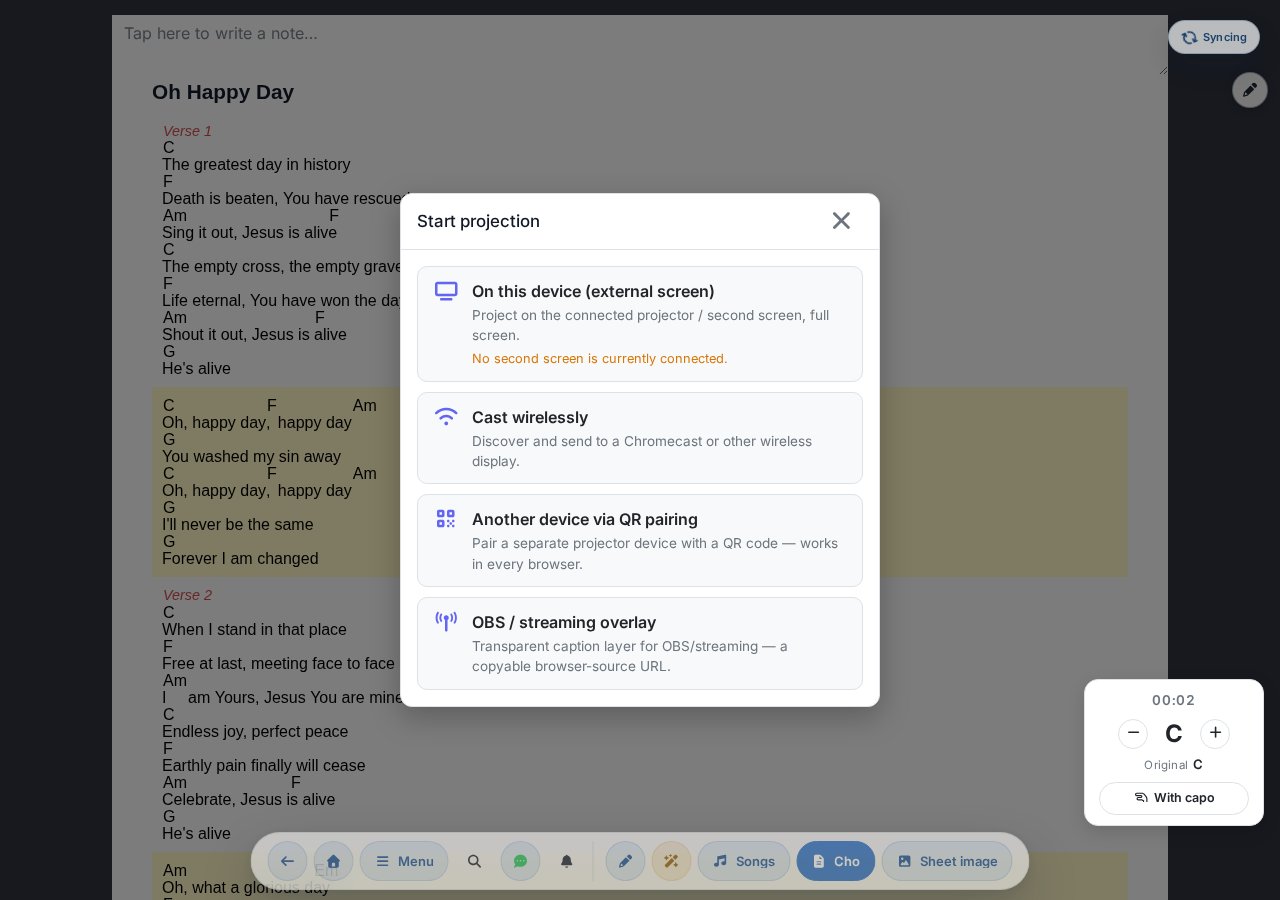
- On this device (external display) — the projection appears on the connected projector / second display in full screen. If no second display is connected, the dialog indicates this.
- Cast wirelessly — discover and send to a Chromecast or other wireless display.
- Another device with QR pairing — pair a separate projector device via QR code (see below). This works in every browser.
The first two modes use the browser's native display sending, so they're available under Chrome / Edge only; under Safari and Firefox only the QR pairing option appears. When projection is running, the Stop projection button here stops it.
Text and background settings
The Projection → Text and background settings menu item opens a global dialog where you set the projected text appearance and the background (accessible from anywhere, not just the song page):
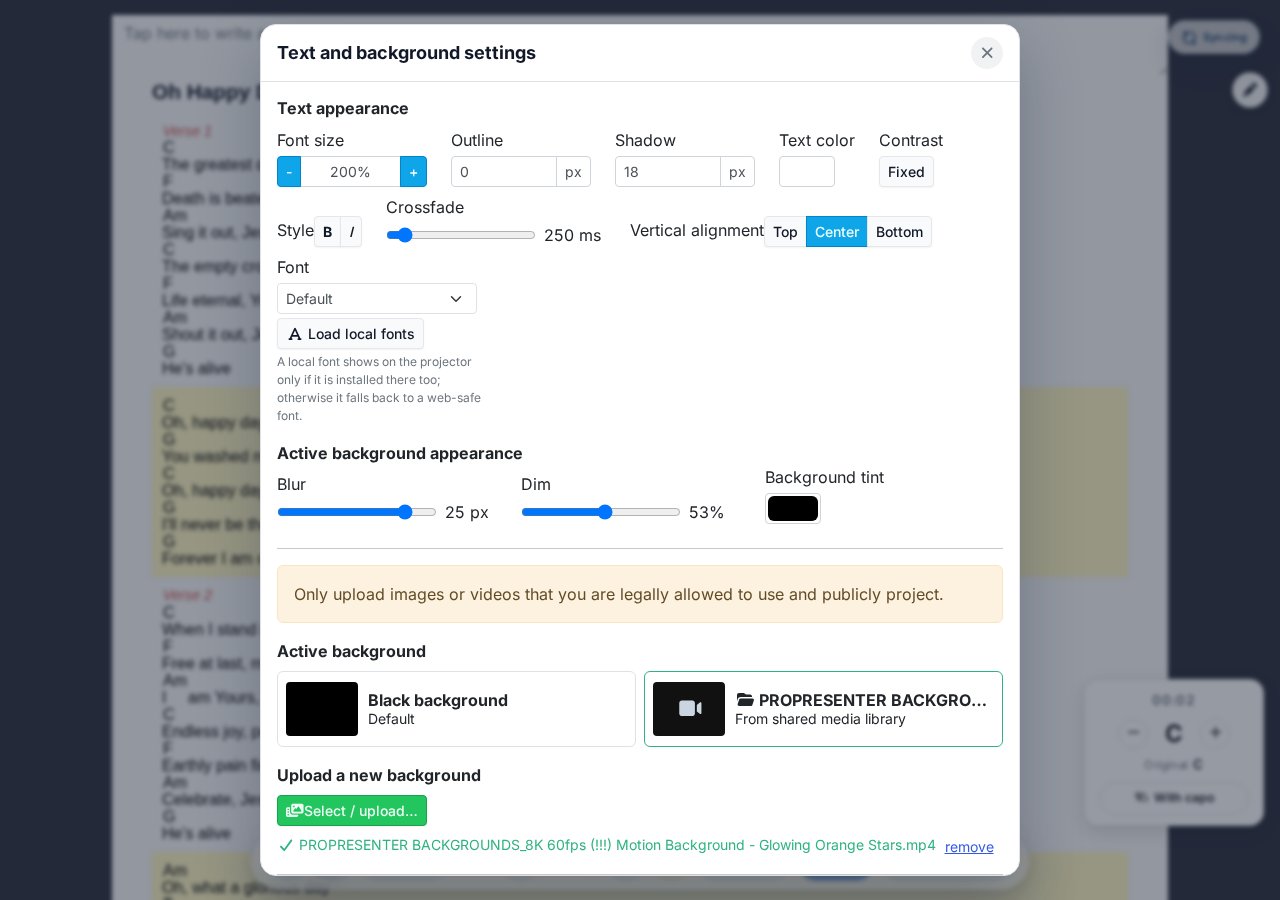
- Font size with %-step adjustment, 10% increments (default 200%, can be increased without limit).
- Outline, shadow (px), text color, style (B bold / I italic), font.
- Active background appearance: blur in pixels and darken as a percentage.
- Active background selector (Black, or any uploaded image/video).
- Upload new background — image or video (max. 5 minutes), or Browse the shared media library from the group's media library. Only use content you have the legal right to use!
Live control during projection
While projection is running, two buttons on the song page's projection panel act instantly on the projector's content:
- Drop text — immediately clears the projected text (the background stays). Useful when you want to show a clean background instead of the text.
- Blackout — switches the projector fully black. Ideal during a sermon, prayer or break, when you want to darken the screen for a moment without stopping the projection.
Brand logo on the projector
In the Brand logo settings section of the same dialog, a logo (image or video) can be placed in one corner of the projector — e.g. the band's or community's emblem.
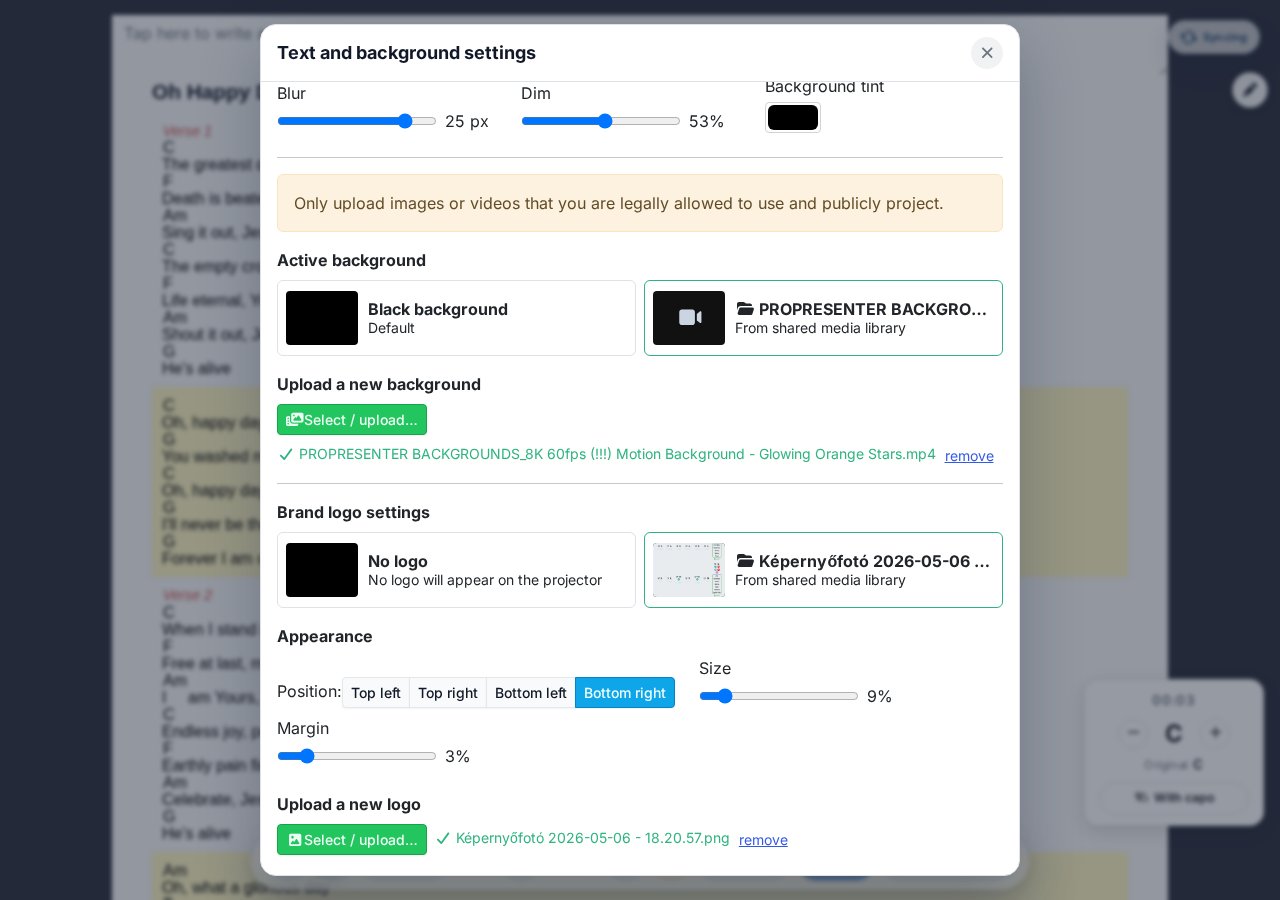
- Choose logo: No logo, a previously uploaded logo, or an image browsed from the shared media library. Upload new logo / Browse logo from shared media library.
- Appearance: the Position is one of four corners (Top left / Top right / Bottom left / Bottom right), Size and Margin are adjustable with sliders.
The Brand logo settings window also has a "Chords365.com watermark" toggle. When enabled, a faint "Chords365.com" wordmark drifts in beside the logo (or into the bottom-right corner if there is no logo) for a few seconds when projection starts, and then periodically (about every 10 minutes), before fading out again. It never appears during blackout or the countdown timer. It is on by default, can be turned off per device at any time, and turns itself back on 30 days after being disabled.
Slide presentation — per-song slides
Instead of flowing text you can project text broken down into per-song slides. On the song page, in the Song quick-box section of the global header Menu modal, the Slide presentation toggle switches to slide view, where a slide grid appears in place of the lyrics.
When you turn on the slide presentation, the MD projection toggle in the same place turns off automatically (keeping the surface clean), and the slide grid loads instead of the flowing lyrics. The chosen mode is remembered per device, so it persists across song changes and refreshes.
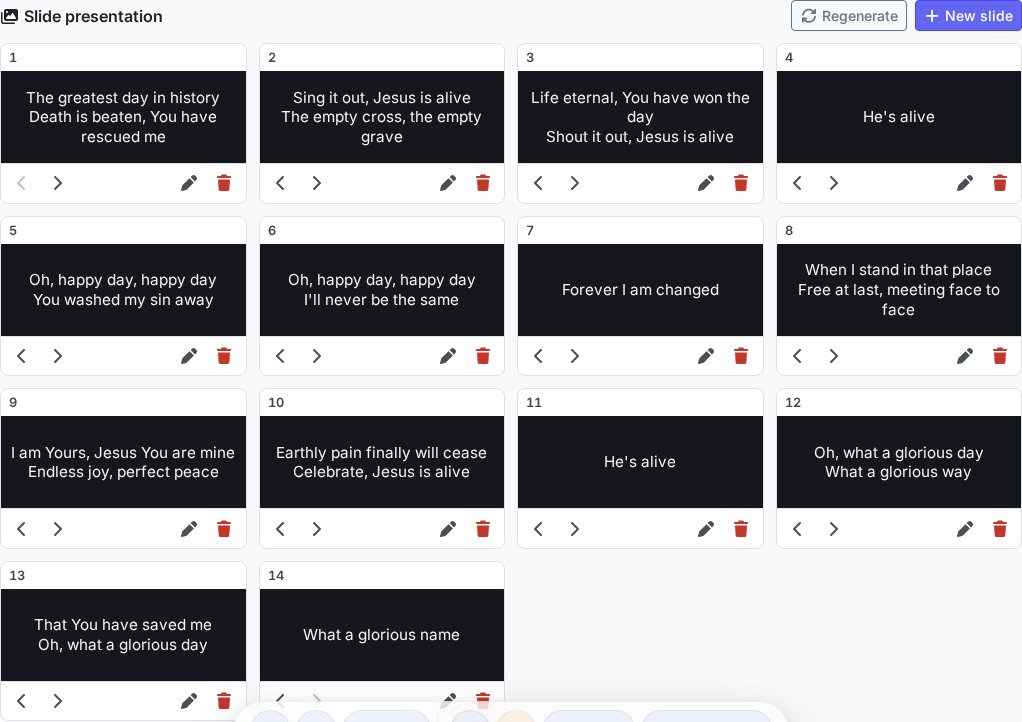
- Generate from lyrics — if the song has ChordPro text, a single button turns it into slides (without chords and comments, approx. 2 lines/slide). Freely editable afterwards.
- Create empty slide / New slide — add a slide manually.
- Edit: the slide text can be changed; Split cuts at the cursor into two slides; arrows reorder Forward/Back; Delete.
- Project — clicking a card puts that slide on the projector (the projected slide is marked with a LIVE badge).
- Regenerate — rebuilds the slides from the song text (overwrites existing ones).
Projection control panel (setlist level)
Alongside the per-song mode, Chords365 also offers a setlist-level projection control panel for the person running the projection (a ProPresenter-style operator interface). It starts from the Projection section of the global header Menu modal, or from the /vetites page: first a setlist picker, then the control panel itself.
- Running order — on the left, the setlist's songs and the extra slides in a single list. The items can be rearranged anywhere by drag and drop, and "Add extra slide" is at the bottom of the list.
- Extra slides from several sources:
- Text slide — freely written text slides. - Media library — an image or video from the shared media library. Multiple images combine into a single image slide sequence, in which you can page from slide to slide. - Presentation import — upload a PPTX / PPT / ODP / PDF file; the system converts it server-side into page images and creates a ready-made image slide sequence from it. - Scripture verse — if the Bible module is enabled for the group, look up a passage and insert it. - Template — insert a previously saved projection template (a reusable slide arrangement). - Advertising playlist — insert a pre-built ad / advertising slide sequence (slides that advance on their own).
- Embedded media player — clicking a list item does not start playback immediately; a control opens on the right. For a photo, Show + fill (cover/contain); for a video, Play / Pause / Stop, volume, a playback bar (seeking, elapsed/remaining time), and, where available, audio output selection. While a video is playing, the background is paused (so it doesn't tax the machine), and after Stop the original background is restored.
- Offline preparation — the contents of the opened setlist (songs, slides, images, videos) are downloaded to the machine with a progress indicator, so the projection runs reliably without internet too.
The appearance of the projected text and the background are controlled by the same "Text and background settings" dialog as above; from the control panel it's reached via a quick panel and the "Detailed settings" button.
Countdown / timer on the projector
In the control panel header, the Timer button projects a countdown — for a break or until the event starts. While active, the button itself shows the remaining time in the header.
- Break — quick presets (5 / 10 / 15 / 30 / 45 / 60 / 90 minutes) or a custom minute value (fractions too, e.g.
2.5= 2:30). - Until start — counts down to a specific time of day (HH:MM); if that time has already passed today, to the next day.
- Message — a caption shown below the number, up to two lines (e.g. "Starting soon"); whatever you type appears on the projector instantly.
- Controls — Start / Pause / Reset / Stop. After it expires the number counts up with a minus prefix in bright red (how far over time it is).
- Corner clocks — on the projector: top-left the start time, top-right the expected end, bottom-left the current time (present even when no countdown is running).
With the header Screens button you can assign a role per screen: Slides only on one projector, Countdown only on the other — so a single controller drives two separate canvases at once (two wired displays required). The "Start projection" window then shows the status of both canvases separately.
Projector pairing via QR code
If the projector is a standalone device (e.g. a tablet or laptop connected to the projector), you can pair it with your own device via QR code. From that point, setlist changes and song selections automatically appear on the projector.
- On the projector device, open the pair sub-page — a QR code and a pairing code appear.
- On your own device, choose the Start projection → Another device with QR pairing option. The camera starts automatically — point it at the QR code shown on the projector. If the camera supports it, the Zoom buttons (1×, 2×, 3×…) let you zoom in on the code. If there's no camera or you don't grant permission, you can also manually enter the 6-character code visible on the projector below the QR code.
- The two devices are paired — the paired projector is now under your control.
Managing active projectors
If you have at least one paired projector, an Active projector (N) chip appears in the top bar of the home screen, where N is the number of paired projectors. Clicking it opens the Manage active projectors dialog, where you see the device name and the time of its last heartbeat on each row.
On any row, the Sign out button lets you remotely disconnect that projector — the pairing ends and the projector device leaves your control. The action asks for confirmation.
When the occasion ends, or you forgot to close the projector's browser, you can cleanly disconnect all paired devices from here — no need to walk over to the projector device.
Chords365's own projection software
Chords365 doesn't just manage songs and setlists — it also includes a complete, built-in projection software. The /presentation (formerly /vetites) control panel is a ProPresenter-style operator interface: from a single place you assemble and control the entire projection of an occasion — song lyrics, image slide sequences, videos and slides imported from presentations — without installing a separate projection application, straight from the browser.
Opening the control panel
The control panel starts from the Projection section of the global header Menu modal, or directly from the /vetites page. First a setlist picker appears — choose which occasion you're projecting — then the full control panel opens.
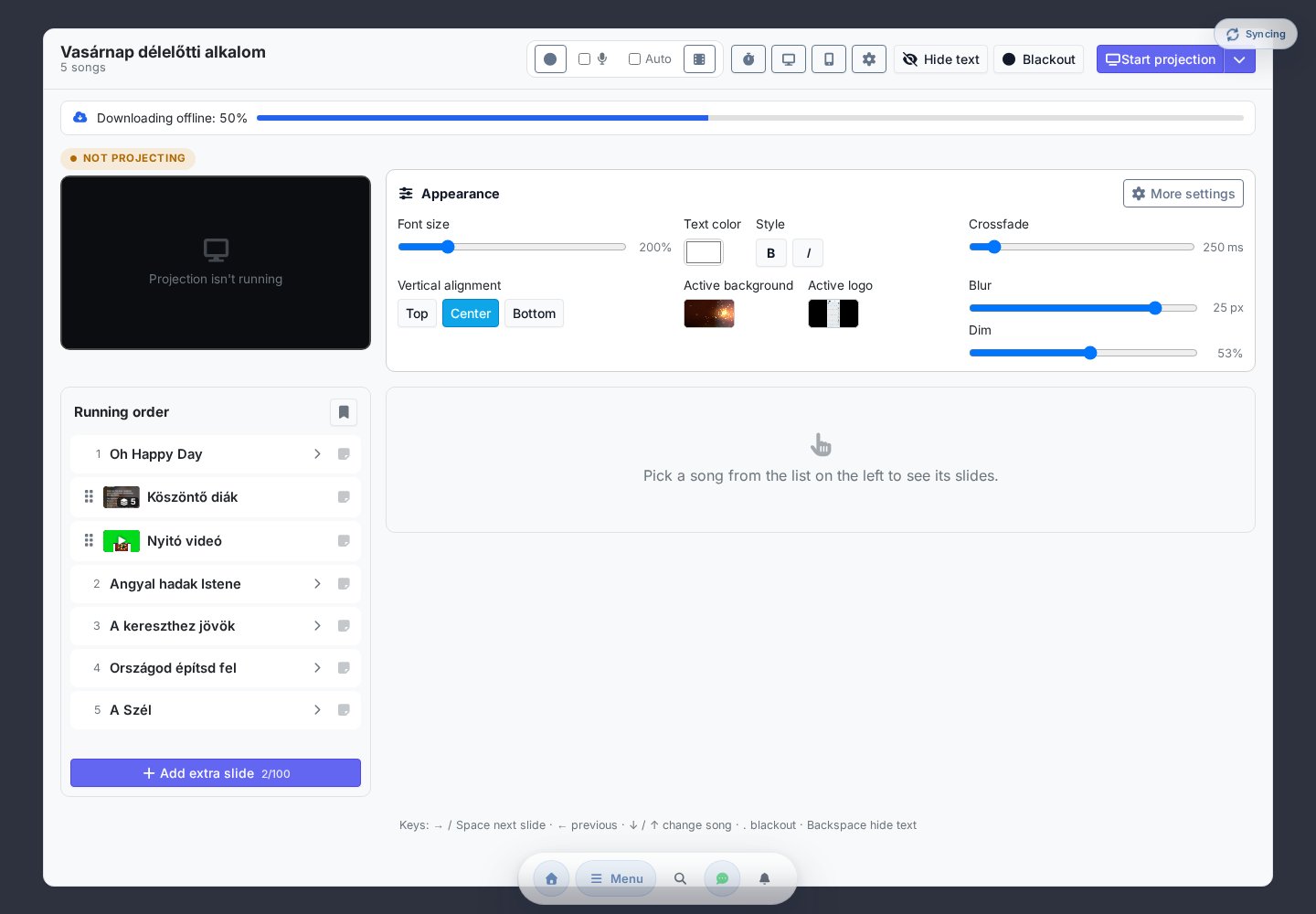
- Live preview — the top-left image is an exact mirror of the real projector; you always see what's showing on the projector.
- Appearance — font size, text color, style, vertical alignment (Top / Center / Bottom — it only affects the projected text: song, text and scripture slides, it doesn't move the projected image or video), active background and logo, blur and darken, all in one place; Detailed settings opens the full text and background dialog.
- Start projection — to an external display, wirelessly to Cast, or with QR pairing; the button remembers the last mode used.
- Drop text / Blackout — instant live controls for the projector (the background stays, or a full blackout).
Running order — songs and extra slides in one list
The Running order on the left shows the setlist's songs and the added extra slides in a single list. The items can be rearranged anywhere by drag and drop, so you can also insert an image, video or presentation between the songs.
Clicking a song shows the song's slide grid on the right (the slides generated from the lyrics); clicking any of them puts that slide on the projector.
Managing the slide grid — columns, selection, reordering
The slide grid on the right — the song's slides, the text slides and the scripture slides — can be arranged directly from the control panel, without opening a separate editor.
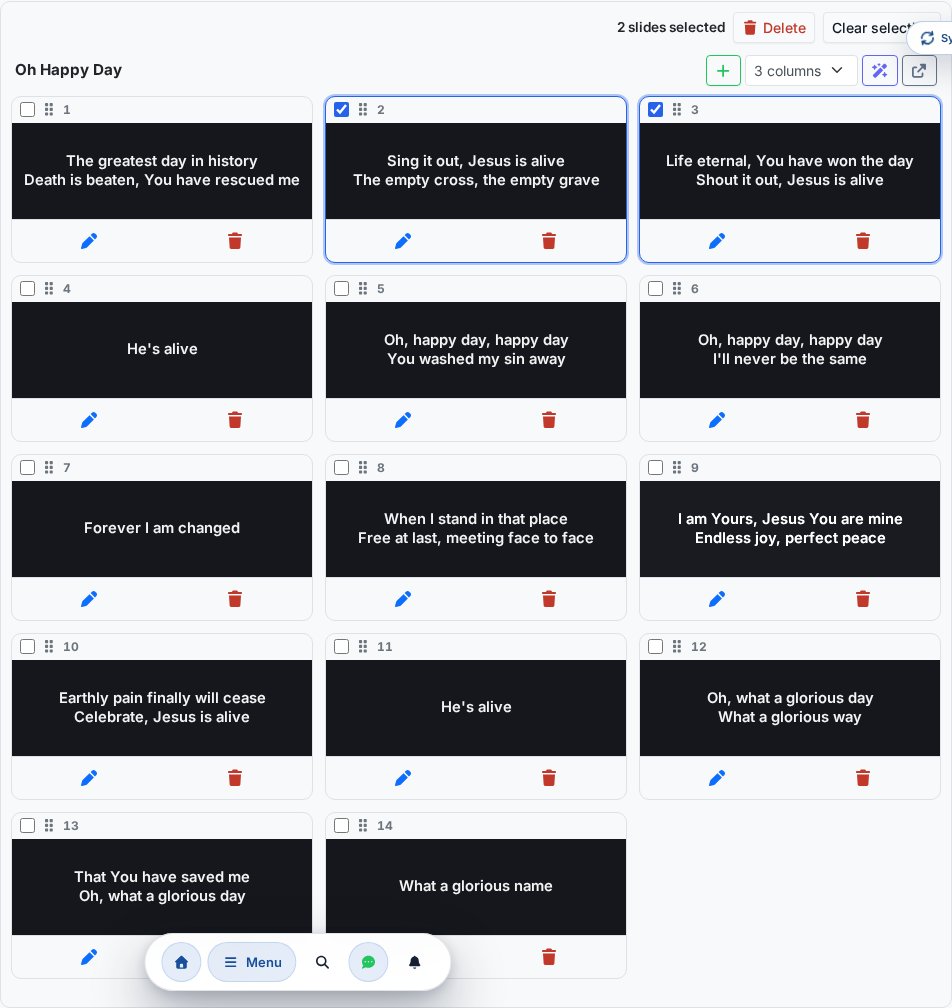
- 3 or 4 columns — with the column count selector in the header you set the grid to 3 or 4 columns; 4 columns give a denser overview (with smaller slide tiles). The setting is remembered per device, and applies uniformly to every slide type.
- Reorder by dragging — grab a slide card by its handle and drag it to the desired place; the end-of-row marker shows where it will land. (This replaces the earlier up/down arrows.)
- Bulk selection — with the selection checkbox in the corner of the slide cards you can select multiple slides. The selection toolbar then appears at the top: the number of selected slides, the Delete button (deleting the selected ones together — for songs and text slides) and Clear selection. You can also drag the selected group together to a single place.
- Open song in new tab — if you want to fix the song's lyrics, the button in the song header opens the song in a separate tab, while the running projection control stays open. After fixing the text you can regenerate the grid with the magic wand button.
Clicking the slide card (not the selection checkbox) puts the slide on the projector immediately — the checkboxes and the handles are only for selection and reordering. With a long slide list, the top control bar sticks to the top of the screen, so the main buttons (drop text, blackout, start projection, screens) stay within reach the whole time.
Adding an extra slide — source picker
The Add extra slide button at the bottom of the list opens a source picker:
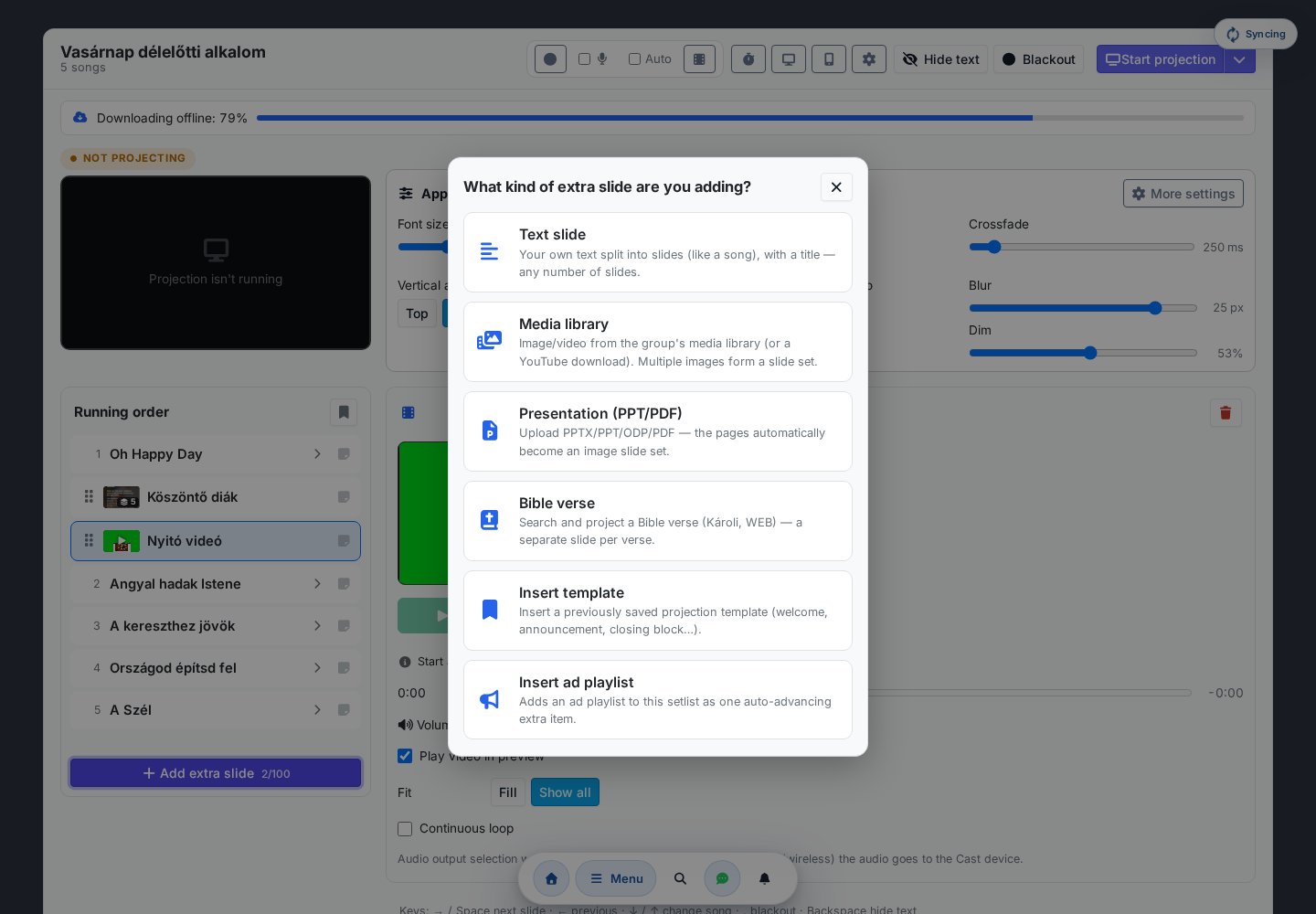
- Text slide — freely written text slides (e.g. scripture verse, announcement, prayer), broken into slides like a song.
- Media library — an image or video from the shared media library; a YouTube video can also be downloaded here. Multiple images combine into a single image slide sequence.
- Presentation (PPT/PDF) — upload a PPTX / PPT / ODP / PDF file; the system converts it server-side into page images and creates a ready-made image slide sequence from it.
- Scripture verse — if the optional Bible module is enabled for the group (see below), you can also look up and insert a passage.
- Insert template — bringing in a previously saved projection template (a reusable slide arrangement) (see below).
- Insert advertising playlist — inserting a pre-built ad / advertising playlist into the running order as a reference (see below).
Assembling an image slide sequence
You arrange the slide sequence made of multiple images in the editor on the right:
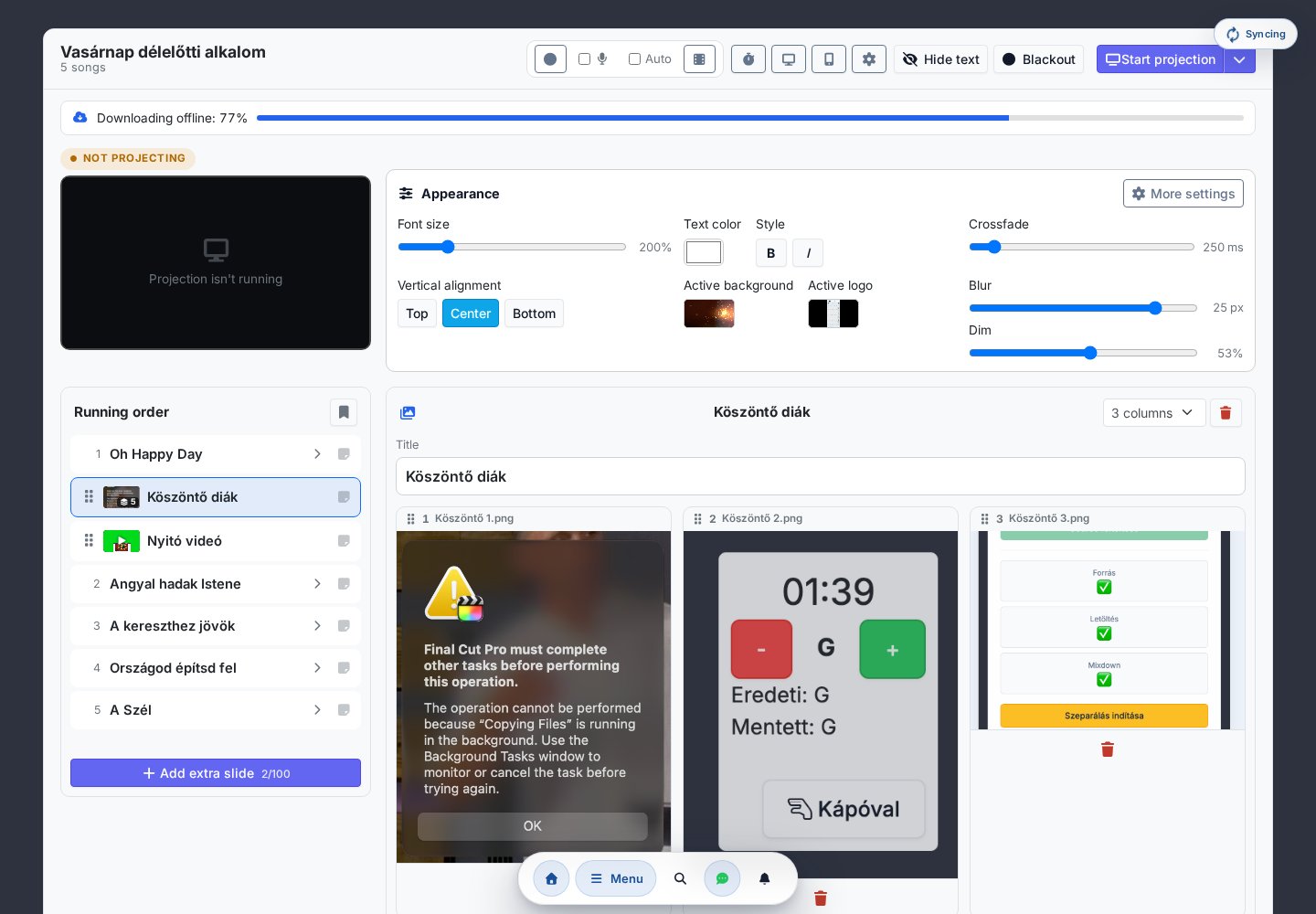
- During projection you page from slide to slide among the images (with arrows, or the ← / → keys).
- The fill (cover) or show all (contain) fit applies to the entire set.
- An image slide sequence takes up a single place in the running-order limit — the number of images in it doesn't count.
Embedded media player
Clicking a video (or image) in the list does not start playback immediately — a media player control opens on the right, so you can calmly prepare the next item:
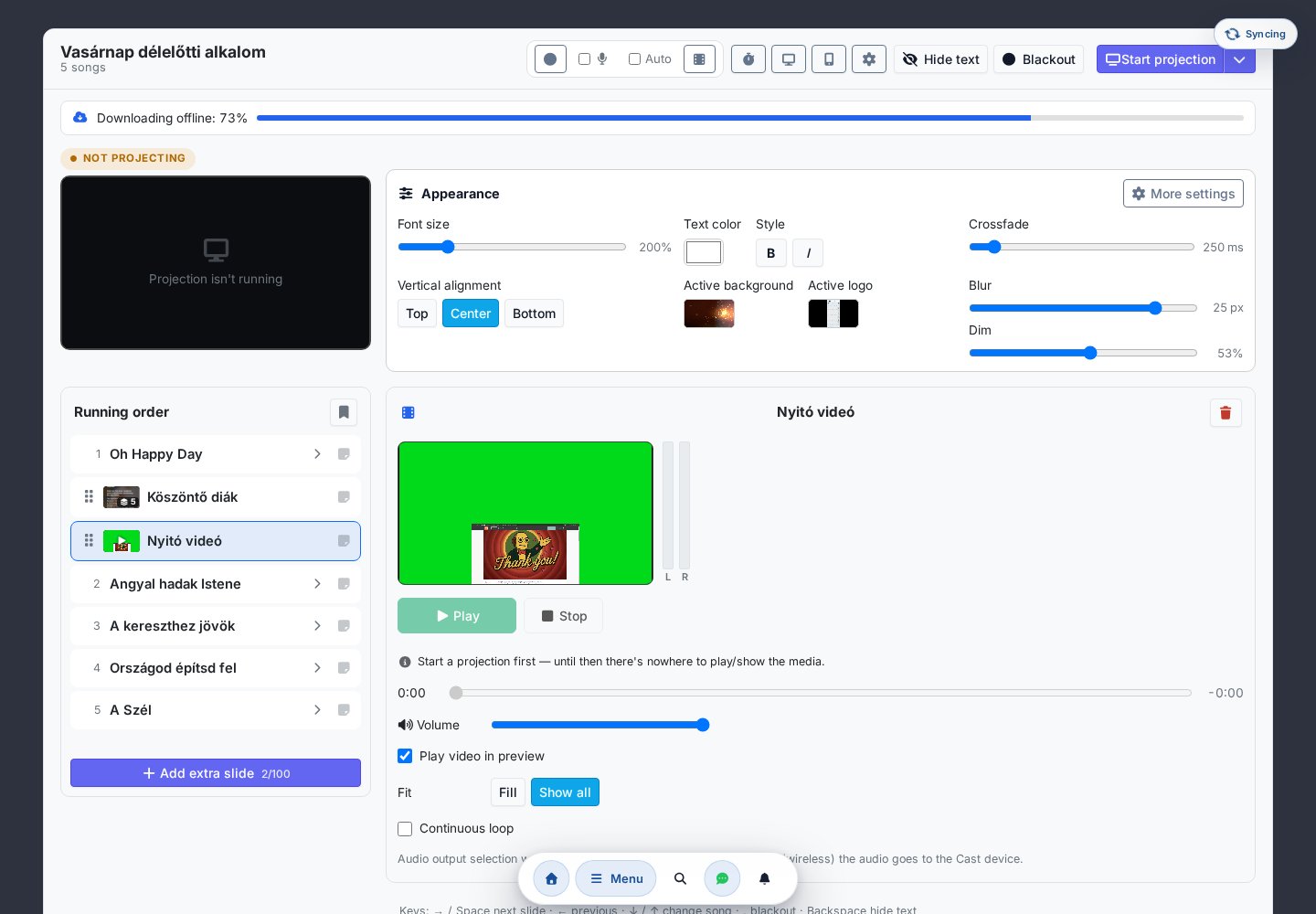
- Photo: Show → the image goes to the projector; fill or show all; Stop → the original background is restored.
- Video: Play / Pause / Stop, volume, playback bar. The video switches to the projector only on Play, and while it plays the background is paused (so it doesn't tax the machine); after Stop the original background is restored.
- Level meter — while a video plays, a stereo level meter (left/right bars, like in a video editor) next to the preview shows whether sound is actually playing. (It works on a wired / extended monitor; on a Cast / wireless projector the sound plays on the remote device.)
- Audio output — where the browser allows it (wired / extended monitor), a separate physical audio output can also be chosen for the video. In the projection settings (⚙) dialog a Test sound button lets you check the chosen output even before the video.
Projecting a scripture verse (optional Bible module)
Chords365 also includes an optional Bible module: in a few clicks you look up and project a passage. The module is toggled per group — the group administrator enables it in the group settings — and it only offers free-to-use (public domain or open-licensed) translations (e.g. King James, World English Bible). Once enabled, the fourth source of "Add extra slide" becomes Scripture verse.
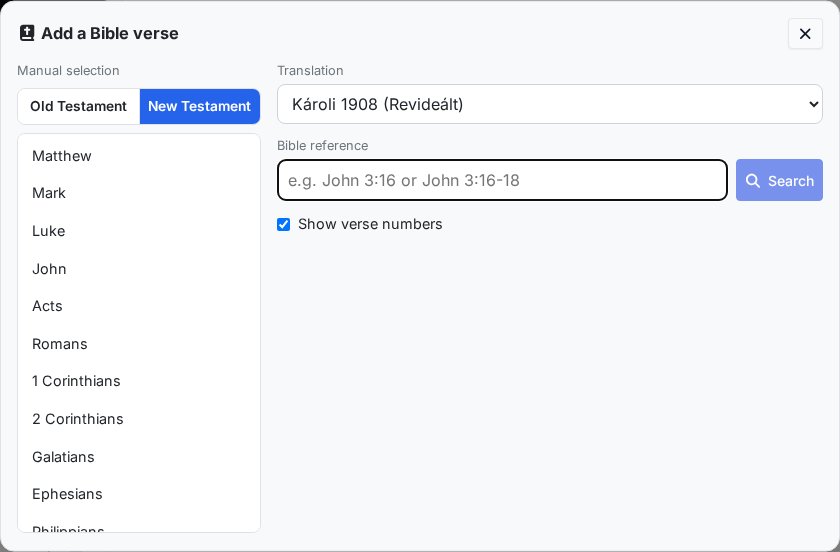
You can enter the reference in two ways — the two can also be used together:
- By typing — start typing the book into the Reference field, and the system automatically suggests the possible books (e.g. "joh" → John, I–III John). It also recognizes abbreviations (
Jn 3:16,Ps 23,1Cor 13), and you can specify a verse or verse range too (e.g.John 3:16-18). - By manual selection — on the left panel you choose the Old or New Testament, the book, then the chapter; clicking the chapter shows the entire chapter immediately. (You don't need to select the specific verse here separately — you narrow that down in the Reference field.)
The book names always appear in the interface language (in Hungarian on a Hungarian interface), regardless of the selected translation. With the Show verse numbers toggle the verse numbers also appear on the projected slide. Finally, Add to list puts the scripture verse into the running order (one verse per slide), while Project now projects it immediately. At the bottom of the projected slide the reference and the name of the translation (the mandatory source attribution where required) also appear.
Projection templates — reusable slide arrangements
If you'd use a recurring slide arrangement (e.g. welcome + announcement + closing slide) more than once, you can save it as a projection template and later insert it into any occasion in a single step.
- Save as template — from the control panel you save the setlist's current extra slides into a named template. The template items can receive a portable insertion anchor (start of list / after the Nth break / end of list), so they land in their place in the target setlist.
- Insert template — "Add extra slide → Template" chooses from the template library and appends the template's slides to the current running order.
- Template library (
/presentation/templates) — a separate surface for listing and slide-level editing of templates (text slides, image/video, image sets, scripture-verse references); the editor autosaves.
Ad blocks and advertising playlists
You can organize the announcements shown before/after the occasion or during a break (images, videos, text and scripture slides) into reusable units and project them as an automatically cycling slide sequence — without a separate slideshow tool.
- Ad block — a named, ordered slide unit (image/video/text/image slide sequence/scripture verse). It has its own shuffle and default slide time, and the slides can receive an individual duration. You edit the blocks on the
/presentation/ads/groupssurface. - Advertising playlist — an ordered sequence of ad blocks, with its own shuffle, loop and default slide time settings. The
/presentation/adssurface lists them and advances the playlists automatically as a player. - Insert into the running order — "Add extra slide → Advertising playlist" puts the selected playlist into the running order as a single reference (it doesn't copy out the slides). When you step onto this item during projection, the playlist advances the slides on its own with the original timing/shuffle; projecting another song or slide stops the automatic advancing.
Several people on one projection — controller machine and content helpers
The control panel can be opened by several people at once within a group, and they synchronize in real time — with no extra setup:
- One machine is the controller — it provides the live output to the projector: it starts the video/audio, sets the font size and the appearance, pages among the slides, darkens, and manages the countdown.
- The other open panels help with the content — they see the live output in the preview mirror, and meanwhile they can fix a slide's text or add an extra slide. If the fixed slide happens to be on the projector, the controller machine's output updates immediately — so a typo can be fixed live.
- Independent paging — the helper moves and edits freely without the controller machine jumping away; the helper only moves their own view.
- The media stays in the controller machine's hands — starting the video/audio is not taken over remotely by another panel.
This is not a separate projection tool: everyone opens the same control panel (from the /presentation page), only now they see each other's work and the shared live output in real time.
Offline preparation
The full content of the opened setlist — songs, slides, images and videos — is downloaded to the machine with a progress indicator. This way the projection runs reliably without an internet connection too: the projector plays from the ready local copy, it doesn't stream live.
The projection start modes (external display, wireless Cast, QR pairing) and the settings for the projected text / background / brand logo are described in detail in the Projection, slides & pairing chapter.
Hands-free page turning
During live playing you often have no free hand to scroll (the guitar, microphone or keyboard is keeping it busy). A Bluetooth foot pedal solves this: once paired it behaves as a keyboard, and the app maps those keys to page-turning, scrolling and song switching — no plugin required, in every browser (on desktop and mobile alike).
Enabling
- Pair the pedal with your device from the system Bluetooth menu (e.g. iOS Settings → Bluetooth, or Windows settings).
- Open the Settings → Features tab and, in the Pedal / keyboard support (beta) block (below the metronome), turn on: Enable on the song page.
- Choose a profile (the profile selector only appears once Enable is turned on), or set up your own custom mapping.
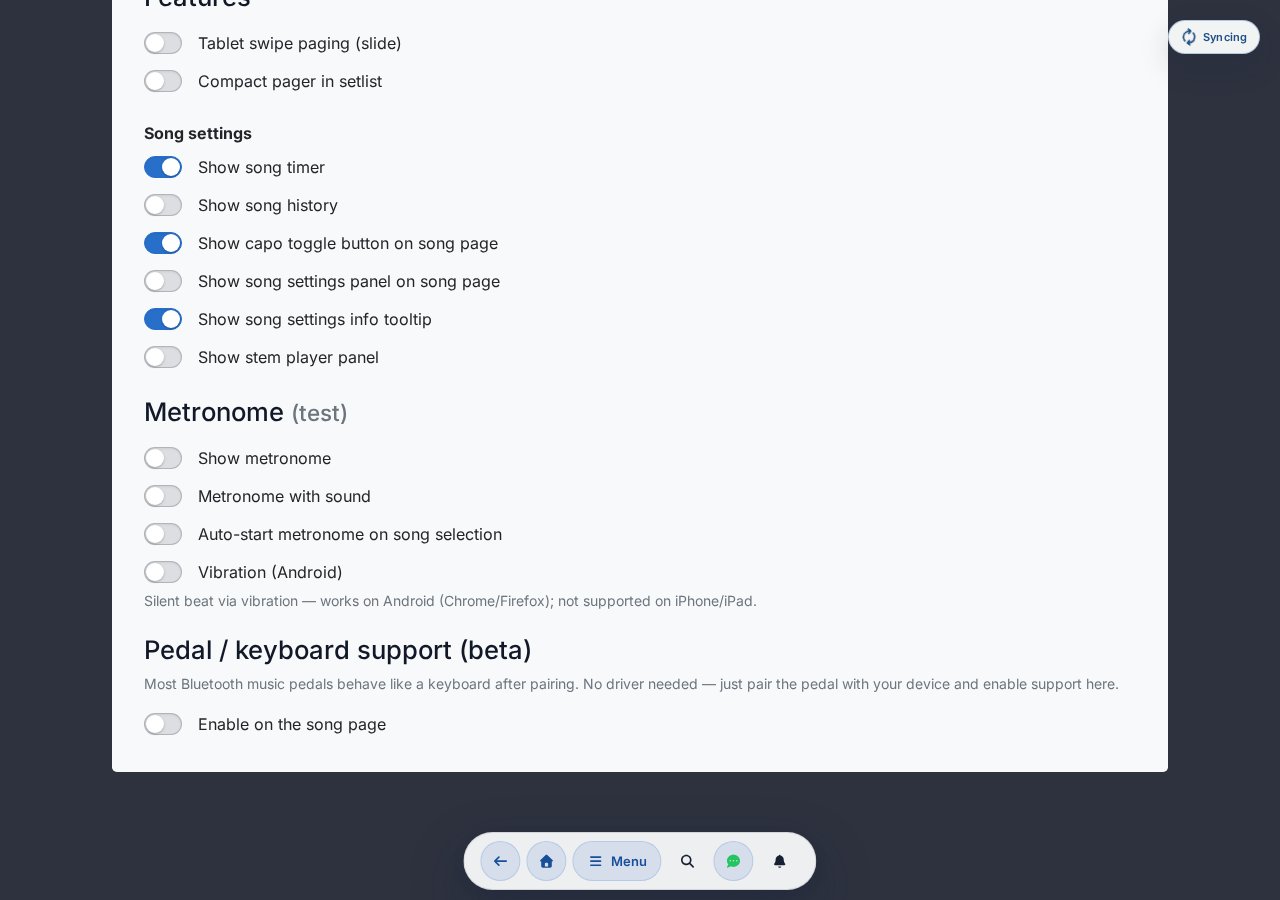
Profiles
You can choose from five ready-made options (including a fully custom one). The profiles assign actions to the most common pedal keys (arrows, PageUp / PageDown, Space):
| Profile | What it does |
|---|---|
| Song switch with arrows (default) | ← / →: previous / next song · PageUp / PageDown: previous / next section · Space: scroll down |
| Classic | ← / →: previous / next section · PageUp / PageDown: previous / next song · Space: scroll down |
| AirTurn (arrows only) | ← / →: previous / next section |
| BT-PageFlip (PageUp/Down only) | PageUp / PageDown: previous / next section |
| Custom | a separate key can be recorded for every action |
What do the actions do?
- Song switch — jumps to the previous / next song in the setlist (same as the ◀ / ▶ buttons on the screen edges).
- Section jump — scrolls to the top of the next (or previous) verse / chorus; if the song has no sections (e.g. sheet image mode), it pages half a screen.
- Scroll down / up — a half-screen, smooth scroll. The ready-made profiles assign Scroll down by default, but in Custom you can also bind Scroll up to any key.
On the setlist break page (the rest screen between two songs) song switch also works — so you can step on to the next song from there with the pedal as well. The section-jump actions fall back to half-page scrolling there.
Recording a custom mapping
In the Custom profile you can record your own key for six actions: Next paragraph, Previous paragraph, Next song, Previous song, Scroll down and Scroll up.
- For an empty action, click the "Record key…" button, then press the key sent by the pedal to record the assignment. While recording, the prompt reads: "Press a key… (Esc = cancel)" — it can be aborted with Esc.
- If the action already has a key, the button shows the current key plus a "rebind" label; click it to overwrite.
- A × button next to the row (Clear assignment) removes that action's key.
Activity indicator
When pedal support is active, a small green flashing dot in the top left corner indicates at every event that the pedal input was received successfully.
A long press does not trigger continuous paging: the same key fires at most once within 100 ms, so scrolling / paging doesn't "run away" if you hold it down. And when the focus is in a text field (e.g. the editor), the pedal keys don't fire — typing won't trigger paging.
Works at rehearsal even without Wi-Fi
Chords365 can be installed as an app on your home screen, and opened content remains accessible when offline.
Installation
- Open chords365.com in Chrome / Safari / Edge.
- Desktop (Chrome / Edge): an "Install" icon appears in the address bar — click it.
- Mobile (Android Chrome): menu → "Add to Home Screen".
- iPhone / iPad (Safari): "Share" button → "Add to Home Screen".
Installed as an app it integrates with the OS too
Once installed, Chords365 integrates with your device's usual workflows:
- App icon shortcuts: long-pressing (or right-clicking) the app icon lets you jump quickly to today's event, the setlist, the library or projector pairing.
- Share to Chords365: from another app (e.g. file manager, photos) you can share image(s) or a PDF, and Chords365 — without OCR — creates a new song from it as an image-based song (each page as a separate sheet image, stacked). You can edit the title before creation.
- Open an audio file: on desktop Chrome / Edge you can open an audio file (MP3, WAV, FLAC, M4A) directly with Chords365 and upload it to a selected song for the stem feature.
These capabilities are platform-dependent (vary by browser and OS) and only appear when installed as an app.
What works offline?
- The full content of opened songs — text, chords, sheet images.
- The current setlist.
- Your own notes, transposing, drawing layer.
- Changes are stored locally and automatically sync when connection is restored — as an installed app even if you've closed Chords365 in the meantime (background sync, as soon as the network returns).
What doesn't work offline?
- Music Director mode (live sync) — requires being online.
- Searching for new songs, importing.
- Join requests, invitations.
Offline indicators
When the app goes offline, a persistent banner appears at the top. For certain action attempts (e.g. saving a new song) a popup modal also warns you.
Automatic offline sync — no download button
The old "Prepare offline" button is gone: you no longer need to manually download anything. While you're online, Chords365 automatically takes care in the background of making everything available offline. One sync cycle:
- keeps your 10 most recent setlists as protected packages (guarded from browser storage cleanup) on the device — songs, sheet images and the team's drawings together;
- continuously syncs the full song library (all song text + chords, sheet images in the background);
- when you open a setlist — even one outside the most recent 10 — it's automatically prepared for offline too.
Sync starts when the app launches and every time the network returns. That it's working is indicated by the spinning sync icon in the header (see 19. New menu → Sync indicator).
The "closed app + returning network" background sync relies on the browser's background sync mechanism, which only exists in the installed (production) app — on a plain browser tab the sync runs when you open the app.
If you've installed the app, you can use the same channel (with the app closed) to subscribe to push notifications too: we let you know when a setlist is ready, when a stem separation finishes or fails, or when there's group news or an event change. They can be toggled per category, everything is off by default, and they're configured under Settings → Notifications.
Setlist offline status indicator (read-only)
A small status indicator at the today's event and at the top of the setlist shows offline readiness — it's now informational only, no button (downloading/deletion is automatic):
- Available offline — the full list content has been downloaded.
- Preparing… — currently being prepared in the background.
- Partially available — something (e.g. a large sheet image) hasn't downloaded yet.
Offline storage (Settings → Account)
The Settings → Account tab's "Offline storage" section shows the status of offline data.
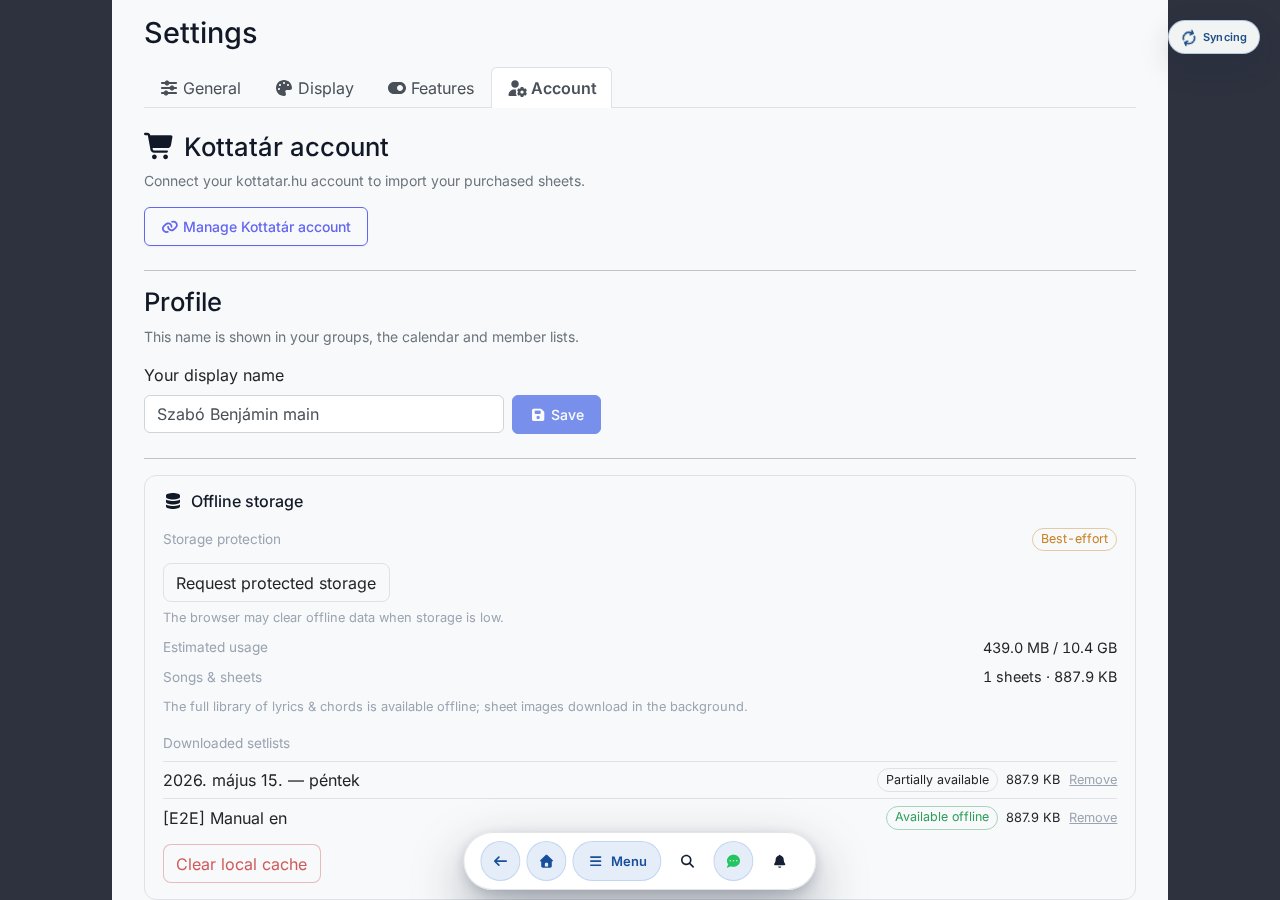
- Storage protection — Protected / Not guaranteed / Not supported. If the browser allows it, the Request protected storage button lets you request persistent protection, so the browser won't delete offline data when space is low.
- Estimated usage — how much space the offline-stored content takes up out of the total quota.
- Songs and charts — the full library sync status (how many charts, what size).
- Downloaded setlists — the list of protected packages, each with an Available offline / Partially available indicator, size and individual Delete.
- Clear local cache — empties the entire local offline store with one button.
The browser may delete offline data when space is low — the definitive source is always the server, so everything can be redownloaded on the next sync.
In private (incognito) browsing, persistent offline storage may be limited — in that case the app switches to a more limited store to keep working, but sheet images and setlists may not survive after the window is closed. On a borrowed device before rehearsal, therefore open Chords365 in a normal (non-incognito) window.
There's nothing extra to do: it's enough to open Chords365 once online before rehearsal (best before leaving for the venue, with Wi-Fi) — background sync automatically downloads fresh setlists, sheet images and drawings. Everything stays accessible even if Wi-Fi drops.
One button, two levels
The Menu button in the top bar opens on a start screen — the hub — that shows your everyday actions as large tiles, while every other feature lives in one of four plainly named categories. You no longer have to read thirty menu items on a single screen: from the open hub, any menu item is at most two taps away.
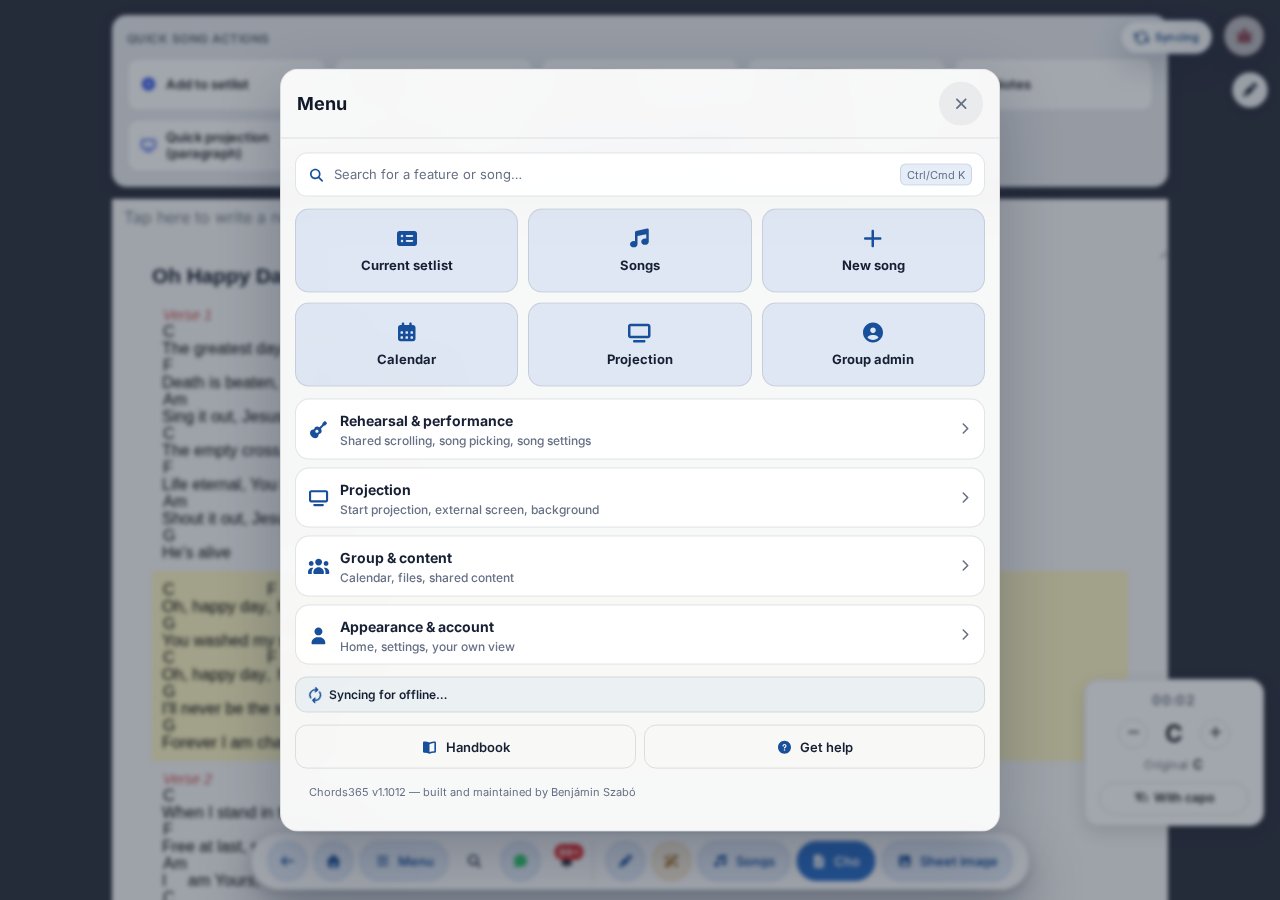
The hub's Search for a feature or song… button opens the command palette. Alongside songs, setlists and groups, it searches available menu pages and selected global actions; toggles, status indicators and external links stay in their menu category.
Quick access (up to six tiles)
The top of the hub holds at most six tiles: your everyday actions. Their order follows your selected view profile:
- Musician / Vocalist — Songs, Current setlist, Calendar, Media library, New song, Settings.
- Leader — Current setlist, Songs, New song, Calendar, Projection, Group admin.
- Technician / Projectionist — Projection, External screen, Current setlist, Media library, Songs, Settings.
The view profile only ranks items: it grants no permissions and hides nothing from the menu. If a tile is missing — because you lack the permission, have no group, or it simply did not make the top six — the feature is still there in its own category.
Categories
Every category row carries a short, plain-language subtitle, and it only appears if it contains at least one item that is visible to you.
| Category | What is inside |
|---|---|
| Rehearsal & performance | Songs, Current setlist, New song, MD mode and Follow MD toggles, Random quick / slow song — plus the song quick actions on a song page |
| Projection (group members only) | Projection control desk, External screen / Cast, Text & background settings |
| Group & content | Calendar, Media library, Group admin, Projects, Kottatár.hu, Trash, Admin panel |
| Appearance & account | Home, Settings, View (view-profile switcher), Dark / light mode, Full screen, sync status, Sign out |
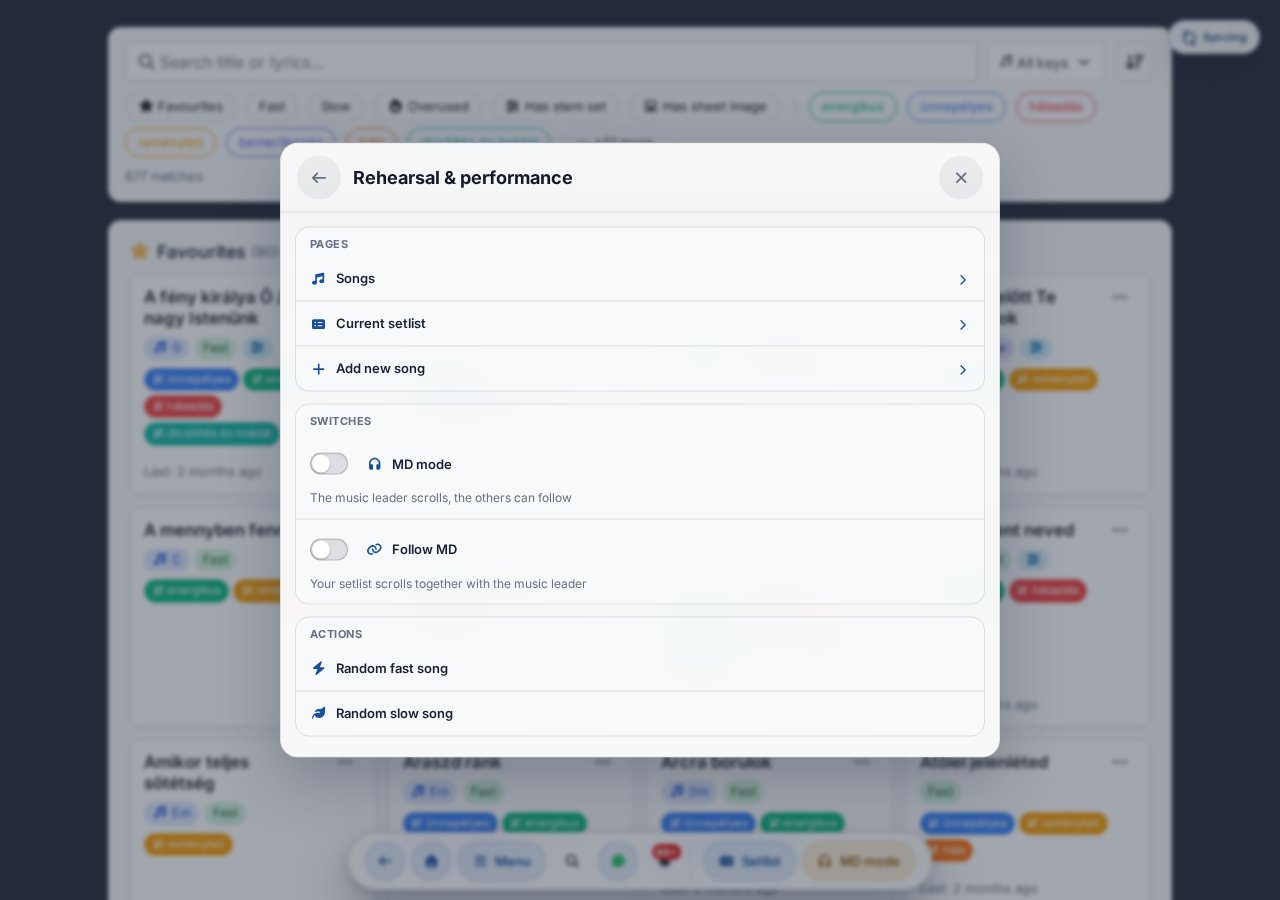
The hub footer has two buttons: Manual (this page, opens in a new tab) and Get help. The latter is the fifth inner page: Email, Feedback, Bug report, Facebook, Support and Uptimerobot.
Getting around the menu
- Once you open a category, a ← Back button appears in the header (it returns to the hub), while X closes the whole menu.
- Your phone's system Back button and the browser's Back button behave the same way: from a category they step back to the hub, on the hub they close the menu, and only then do they take you to the previous page.
- Esc and a tap on the backdrop close the whole menu from any menu page.
- Items are grouped by type: pages (they navigate), toggles (with a short note on what they switch), actions (they take effect immediately), plus statuses and external links — the latter open in a new tab.
Sign out — with confirmation
Sign out sits at the bottom of the Appearance & account page in red, and it now asks for confirmation ("Are you sure you want to sign out?"). Cancel, Esc and the system Back button do not sign you out — only the confirmation does.
Song quick actions (song page only)
When a song is open, an extra block appears at the top of the Rehearsal & performance page: Add to setlist / Remove from setlist, Share, Edit song, Stem / multitrack toggle, Notes, Quick projection (paragraph) toggle, Song history toggle, and — only for ChordPro (chord) songs — Learning mode and Numbered chords toggles. If you are in MD mode, a Show MD panel toggle appears as well; it only switches the panel's visibility (it does not turn MD mode on — use the MD mode toggle on the same page for that). Switching between sheet-music versions happens on the header version pills, not here.
Outbox indicator
If there are unsynchronised changes in the background (offline edits / lost connection), a floating cloud icon and counter appear in the top-right corner. On a phone that icon is hidden, so the hub also shows the number of pending items; the detailed status lives on the Appearance & account page.
Sync indicator
When the automatic offline background sync is running (downloading fresh setlists and the song library), a spinning sync icon appears in the top-right corner with the label "Offline sync…" (during library sync, progress is shown too, e.g. X/Y). This is a purely informational indicator — no action is needed, and it disappears once the cycle finishes. Opening the menu shows a text status on the hub and on the Appearance & account page as well.
Multilingual interface
The entire interface is available in 10 languages, each shown under its own native name: Magyar, English, Deutsch, Español, Português, Français, Polski, Română, Русский and Українська. Spanish and Portuguese are the European variants (es-ES and pt-PT respectively).
Hungarian is the source and fallback language: if a translation is missing somewhere, it falls back to Hungarian. A new visitor with an unrecognized browser language, however, gets the app in English by default — not Hungarian.
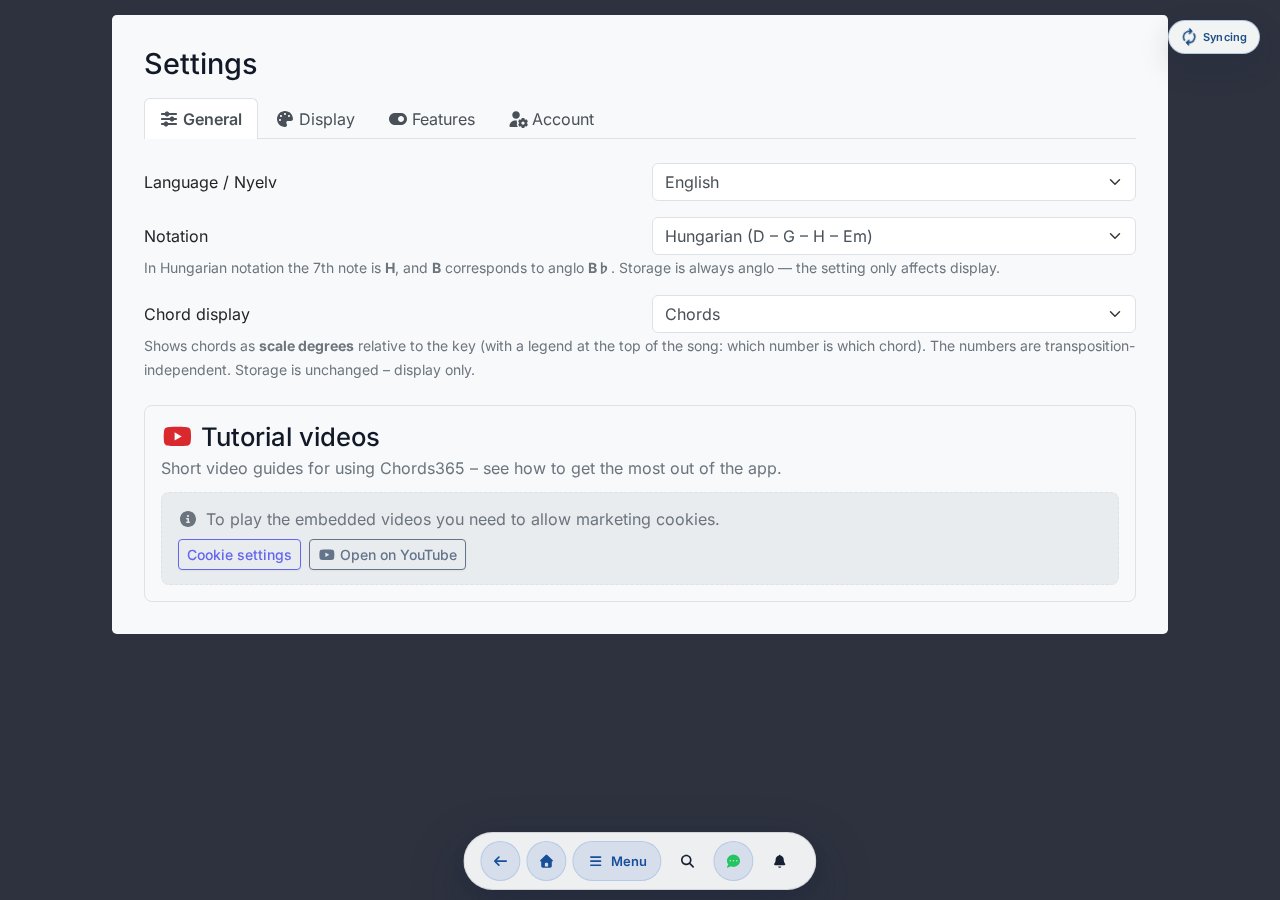
Where to find the settings
The Settings page is split into four tabs:
- General — this is where Language and Note naming live.
- Display — this is where the theme (light / dark) lives, along with the sizes and colors of chords and lyrics.
- Features — the optional features you can toggle on and off.
- Account — your account details and security settings.
Language selection
In the Settings → General → Language / Nyelv dropdown you can pick any of the 10 languages (Magyar, English, Deutsch, Español, Português, Français, Polski, Română, Русский, Українська). The new language takes effect immediately — no page reload required.
Your choice syncs across all your devices: it is stored both in the browser (localStorage) and on the server (against your account, users.locale), so if you switch your tablet to German, your phone will appear in German too. Notification emails (schedules, group invitations, bug report confirmations, broadcasts) follow the same setting.
With the ?lang= URL parameter you can pin the language in a shared link — for example ?lang=de sets the interface to German on first load. The app then removes the parameter from the address bar and saves your choice, so you don't have to set it again on your next visit.
Note naming (H or B)
In the same place, on the General tab, you can choose whether the 7th degree in chords appears as H or B. The dropdown has two options:
- Hungarian (D – G – H – Em)
- Anglo-Saxon (D – G – B – Em)
Storage always uses the Anglo-Saxon convention, so this setting only affects how chords are displayed — and you can switch it back at any time.
Appearance (theme)
The theme selector lives on the separate Display tab of Settings (not under Language). You can choose between three options: System default (follows your operating system's setting), Light mode or Dark mode. You can also toggle it with a single tap from the menu (Appearance & account → Dark/Light mode).
Even before you sign in
In the corner of the login screen there is a language switcher with all 10 languages — even before signing in you can switch the entire flow (login, legal texts, confirmation emails). The buttons show the language code in uppercase: HU EN DE ES PT FR PL RO RU UK. The same switcher is also available on the admin broadcast page.
Email to all group members
Group administrators can send an email broadcast to all group members directly from the app — for example rehearsal info, song requests, or a call to attend. The screen is visible only to group admins and is protected by a daily limit: 3 broadcasts per group per day, to prevent spam.
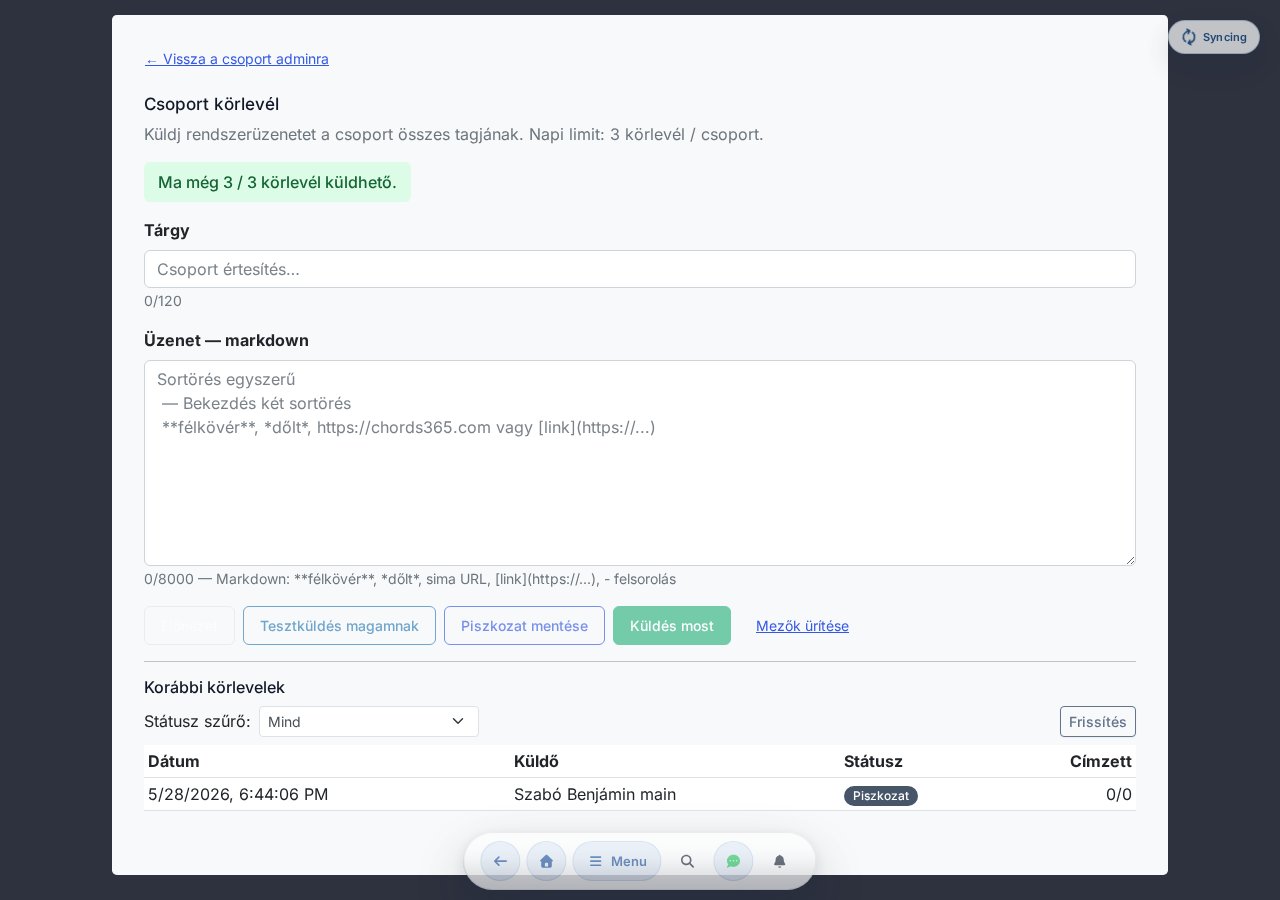
Where to find it
On the Manage Group page (see chapter 13), in the Group Broadcast section, click the Open broadcasts → button to reach the /group-admin/broadcasts sub-page. The screen requires group-admin rights — if you are not an admin, the app redirects you to the home page.
The daily quota of 3 is shared across all of the group's admins (it is not per-admin), and it resets at midnight Budapest time. In a larger admin team this is worth keeping in mind. A live indicator in the top bar shows it: "X / 3 broadcasts can still be sent today." — and once it runs out, "You can use it again tomorrow." appears and the Send now button is disabled.
Steps
- Enter a Subject (max. 120 characters).
- Write the Message in markdown —
**bold**,*italic*, a plain URL (e.g.https://chords365.comis turned into a link automatically),[link](https://…), and- list itemare supported. Max. 8,000 characters. (For security reasons, onlyhttp(s)links are allowed.) - Preview: an HTML render so you can check it.
- Send test to myself: before finalizing, this sends the email to your own address so you can see how it arrives in your inbox. The test does not count toward the daily quota.
- Send now: starts after a confirmation modal. The process is asynchronous (the emails go out through a queue, with a delay) — you can track the status in the "Previous broadcasts" table below.
Draft
If you stop partway through, you can set it aside with the Save draft button. Later you can reload it into the editor from the Previous broadcasts list using its Edit button — when you do, the main button's label changes to Update draft. The Clear fields button lets you empty the subject and message in one go.
Previous broadcasts
Above the table there is a Status filter dropdown (All plus every status) and a Refresh button. The table columns:
| Column | What it shows |
|---|---|
| Date | When the broadcast was started / saved |
| Sender | Which admin started it |
| Status | Current status (see below) |
| Recipient | Successful / total ratio (e.g. 12/15) |
The possible statuses: Draft, Queued, Sending, Sent, Partially failed, Failed, Cancelling, Cancelled, Retrying. Because the emails go out from a queue with rate limiting, the Queued → Sent transition is not instant.
Details and metrics
Clicking a broadcast opens the details panel:
- Four metric cards: Recipients, Sent, Failed, Cancelled.
- Percentage progress bar: how many recipients are done (sent + failed + cancelled).
- Email content (snapshot): a preview of the email that was sent out.
- Per-recipient report table: Name, Email, Status, Sent, Attempts (number of tries), Error.
The Refresh button reloads the latest state of that broadcast.
Cancelling a send
A broadcast that is currently in progress (Queued or Sending) can be stopped with the Cancel send button in the details panel. This is a soft cancel, confirmed by a modal: it only stops the emails that have not yet been sent (queued) — it does not recall emails that have already been sent, and sends already in progress will finish.
Sending is limited by both time and count: the system protects domain reputation with rate limiting and anti-burst measures. Once the daily group quota of 3 runs out, you can use it again tomorrow.
Which song featured how much — and how much you played it
The CCLI / license report is a summary for group admins: it shows, over a chosen period, how many setlists each song featured in, and how many times you projected it live. The data can be downloaded as CSV, as a CCLI-compatible list and as PDF — so the royalty report (e.g. for the CCLI Reporting interface) is much faster. You can also fill in the songs' CCLI number, authors, copyright and publisher here.
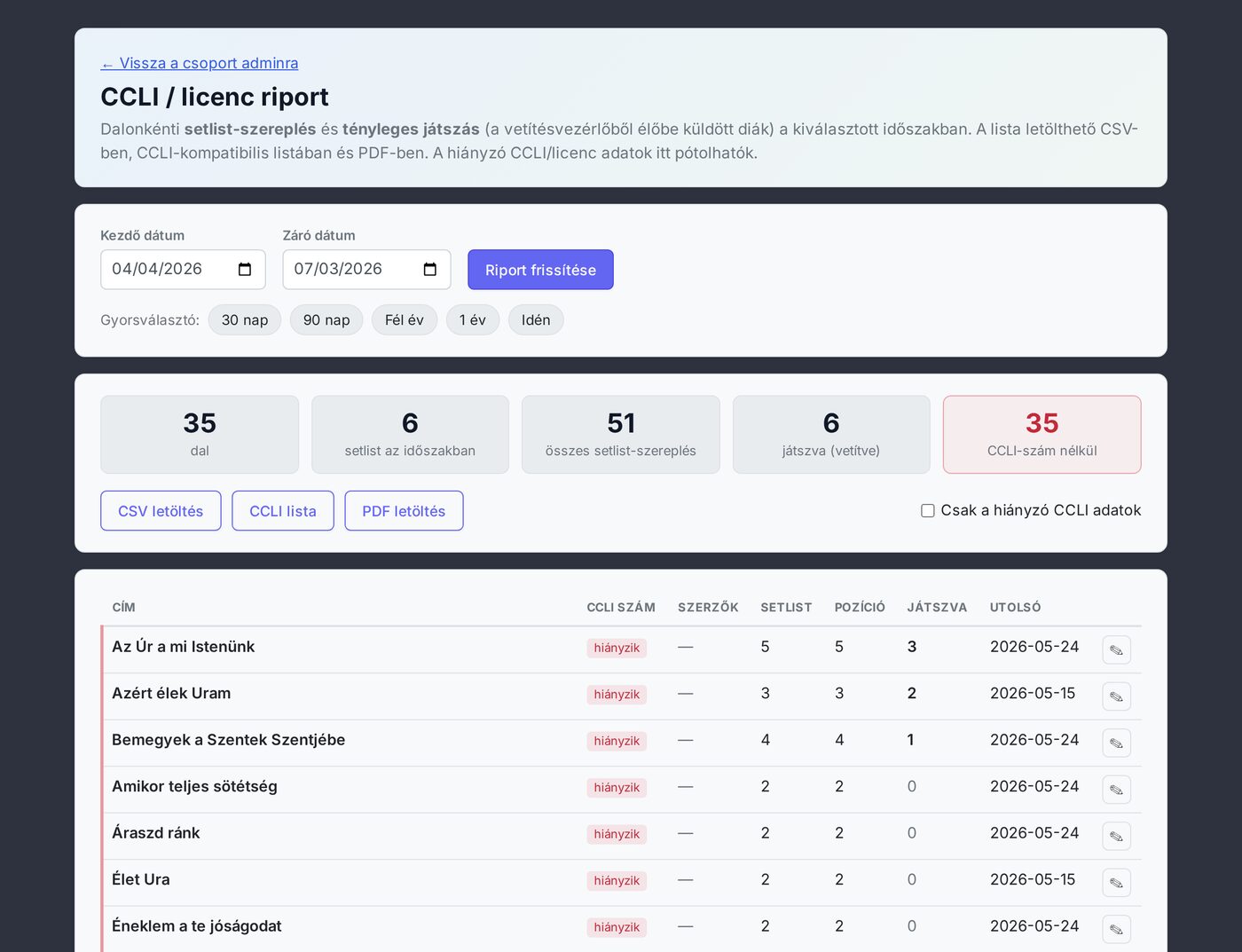
Where to find it?
On the Manage group page (see chapter 13), in the CCLI / license report section you reach the /group-admin/license-report sub-page with the Open report → button. The interface is visible only to group admins — if you're not an admin, the app redirects you to the home screen.
Choosing the period
At the top, enter the start and end date, then press the Refresh report button. With the quick presets you can set the most common windows in one click: 30 days, 90 days, Half year, 1 year, This year. By default the last 90 days is shown.
If the setlist is linked to an event, the event's date counts; if not, then the creation date. This way a Sunday occasion goes to the Sunday date even if you assembled the list days earlier.
The summary cards
- Songs — how many different songs featured in the period.
- Setlists in the period — how many setlists fall within the window.
- Total setlist appearances — the sum of the songs' setlist occurrences.
- Played (projected) — how many actual live projections the system logged.
- Without CCLI number — how many songs still lack a CCLI number (in red, if there are any).
The table's columns
| Column | What it shows |
|---|---|
| Title | The song's title (a missing CCLI is marked with a red left border). |
| CCLI number | The song's CCLI number, or a missing mark. |
| Authors | Author(s) / lyricist(s), if filled in. |
| Setlist | How many separate setlists it featured in. |
| Position | How many places total it featured in (including the duplicate occurrences). |
| Played | How many times you projected it live in the period. |
| Last | The date of the most recent appearance. |
With the Only missing CCLI data toggle you narrow the list in one click to the songs that still don't have a CCLI number.
Where does the "Played" number come from?
The Played column is filled automatically: when you project a song live from the projection control (with an active local or Cast projection), the system records a play. The same song on the same day, from the same setlist, counts once — slide back-steps don't double it.
Deliberately, it's not the mere opening of the song or a rehearsal that counts as a play (that would be misleading), but the actual live projection. That's why for a fresh group the Played column stays at 0 until there has been a live projection. (Projection going only to a projector paired via QR code, as well as the manual "played" marking, is a later enhancement.)
The "Setlist" / "Position" columns and the "sung" confirmation
If your group has completed the "sung" confirmation for a setlist on the setlist page, the Setlist and Position columns now count only the songs actually marked for that list — so backup songs that were added but never sung don't distort the report. For an unconfirmed setlist the whole list still counts (a safe default).
Filling in CCLI / license data
There are two places where you can fill in a song's license data (CCLI number, authors, copyright, publisher):
- From the report — at the end of the row the pencil icon opens an inline editor; after Save license the row updates right away. This is where it comes to light fastest what's missing.
- In the song editor — when editing the song, a collapsible License data (CCLI) block below the meta fields (group admin only).
Downloads
- CSV download — the full table for a spreadsheet (Excel/Sheets), with UTF-8 encoding.
- CCLI list — a narrowed list aligned to the CCLI Reporting interface (CCLI number, title, authors, play count, setlist count). A song without a CCLI number gets a Missing CCLI Number mark.
- PDF download — a human, archivable summary with a header, summary data, the table of songs and a "Missing CCLI/license data" section.
The report assists the royalty report (an exportable list for manual entry), but it doesn't submit anything on CCLI's behalf. The CCLI number is searchable, editable metadata — it's worth filling in the missing ones from time to time so the list is complete.
One-click bug reporting
If something behaves strangely in the app, the Menu → Bug Report button instantly captures a screenshot of what you're seeing, lets you draw on it (e.g. arrows, circles), and sends it to the developers along with your short description and profile details.
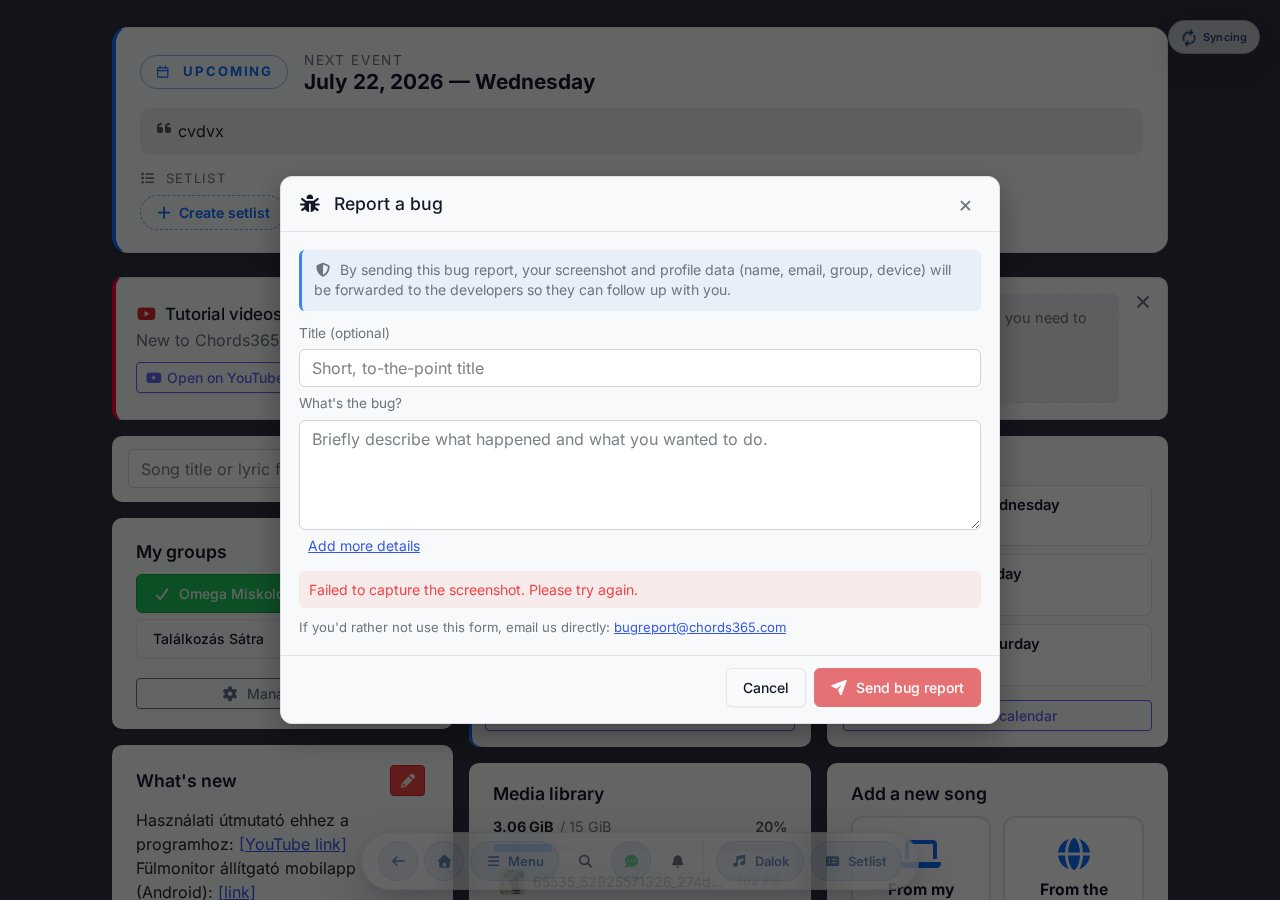
Steps
- Open the menu and click Bug Report (in the Contact block).
- The app captures a snapshot of your screen in the background (the bug report modal itself is not included).
- You can draw on the image that appears, using the red pen — arrows, circles, marks. Made a mistake? Clear drawing. Want a fresh capture? Retake screenshot.
- Briefly describe in the textarea what you observed and what you expected to happen.
- Send bug report — the image, the description, and your profile details (name, email, group, device) all reach the developers together. If you decide not to send after all, click Cancel and the modal closes.
- After a successful send, a short thank-you message appears (Thanks! We've received your bug report.), and the modal closes by itself after a couple of seconds — so you know for sure the report went through.
What we send and what we don't
A bug report sends a picture of your current screen, your description, and your profile details (name, email, group, device) to the developers — never your password. With your drawings you can mask out any parts you'd rather not share before tapping Send bug report.
At the bottom of the modal you'll also find a direct email address ([email protected]), in case you'd rather write to the developers by email.
If you can't reproduce the bug at the moment you open the bug report button (e.g. the modal closed in the meantime), describe exactly what you did — the developer can still trace the problem through your profile even without it.
Cleaner, multilingual login
The login screen has been completely redesigned: a welcome message, two proof points, a language toggle bar, and a large Google sign-in button — with email sign-in/registration below it. Projector pairing (QR scan) is available without signing in.
What you see
- Hero — "Hello musicians!" and a short description of the app.
- Proof list — runs on voluntary support; a link to the public chords365.com site.
- Sign-in card — a security chip, "Sign in securely", and a large Sign in with Google button.
- Sign in or sign up with email — directly below the Google button; you can create an account without a Google account, or sign in with email + password.
- Or — below that, the Pair a projector button (QR scan for those who don't need to sign in and only act as a projector).
- Privacy Policy and Terms of Service links at the bottom of the card.
- Sign in with a passkey — right at the bottom, a small fingerprint-icon link, shown only if your browser supports passkeys.
Quick sign-in (One Tap)
In a supported browser, if you're signed into a Google account, a One Tap card may appear automatically on the login page, letting you sign in with a single tap — no need to go through the full Google redirect. One Tap and the large Sign in with Google button lead to the same account, so feel free to use either. If it doesn't appear (e.g. no active Google session, or the browser blocks it), no problem: the large button always works.
Sign in and register with email
If you don't have a Google account (or simply prefer to sign in with email), tapping the Sign in or sign up with email button below the Google button opens a panel with Sign in and Sign up tabs.
- Sign up — enter your Name, your Email address, and a Password (meeting the stated minimum length, with confirmation), then tap Sign up. You'll receive a 6-digit confirmation code by email — enter it, and your account is ready with the Confirm and sign in button. If an account already exists for that email address, it tells you right away: "An account already exists for this email.", and a Sign in button switches you over to signing in.
- Sign in — email address + password, then the Sign in with email button.
Forgot password / setting your first password
On the Sign in tab, the Forgot your password? link starts an email-based, code-driven password reset: you enter your email address → receive a code → enter it, and set a new password.
The same path also lets you set your first password. If you've only ever signed in with Google, the Sign in tab will tell you: "No password is set for this email yet.", and a Set a password button lets you set one with an email code. After that, you can sign in with email + password too — into the same account as with Google.
Sign in with a passkey (passwordless)
At the bottom of the card, after the legal links, a small fingerprint-icon Sign in with a passkey link appears — but only if your browser supports passkeys. With it you can sign in without a password, using your device's biometrics or PIN, provided you've set up a passkey beforehand.
On the login page, the passkey is for signing in only — you can add a passkey to your already signed-in account on the Settings → Account tab (where you can also rename or delete them). The passkey is tied to the device/browser and the web address where you created it.
Language selection before signing in
The language toggle bar in the top-right corner switches the language of the entire login flow — including the redirect screen that arrives after Google. All ten languages are available: HU · EN · DE · ES · PT · FR · PL · RO · RU · UK. The setting is preserved for your next visit too.
Projector use without signing in
If you want to use a machine only as a projector (e.g. a shared projection machine), you don't need to sign in to it with a Google account. Tap Pair a projector → scan the QR code that appears with your own phone → the projection machine is under your control. The projector machine doesn't need a personal account, and it stores no personal data.
Shared file storage for your group
The Media Library is your group's shared, collaborative file store — upload and share recordings, sheet music, images, and documents. Think of it as group-level cloud storage, built right into Chords365.
Where to find it
Open the Menu modal in the global header and tap Media Library in the Navigation section (only visible if you belong to a group). It opens at /media-library.
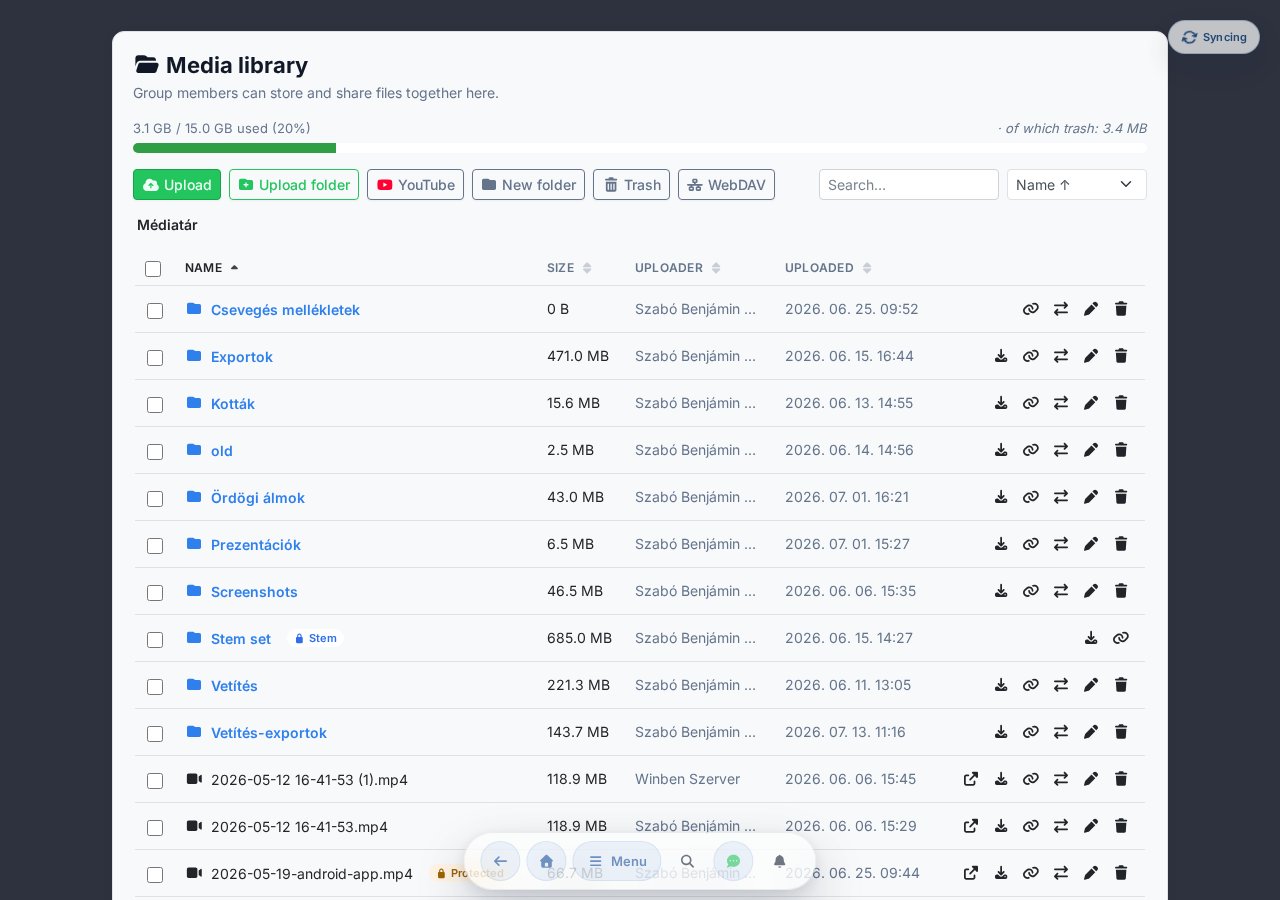
Storage quota
A bar at the top of the page shows your group's used vs. total storage (e.g. 920 MB / 10 GB). As you approach the limit you'll receive a warning; when it's full, no new uploads can start until you free up space (by deleting files or emptying the trash).
Uploading
- Drag and drop files — or an entire folder with its subdirectories — onto the page; the folder structure is preserved.
- Or use the Upload / Upload folder button to open the file or folder picker.
- Large files upload in chunks; a progress bar shows the status of each upload.
When you upload a video, a dialog asks about the storage quality: you set the video bitrate with a slider, and below it a live quality indicator and estimated file size are shown. The system converts the video into MP4 (H.264/AAC, max. 1080p) format — so it plays back reliably on every device. The conversion can be skipped (in which case the file is stored unchanged). If conversion happens, only the (smaller) converted file is stored and counts against the storage quota.
An uploaded file is available immediately, but in the background an automatic content-safety (NSFW/violence) check also runs on it afterwards — on top of the virus scan. If the check finds objectionable content, that file may be moved to quarantine (pending admin review), in which case it later disappears from the list. That's why a file you saw earlier may no longer be there.
Folders and browsing
Content can be organised into folders. Use the New folder button to create one; the breadcrumb trail at the top always shows where you are — click any parent folder to navigate back.
Search and sort
Use the Search field in the top-right to filter by name; use the sort dropdown to order the list by name, date (newest / oldest), or size.
File actions
Icons appear at the end of each file row:
- Open — opens a built-in preview page. Images, videos, and audio files can be viewed or played directly; other types can be opened in a new tab or downloaded.
- Download — saves the file to your device.
- Copy link — copies a shareable link to the clipboard (only members of the same group can open it).
- Move — moves the file or folder to another location (see below).
- Rename and Delete — available for your own uploads and for group admins.
Depending on your permissions, the icons only appear where you can actually use them: move and rename show up where you may modify the item, and delete where you may delete it. For bulk operations the system works "best-effort": it only acts on the items in your selection that you're allowed to touch, and a message at the end tells you how many of the items succeeded.
Move and bulk actions
Move a single file or folder using the Move icon at the end of its row. In the destination picker that opens, browse folders using the breadcrumb trail, and if needed create a new folder right there — then click "Move here: …" to complete the move. Links pointing to the file (e.g. a shared link or a projection background) remain valid after the move.
You can also work with multiple items at once: tick the checkboxes at the start of each row to select multiple files and folders; a bulk-action bar then appears at the top:
- Download as ZIP — selected items (folders including all their contents) packed into a single ZIP.
- Move — moves all selected items to a common destination folder.
- Delete — sends all selected items to the trash.
If a file is used elsewhere by the group — for example as the projection background or logo — a small badge appears in the list, and you'll see a warning before deleting so the projection doesn't accidentally lose its setting. (Moving is always safe: the reference is preserved.)
Files and folders that belong to the Stem player's audio tracks appear in the list with a separate Stem badge. These are managed by the stem editor, so they cannot be renamed, moved, or deleted from the Media Library — the action icons don't appear for them either.
Trash
Deleted files aren't gone immediately — they go to the Trash. The Trash button in the toolbar takes you to the shared Trash page (/kuka) — the same place as deleted songs and setlists — where you'll find the deleted uploads in a dedicated "Media Library files" section. From there they can be restored or permanently deleted: anyone can do so for their own uploads, and group admins for everyone's. Content in the trash continues to count against the storage quota until it's permanently removed (or its retention period expires).
WebDAV access (from a file manager)
You can also open the Media Library straight from a file manager — as if it were a network drive (macOS Finder, Windows Explorer, Cyberduck, rclone). The toolbar's WebDAV button opens a panel where you can:
- copy the WebDAV address (it points to your group's Media Library),
- create an access token (with any label you like) — this is the password for connecting; the username is your e-mail address,
- tick the "Read only" option if you only want to download,
- revoke tokens at any time, immediately cutting off any client using them.
A newly created token is shown only once, so copy it and save it into your client right away.
Operations done from a file manager modify the same shared Media Library, and the same rules apply: quota, malware scanning, trash and permissions. Locked files and folders (such as the audio tracks tied to the stem editor) are protected against changes and deletion over WebDAV too. Direct WebDAV upload is possible up to the size limit shown in the panel; upload larger files with the web Upload button.
The Media Library is separate for each group, and only group members can access it — shared links are likewise only openable by group members. The shared file store requires an internet connection: when offline, the page indicates that the Media Library is unavailable.
Common questions and minor issues
I can't see a new song in the library
- Check that you're in the right group.
- The library shows Favourites at the top by default; expand the full collection with the "Show N more songs from the full collection" button. If the Favourites filter chip in the filter bar is active, only favourites are shown — turn it off if you're looking for something else.
- Is the search box empty? It may have filtered the list.
Note naming is wrong (H/B)
Settings → General → Note naming — choose Hungarian (H) or Anglo-Saxon (B). The choice syncs across devices. (It can also be changed quickly from the Appearance modal on the song page, under the Chords section.)
The pedal isn't responding
- Check that the Bluetooth pedal is paired at the system level.
- In Settings → Features → Pedal / keyboard support, make sure the Enabled on song page toggle is on.
- Try the Custom profile — record the pedal's key code manually.
"Unsubmitted changes" message
Settings → Unsubmitted changes lists operations that failed to save due to a persistent error (conflict, permission issue, or invalid data). Try the [Retry] button, or [Discard] if the change is no longer relevant.
The app is loading slowly
- On the first render of the calendar there is an intentional 1.25-second delay (to speed up the initial boot) — this is normal.
- Try signing out and back in.
- On mobile, try clearing the browser cache.
- If the interface clearly looks outdated after an update (old buttons, broken layout), the browser is probably loading from the old PWA cache. In that case a hard refresh (Ctrl+Shift+R) usually fixes it.
What do the "Offline" bar / "Syncing…" indicators mean?
The red Offline bar in the header means there's currently no connection (the number of pending operations is shown next to it), while the blue Syncing… icon means your changes are being uploaded in the background. Neither one blocks you — feel free to keep working.
Most operations (notes, key, capo, drawings, setlist edits) are applied instantly even offline, and sync automatically once the connection is back. A separate warning modal only appears for operations that genuinely need a connection (for example, linking to a new group). If something still fails to save because of a persistent error, that's what the "Unsubmitted changes" message entry above is for. For more on offline storage, see Offline storage.
My own buttons in the member modal are disabled
This is intentional: you can't demote yourself from admin or remove yourself from the group. Another admin needs to do that.
Whose content is a song in Chords365?
Chords365 is a technical platform for managing your own musical content: songs, lyrics, chords, ChordPro files and sheet-music images are typically created, imported or uploaded by the users themselves and then shared within their own group. It is not a central, licensed sheet-music catalogue — the "full collection" is not our offering, it is your group's own material.
A few practical consequences:
- The entitlement is yours. Only upload or share content you are entitled to use.
- Presence is not a licence. The fact that a song is in Chords365 does not automatically grant you a licence to it — any permission needed for public performance, projection or reproduction (for example a CCLI or other collecting-society licence) has to be obtained by you or your group.
- We claim no ownership. Chords365 asserts no rights over uploaded works; copyright stays with its holders.
- There is no public catalogue. Uploaded content is available within your group; we do not publish it and do not distribute it to third parties.
Copyright complaint or takedown request
If you believe that content handled in Chords365 infringes your copyright or another right of yours, write to [email protected]. It helps if you include the title of the song or file and the link to it, a short description of the entitlement you are relying on, and your contact details. We investigate such reports within a reasonable time and, if we find them well-founded, we remove the content or restrict access to it. The detailed rules are in the Terms of Service.
Need more help?
Fastest route: the Bug Report button in the menu — it automatically attaches a screenshot of what you're seeing and your profile details; you just need to write one sentence about what happened.
Or: email us at [email protected] · status: uptime.