The same song, and yet everyone sees exactly what they need
Half past six, rehearsal is about to start. The singer keeps dragging the lyrics sideways, because the chords push the lines apart. The guitarist is looking for where the capo was set. The person running the projection is hunting for the media library in the menu. Same song, same app — except everyone would need something different from it.
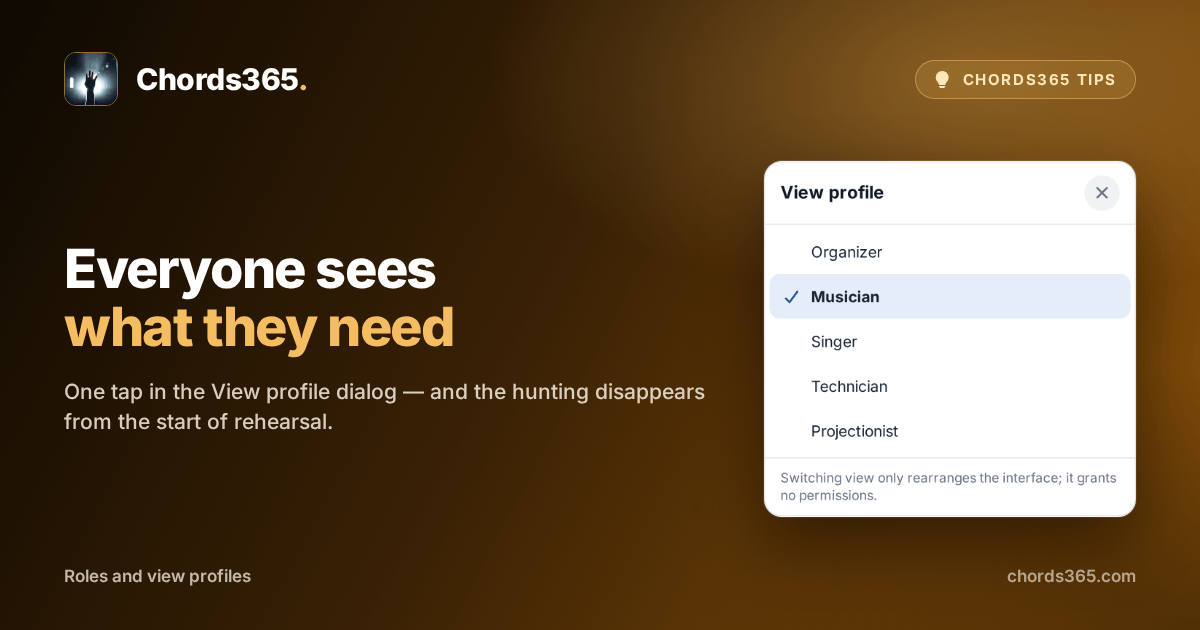
That is exactly what the view profile is for: a single choice brings forward what matters most for your role, and puts the rest aside. A singer, for example, gets the lyrics without chords, wrapped to the screen — so there is no sideways scrolling even on a narrow phone, while the section labels (Verse, Chorus, Bridge) stay where they belong.
Three taps and you are done:
- Open the Menu in the global header.
- Tap the View: … button.
- Pick the one that fits you: Organizer, Musician, Singer, Technician or Projectionist.
The choice is remembered per device, so you can be a Singer on your phone and a Projectionist on the rehearsal-room laptop — no need to set it again every time. Auto-scroll, the stem player and Music Director following work the same way in every view.
One thing is worth knowing: switching views only rearranges the interface, it grants no rights. Who may edit what inside the group is assigned by the group administrator as a role. And if that is how your team talks, the role names can be switched to the church variant — Worship leader, Vocalist, Sound engineer — while the permissions stay exactly the same.
Try it at the next rehearsal: ask everyone to set their own view once. It takes two minutes, and the hunting disappears from the start of the rehearsal. The details are in the Roles chapter of the manual.