Make the interface fit your screen
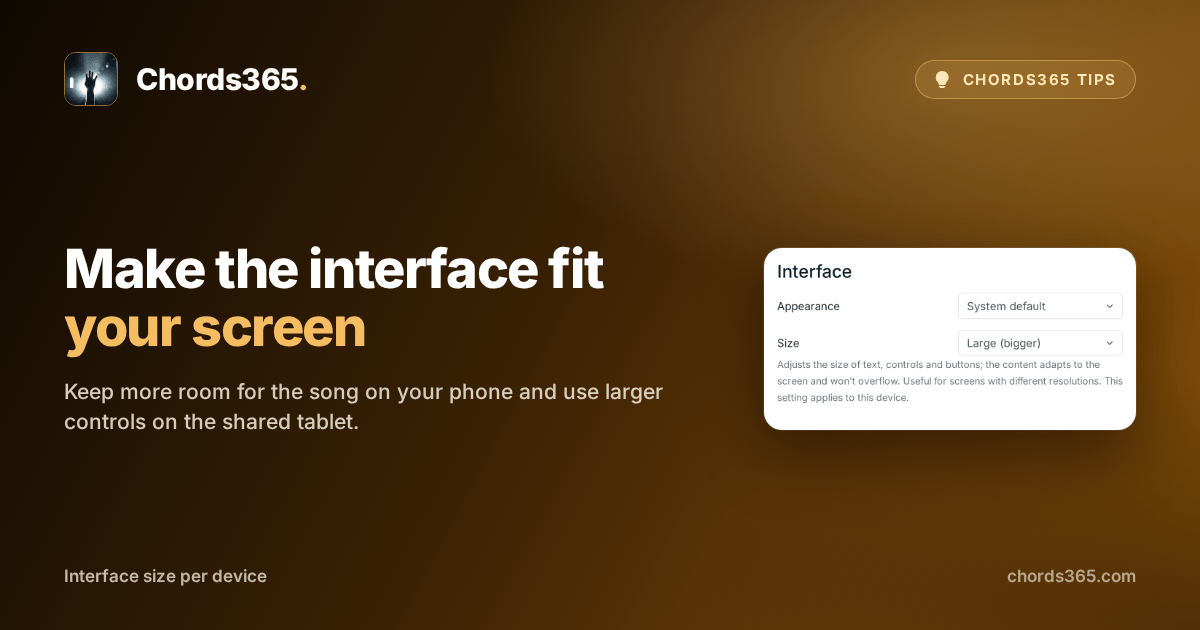
At the start of rehearsal everything fits on your phone, but when you open the same Chords365 on the tablet farther away in the room, the menu and controls suddenly feel too small. You do not want to zoom the song itself; you want the interface to be comfortable on the device in front of you.
Interface size adjusts the menu, buttons and controls to your screen. Choose Compact, Normal or Large; the content still wraps to the available space instead of becoming an oversized page that spills off-screen.
Three steps are enough:
- Open the Menu in the global header, then Settings.
- Choose the Display tab.
- Under Interface → Size, select Compact, Normal or Large.
The change takes effect immediately and stays on this device. Your phone can keep more room for the song while the rehearsal-room tablet gets easier-to-read controls.
Try it at the next rehearsal: set the shared tablet to Large, then see how much calmer it feels to handle songs and the menu. Find the details in the Settings chapter of the manual.